Invoices
Read supplier invoices, then send them to projects or accounting.
Part of Contract Management.
Found in your organisation. What's the difference?
Host organisations only; members with the Invoices permissions upload, send and push them.
Invoices is your organisation's inbox for supplier invoices. Invoices arrive by upload, by email or typed in by hand, and Teralo reads each file with AI. From the Inbox, you send each invoice to one or more projects as a direct cost, or approve it as a non-project bill and push it to Xero or QuickBooks.
Invoices opens only while the organisation is your active organisation.
In the organisation sidebar, under Commercial, select Invoices.
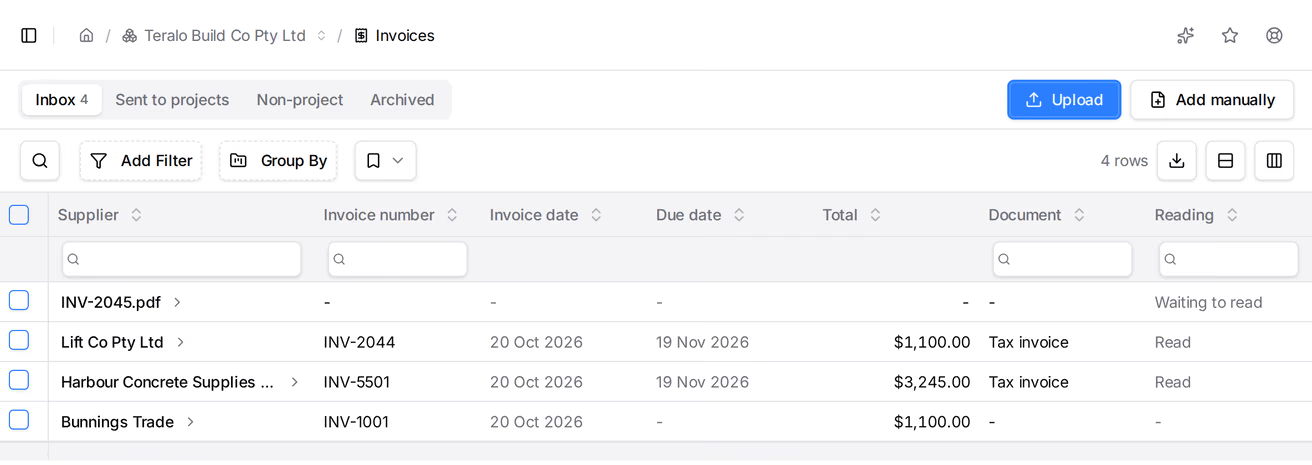
Invoices opens on a register with four tabs:
- Inbox: invoices waiting to be checked and sent. The tab shows how many there are. Its extra columns are Document, Reading and Returned.
- Sent to projects: invoices sent to one or more projects. The Projects column shows each project's share and where it has got to: Draft, In review (with who it's waiting on), Approved, In Xero or In QuickBooks, Part paid or Paid.
- Non-project: invoices that belong to no project. The Accounting column shows Not pushed, Push failed, or In Xero or In QuickBooks.
- Archived: invoices set aside, with the Reason for each.
Every tab also lists the Supplier, Invoice number, Invoice date, Due date, Total and the date Received. The search box finds an invoice by its supplier, ABN, invoice number or what was bought.
- Select Upload.
- Choose one or more PDF, PNG or JPEG files, up to 20 MB each.
You can also drop files anywhere on the register. Each file becomes its own invoice in the Inbox, and Teralo starts reading it. A file that is already in Invoices is skipped.
- Select Add manually. A blank invoice opens.
- Enter its details.
- Select Save.
An invoice added by hand has no file, so there is nothing for Teralo to read.
Once emailed invoices are turned on in the settings, your organisation has its own address. Suppliers, or your team forwarding their emails, send invoices to it.
- Each PDF, PNG or JPEG attached to an email becomes its own invoice in the Inbox, and Teralo reads it.
- An email with nothing Teralo can read lands as one invoice holding the email's text, with the warning "No invoice attached".
- The same email sent twice, or a file already in Invoices, is not filed again.
- Mail from a sender not on the Who can email in list goes to Archived with the reason "Sender not allowed", unread. Restoring the invoice reads it.
Teralo reads each uploaded or emailed file with AI in the background. It fills in every field that is still blank: the supplier, the invoice details, the totals and the lines. Nothing you have typed is overwritten. There is no setting to turn reading off. Learn more about privacy and training.
The Reading column shows Waiting to read, Reading, Read or Could not read. On the invoice, each field the AI filled is marked Read by AI, or Read by AI, check this where the AI was unsure. Editing a field removes its mark.
Reading uses AI credits. When a read fails, the invoice says why, for example "Out of AI credits, fill in by hand". Fill in the fields yourself, or select Read again.
The AI also decides what the file is. A statement, remittance advice, quote or other document that is not an invoice moves to Archived, with the reason. A credit note stays in the Inbox, labelled in the Document column.
- Select the invoice's supplier to open it. The file shows beside its fields.
- Check the Supplier, Invoice and Lines cards against the file. To check the supplier with the Australian Business Register, select Check ABN.
- Change any field, then select Save.
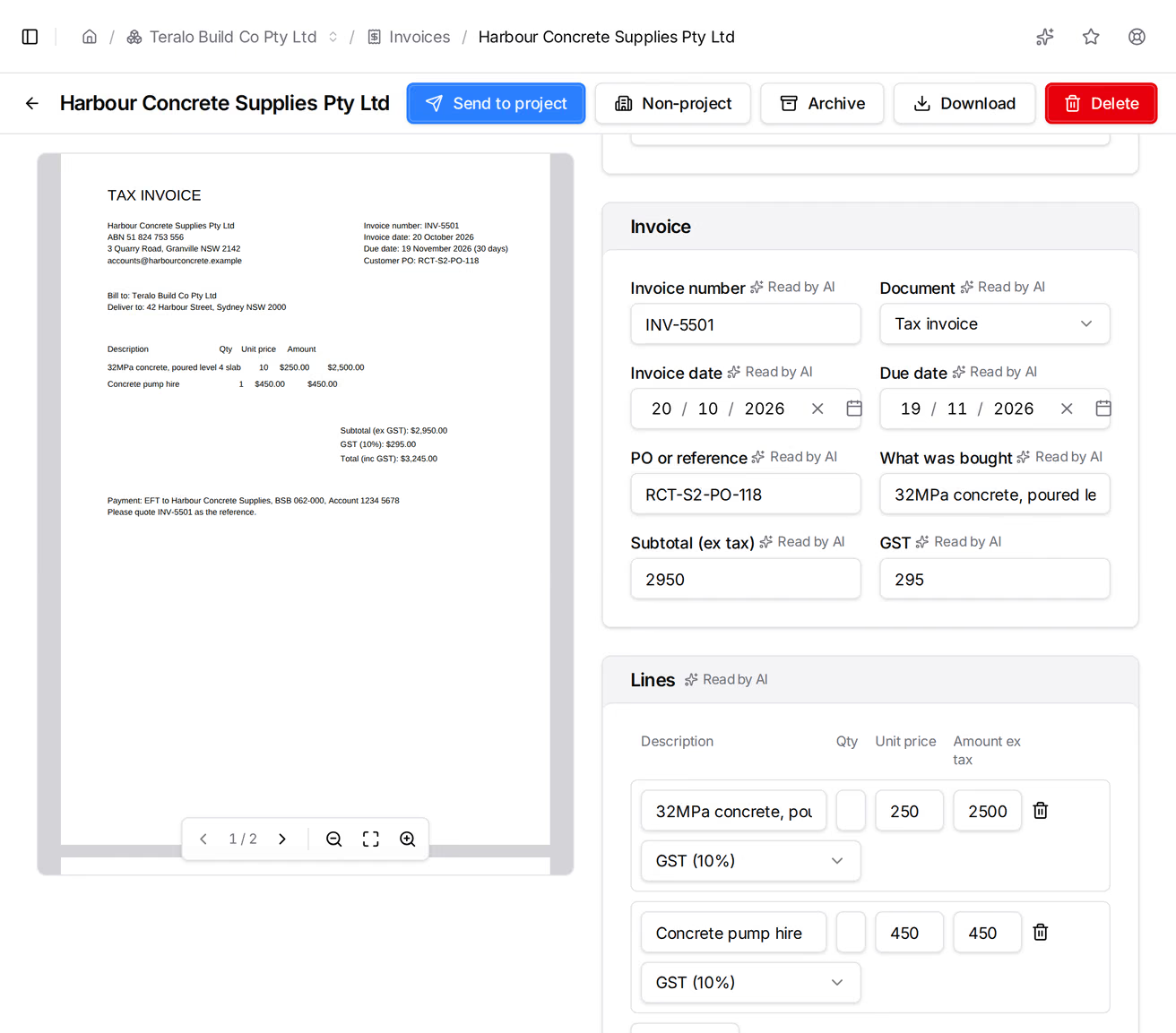
Document sets what the file is: Tax invoice, Invoice, Credit note, Statement, Remittance advice, Quote, Receipt or Not an invoice. Only a tax invoice, an invoice or a receipt can be sent to a project or pushed.
Where the AI read them, Read from the invoice shows the bill-to name, delivery address, payment terms, bank account and BPAY details printed on the file. They are for checking, and never go on a bill. The Activity Log at the foot of the page records each change.
Only an invoice in the Inbox or on Non-project can be edited. A sent, pushed or archived invoice is read-only.
Teralo checks each invoice and lists anything to look at under Check before this invoice goes any further:. A warning never stops you sending or pushing the invoice.
- Duplicates: another invoice in Invoices, or a direct cost on one of your projects, with the same ABN and invoice number. Select Open to see it.
- Changed bank details: the bank account or BPAY details differ from the supplier's last invoice that was sent to a project or pushed. Confirm them with the supplier, on a number you already hold, before paying.
- The supplier's ABN: check digits that don't add up, an ABN the Australian Business Register doesn't hold or lists as not active, or one registered to a different name.
- The amounts: a subtotal and GST that don't make the total, lines that don't make the subtotal, GST other than 10% of the subtotal, or a credit note with a positive total.
- Who it is billed to: an invoice billed to another organisation.
- The file: a file holding more than one invoice, or other documents as well.
- The email: a sender that failed the email checks (SPF, DKIM or DMARC), attachments that couldn't be read, or no invoice attached.
Editing a field clears the warnings raised about its old value.
Each project the invoice is sent to gets a direct cost at Draft, holding its share.
- Open the invoice in the Inbox. If you have changed anything, select Save first.
- Select Send to project.
- Choose the project. If the invoice points to a project, for example by its delivery address or a reference, the project is listed under Projects the invoice points to: select Pick beside it.
- Choose the Direct cost type. It starts on the type set in the settings, and decides the share's approval workflow. The type must be activated on the project.
- Select Send.
The invoice moves to Sent to projects. Each share is a direct cost at Draft, with the invoice's supplier details, dates, lines and file. People on the project with Can manage (edit, change status of) direct costs are emailed. Select a project under Sent to projects on the invoice to open its direct cost.
Teralo refuses to send until the lines or the Subtotal (ex tax) are entered and, with GST, come to the Invoice total (inc tax). With Xero or QuickBooks connected, the invoice number is needed too.
- In Send to Project, select Split with another project, then choose the project. Repeat for each project, up to 20.
- Choose By percent or By amount ex tax.
- Enter each project's share. Percentages must add up to 100, and amounts to the invoice's total ex tax.
- Choose the Direct cost type, then select Send.
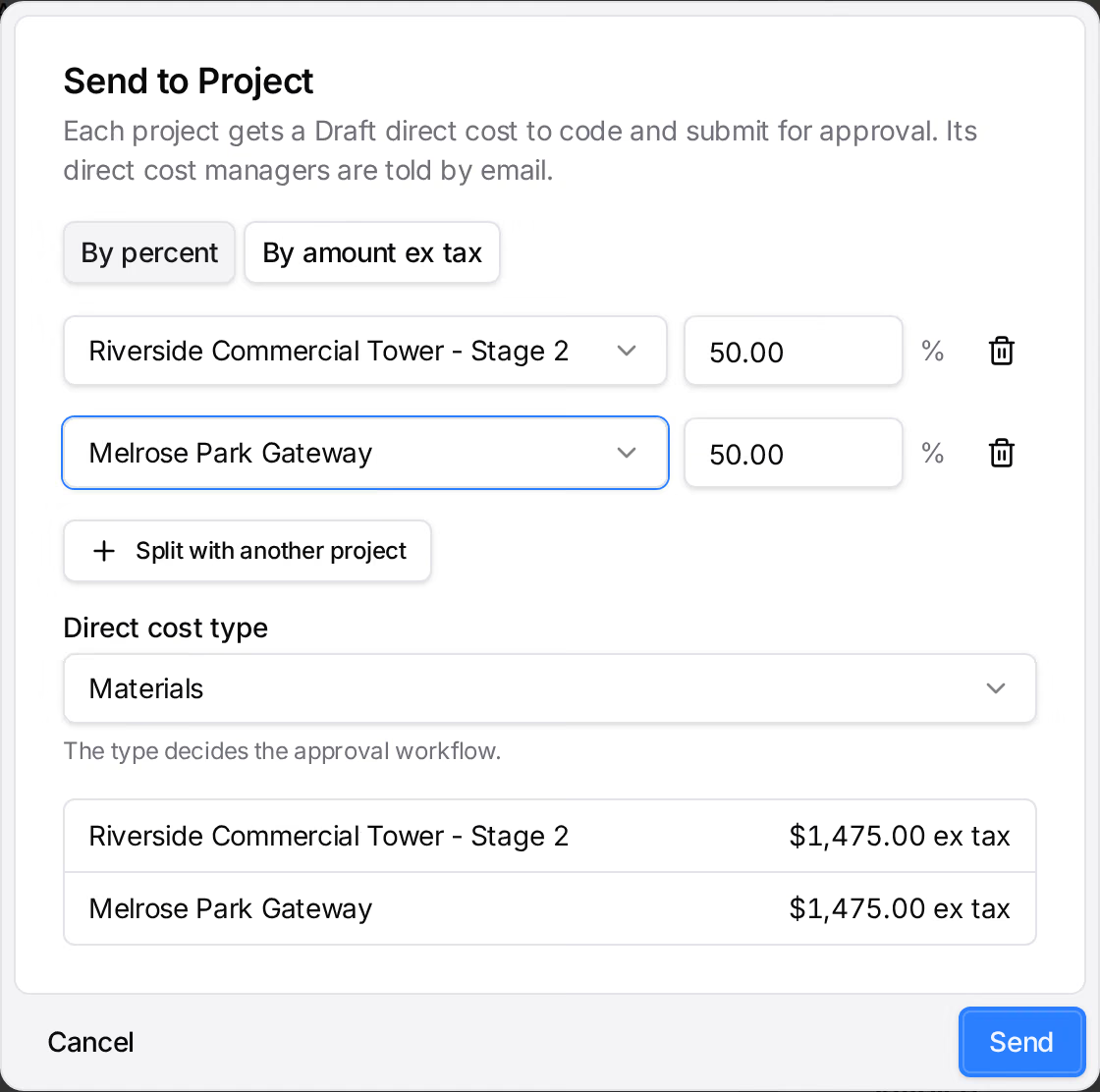
Each line is split between the projects in proportion. Each share's invoice number gets its place in the split, such as INV-123 (1/2). GST is worked out on each share, so rounding can leave the shares a cent or more away from the invoice. When it does, Teralo refuses the split and suggests amounts ex tax that add up.
- Open the invoice on Sent to projects.
- Select Recall, then Recall to confirm.
Each project's direct cost is deleted, and the invoice goes back to the Inbox. Recall is available only while every share is still at Draft.
A project can send its share back while the direct cost is at Draft and has not been submitted for approval.
- On the project, open the direct cost.
- Select Return to accounts.
- Enter the Reason, then select Return.
The direct cost is deleted. The project and the reason show on the invoice and in the Returned column. Once every project's share has come back, the invoice moves to the Inbox. Until then it stays on Sent to projects. Deleting the direct cost on the project does the same, with the reason "Deleted on the project".
An invoice that belongs to no project goes to Xero or QuickBooks as a bill. Learn more about connecting Xero or QuickBooks.
- Open the invoice in the Inbox, then select Non-project.
- Choose the Supplier in accounting.
- Optionally, choose an Account for each line. A line left on Default account uses the account in the settings.
- Select Save.
- Select Approve and push, then Approve and push to confirm.
Teralo sends the bill with the invoice's file attached, and Xero receives it as a draft. The invoice becomes read-only, and the Accounting column reads In Xero or In QuickBooks.
If something is missing, such as the supplier in accounting or the invoice number, Teralo lists it under Before this bill can be pushed:, with a Fix link where there is one. If the push fails, the reason shows on the invoice; select Approve and push again. To move an invoice back before it is pushed, select Back to Inbox.
Warning: Voiding reverses the bill in Xero or QuickBooks, and can't be undone from Teralo.
- Open the pushed invoice on Non-project.
- Select Void in Xero & Unlock or Void in QuickBooks & Unlock.
- Select Void & Unlock to confirm.
The invoice can be edited and pushed again. If the accounting software refuses the void, for example because a payment is applied, the invoice stays pushed.
To archive an invoice:
- Open the invoice and select Archive. To archive several, tick them on the Inbox or Non-project tab, then select Archive.
- Choose Duplicate, Statement, Quote or Not an invoice, or enter your own Reason.
- Select Archive.
A sent or pushed invoice cannot be archived. An archived invoice is read-only.
To restore one, open it and select Restore, or tick invoices on the Archived tab and select Restore. A restored invoice goes back to the Inbox.
Warning: Deleting an invoice also deletes its file, and is permanent.
- Open the invoice and select Delete. To delete several, tick them on any tab except Sent to projects, then select Delete.
- Confirm with Delete, or Delete Invoices for several.
A sent invoice cannot be deleted until it is recalled, and a pushed invoice cannot be deleted at all.
In the organisation sidebar, under Organisation Settings, select Tools, then Invoices. Change any of the four cards, then select Save. Invoices has no approval workflow of its own.
The Direct cost type each share takes, unless you choose another when sending. The type's approval workflow decides who approves the share. A type with no workflow shows "(no workflow)" after its name.
The Default account a non-project bill's lines are coded to, unless a line names another. The default expense account uses the Default Expense Account mapped on the Accounting page. The select appears once Xero or QuickBooks is connected.
- Turn on Accept emailed invoices.
- Select Save. The Address appears, with a button to copy it.
To stop taking emailed invoices, turn Accept emailed invoices off and save. Mail sent to the address is then dropped.
To replace the address, select Change address, then Change address to confirm. The old address stops working at once, so give suppliers the new one.
The senders whose mail goes to the Inbox. Enter an email address, or @ and a domain for anyone there, then select Add. Mail from anyone else goes to Archived. Leave the list empty to accept anyone with the address.
| Permission | Allows |
|---|---|
| Can view supplier invoices in the invoices inbox | Opening Invoices and every invoice in it, and seeing where each project's share has got to |
| Can upload, edit, archive and send invoices to projects | Uploading and adding invoices, editing them, moving them to Non-project, and sending, recalling, archiving and restoring them |
| Can approve non-project invoices and push them to the accounting software | Approve and push, and voiding a pushed bill |
| Can delete invoices | Deleting invoices |
They are organisation permissions, in the Invoices and Approve non-project invoices rows of your organisation's permission templates. Organisation administrators hold all four. All four are host only.
Changing the settings needs Can manage organisation tools. Returning a direct cost to accounts needs Can manage (edit, change status of) direct costs on the project. Learn more about how permissions work.