Direct costs
Record costs outside a contract and get them approved.
Part of Contract Management.
Found in each project. What's the difference?
Only the host records direct costs; guests never see them.
Direct costs holds a project's costs that have no contract behind them, such as supplier invoices, receipts, plant hire and payroll. Each line counts in the budget against its budget code, and an approved cost can be sent to Xero or QuickBooks as a bill.
Direct costs are on a tab of the project's Contracts. In the project sidebar, under Contract Management, select Contracts, then Direct Costs. Only host staff see the tab.
Each row is one direct cost, with the columns Description, Type, Vendor, Paid Date, Status, Payment, Total, Created By and Created. The register is grouped by type, and each group shows its total. Total is the cost's lines before tax.
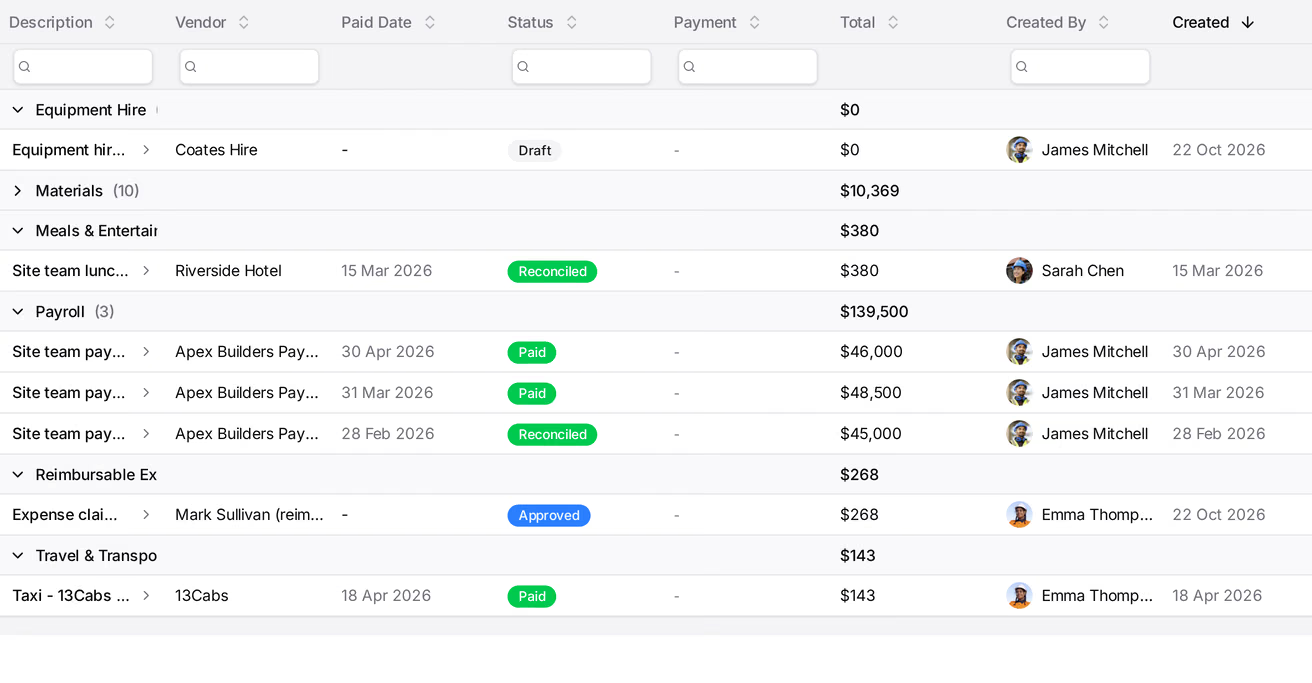
Search the register by description, vendor, type or status. To open a cost, select its description, or select Open in its three-dot menu.
The default statuses are Draft, In review, Approved, Paid, Reconciled and Voided. A cost in a terminal status, Reconciled or Voided by default, is locked and shows Locked. Voided costs don't count in the budget.
- On the Direct Costs tab, select Create Direct Cost.
- Optionally, under Upload Invoice / Receipt, select Choose file and choose the supplier's invoice, receipt or purchase order, as a PDF, PNG or JPEG of up to 20 MB. Teralo reads it, fills in the form and attaches the file.
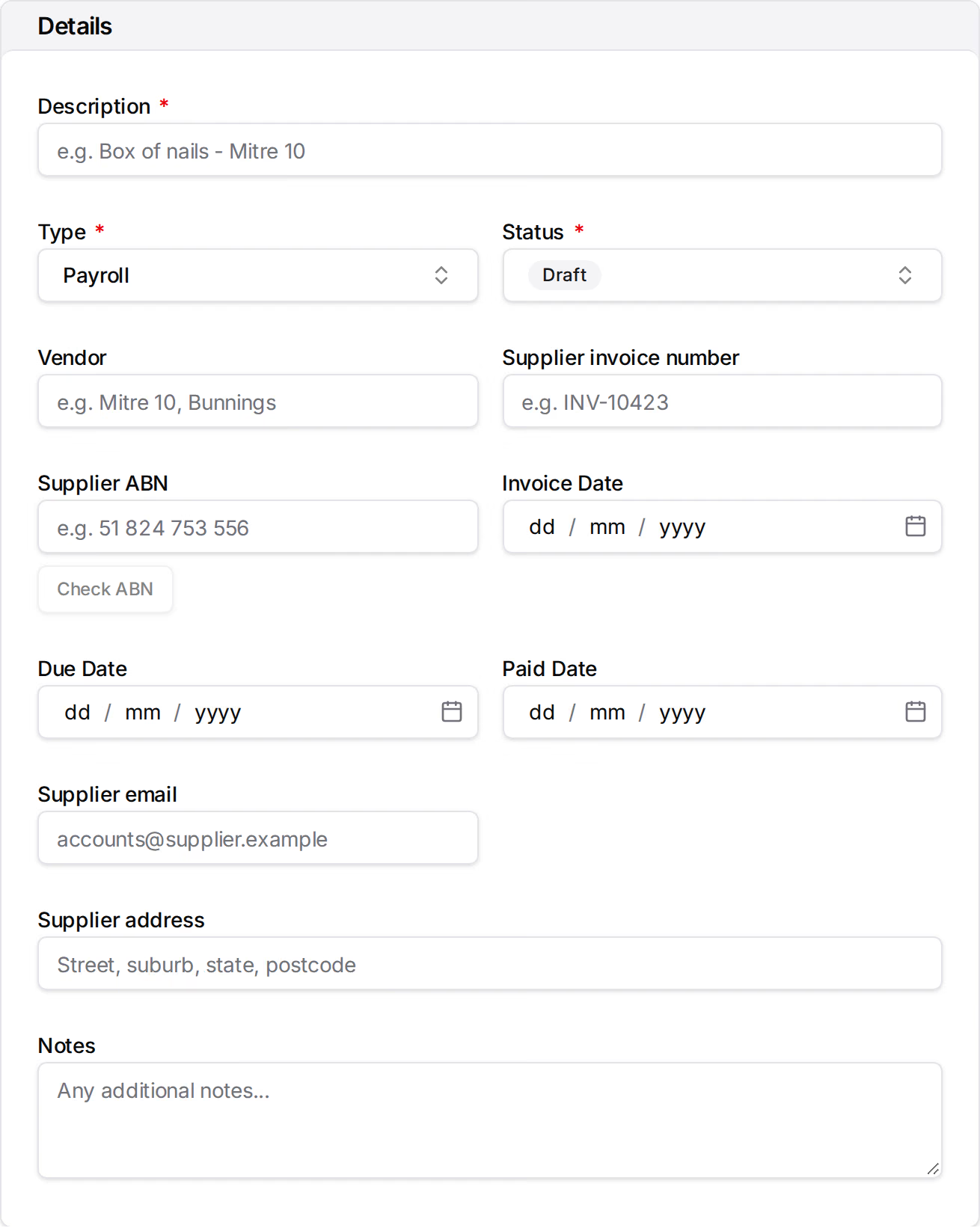
- Enter the Description and choose the Type.
- Choose the Status. If the type has an approval workflow, the status is fixed at Draft.
- Enter the Vendor. With Xero or QuickBooks connected, choose the supplier's contact under Accounting vendor instead, unless the type is excluded from accounting export.
- Enter the Supplier invoice number, Supplier ABN, Invoice Date and Due Date, and the Paid Date once it is paid.
- Optionally, enter the Supplier email, Supplier address and Notes.
- Optionally, under Attachments, select Add attachment to attach documents, photos or mail from the project.
- Under Schedule of Values, use the icons on the toolbar to add a line for each part of the cost, with its description, budget code and amount.
- Enter the Invoice total (inc tax) as printed on the invoice.
- Select Create Direct Cost.
Reading a file uses AI credits. The lines it reads have no budget code, so add one to each.
Beside the invoice total, Teralo shows Matches the lines, or how far the lines are over or under it. To look up the supplier, select Check ABN under Supplier ABN: Teralo shows who the ABN is registered to and whether that matches the supplier's name.
The Accounting vendor picker preselects a contact whose ABN or name matches the supplier. If the supplier isn't listed, someone who can configure the accounting integration can create the contact from the picker.
- On the Direct Costs tab, select Bulk Upload.
- Drop up to 50 invoices, receipts or purchase orders (PDF, PNG or JPEG) on the page, or select browse to choose them.
- Select Extract All. Teralo reads each file.
- Check each file's Description, Vendor, Supplier invoice number, Invoice total (inc tax), Tax %, Invoice Date and Notes, and correct any that are wrong.
- Select Create All.
Retry Failed tries again on the files that couldn't be read or saved. Each file read uses AI credits.
Each new cost takes a default type and starting status, has no accounting vendor, and has lines with no budget code. Open each one and select Edit to set its type and budget codes before you submit it.
A supplier invoice can be sent to a project from the organisation's Invoices tool, with Send to project. It arrives as a Draft direct cost of the Direct cost type chosen there, with its lines, a copy of the invoice file and its invoice total. People on the project with Can manage (edit, change status of) direct costs get an email. Learn more about invoices.
While a cost sent from Invoices is a Draft that hasn't been submitted or sent to accounting, anyone with Can manage (edit, change status of) direct costs can send it back:
- On the direct cost, select Return to accounts.
- Enter the Reason.
- Select Return.
Teralo deletes the draft, and the invoice goes back to Invoices with your reason.
- Open the direct cost and select Edit.
- Make your changes.
- Select Save Changes.
Editing needs Can manage (edit, change status of) direct costs. The person who submitted a rejected cost can also fix it while its revise task is theirs.
Under an approval workflow, only approval sets a cost to Approved. Its other statuses can still be chosen here. What can change depends on where the cost is:
- In review: nothing, until it is withdrawn or decided.
- Approved under a workflow: only its status, Paid Date and Notes, until it is reopened.
- Posted to Xero or QuickBooks: its lines, type, vendor and amounts are locked until the bill is voided.
- In a terminal status: nothing.
To add a file, select Add on the cost's Attachments card. The Activity Log lists the cost's status changes, edits and exports, with who made them and when.
- Open the direct cost.
- Select Submit for approval.
Teralo starts the approval workflow bound to the cost's type. With the default workflow, the cost moves to In review and is locked.
Submit is refused until:
- the cost has at least one line, every line has a budget code, and each code has a row in the budget, where the budget has rows;
- unless the type is excluded from accounting export, the lines add up to the Invoice total (inc tax), where one is entered;
- with Xero or QuickBooks connected, unless the type is excluded, the cost has a Supplier invoice number. QuickBooks takes at most 21 characters.
The reviewer on the current workflow step selects Approve, or Reject with a note. Costs waiting for you are listed in My Items.
With the default workflow, a rejected cost returns to Draft with a Revise direct cost task for the person who submitted it. They select Edit to fix the cost, then Complete on the task to resubmit it.
On a cost that is In review, or back with its submitter after a rejection, select Withdraw, then Withdraw again to confirm. Teralo stops the workflow and returns the cost to Draft, to change and submit again.
The submitter can withdraw a cost, and so can anyone with Can manage (edit, change status of) direct costs.
When a direct cost is approved:
- it moves to the status marked Triggers Accounting Export, Approved by default;
- with Xero or QuickBooks connected, Teralo sends its bill, with the cost's files attached, unless the type is excluded from accounting export;
- its lines and supplier details lock. Its status, Paid Date and Notes can still change.
If the bill cannot be sent, the cost lists what is missing, with a Fix link where there is one. Fix each one, then select Push now.
Select Reopen, then Reopen again to confirm. If the bill was sent, Teralo voids it first. The cost returns to Draft, to change and submit again. If the bill cannot be voided, the cost stays approved.
A cost in a terminal status cannot be reopened.
The cost's Accounting card shows its Accounting vendor and Export status:
- Posted to Xero or Posted to QuickBooks, with the bill number and the date it was sent. View in Xero or View in QuickBooks opens the bill.
- Export failed, with the error.
- Skipped, with the reason, such as No accounting vendor selected.
- Not yet posted.
A cost whose type is excluded from accounting export says so on the card, and never sends a bill. Learn more about connecting Xero or QuickBooks.
On the Accounting card, select Push now to send the bill straight away, or Retry export after an export fails. Under an approval workflow, a cost can be pushed only once it is approved. If something is missing, Teralo names it.
Warning: Voiding reverses the bill in Xero or QuickBooks, and can't be undone from Teralo.
- On the Accounting card, select Void in Xero & Unlock, or Void in QuickBooks & Unlock.
- Select Void & Unlock.
Teralo reverses the bill and unlocks the cost's lines, vendor and amounts.
If you've already reversed the bill in Xero or QuickBooks yourself, an organisation administrator can select Force Unlock instead. Teralo clears the lock, leaves the bill as it is, and records who did it in the Activity Log.
Once a bill is posted, Teralo checks Xero or QuickBooks for payments against it every 15 minutes. Payments are listed under Payments on the Accounting card, marked Paid or Partial, and show in the register's Payment column. To check straight away, select Sync payments.
A synced payment doesn't change the cost's status or Paid Date. Enter the Paid Date with Edit: it places the cost in cashflow.
Warning: Deleting a direct cost is permanent, and deletes its lines and uploaded files.
- On the direct cost, select Delete, or open its three-dot menu on the register and select Delete.
- Confirm the deletion.
A cost posted to Xero or QuickBooks can't be deleted from the register. On the cost, select Delete, then Void in Xero & Delete or Void in QuickBooks & Delete to reverse the bill and delete the cost. An organisation administrator can select Force Delete instead, which deletes the cost and its activity log and leaves the bill as it is.
An organisation set up before direct cost approval was added has no direct cost workflow and no In review status, and none of its direct cost types has a workflow bound. Its costs move through their statuses by hand:
- When you create a cost, you can choose any Status.
- A Draft cost shows No workflow bound to this type, and Submit for approval is refused.
- To change the status, select Edit, choose the Status, and select Save Changes.
- Moving a cost to the status marked Triggers Accounting Export sends its bill. If the bill would fail, Teralo lists what is missing first: fix it, or select Save anyway.
- Push now sends the bill at any status.

A cost moved past Draft this way shows Recorded without an approval run.
To add approval:
- On the organisation's Direct Cost Workflows tab, select Add Workflow, and build the workflow.
- On Direct Cost Types, edit each type and choose the workflow as its Approval workflow.
A workflow's status steps can set only statuses the organisation has, so add an In review status on Direct Cost Statuses first if you want one.
Direct cost types, statuses and workflows are set up at organisation level. In the organisation sidebar, under Organisation Settings, select Tools, then Contracts:
- Direct Cost Types, under Types & Statuses: each type's Name, Description, Exclude from Accounting Export and Approval workflow. A type cannot be added or saved without a workflow.
- Direct Cost Statuses, under Types & Statuses: each status's Name, Description and Badge Style, and its Terminal, Exclude from Budget and Triggers Accounting Export settings.
- Direct Cost Workflows, under Workflows: the workflows a type can choose.
A Terminal status makes a cost read-only. A status marked Exclude from Budget keeps its costs out of the budget's Direct Costs column. A type marked Exclude from Accounting Export never sends a bill, and its costs take a plain Vendor.
On a project, in the project sidebar, under Project Settings, select Tools, then Contracts. The same tabs use Activate switches to turn the organisation's types and statuses on for the project, and hold the project's own. Direct costs cannot be created until the project has at least one type and one status.
Changing these needs Can manage organisation tools, or Can manage project tools on a project. Learn more about organisation level and project level.
| Permission | Allows |
|---|---|
| Can view direct costs | Seeing the Direct Costs tab and opening costs |
| Can create direct costs | Creating direct costs, one at a time or in bulk, and submitting them for approval |
| Can manage (edit, change status of) direct costs | Editing costs and their status, withdrawing and reopening them, pushing and voiding bills, and returning costs to Invoices |
| Can delete direct costs | Deleting direct costs |
| Can approve direct costs | Approving and rejecting direct costs on an assigned step |
All five are host only: a guest granted one still can't see direct costs. The person who submitted a cost can withdraw it without them, and with Can create direct costs can fix it while its revise task is theirs. Force Unlock and Force Delete need an organisation administrator. Learn more about how permissions work.
Each direct cost type names the workflow its costs run, as its Approval workflow. The run starts when a cost is submitted. Learn more about binding a workflow to a tool.
The default templates are:
- Direct cost approval: sets the cost to In review, then one review step with Approve and Reject. A rejected cost goes back to Draft with a Revise direct cost task for its submitter. A new organisation's types are bound to it.
- Direct cost auto-approve (no review): approves a cost as soon as it is submitted, and sends the bill.
Only a workflow's approval sets the status marked Triggers Accounting Export, never a status step in the workflow.
To act on a review step, a reviewer must be assigned to it and hold Can approve direct costs. The revise task needs Can create direct costs. Learn more about assigning approvers.