Cashflow
See money due in and out, month by month.
Part of Contract Management.
Found in your organisation. What's the difference?
Host organisations only; members see the projects their cashflow permission covers.
Cashflow forecasts revenue and cost month by month. It spreads the value of each contract line across the months of the program task it is assigned to, and places approved and submitted claims and paid direct costs in the months they belong to. Cashflow is available to host organisations, for one project or for every project the organisation hosts.
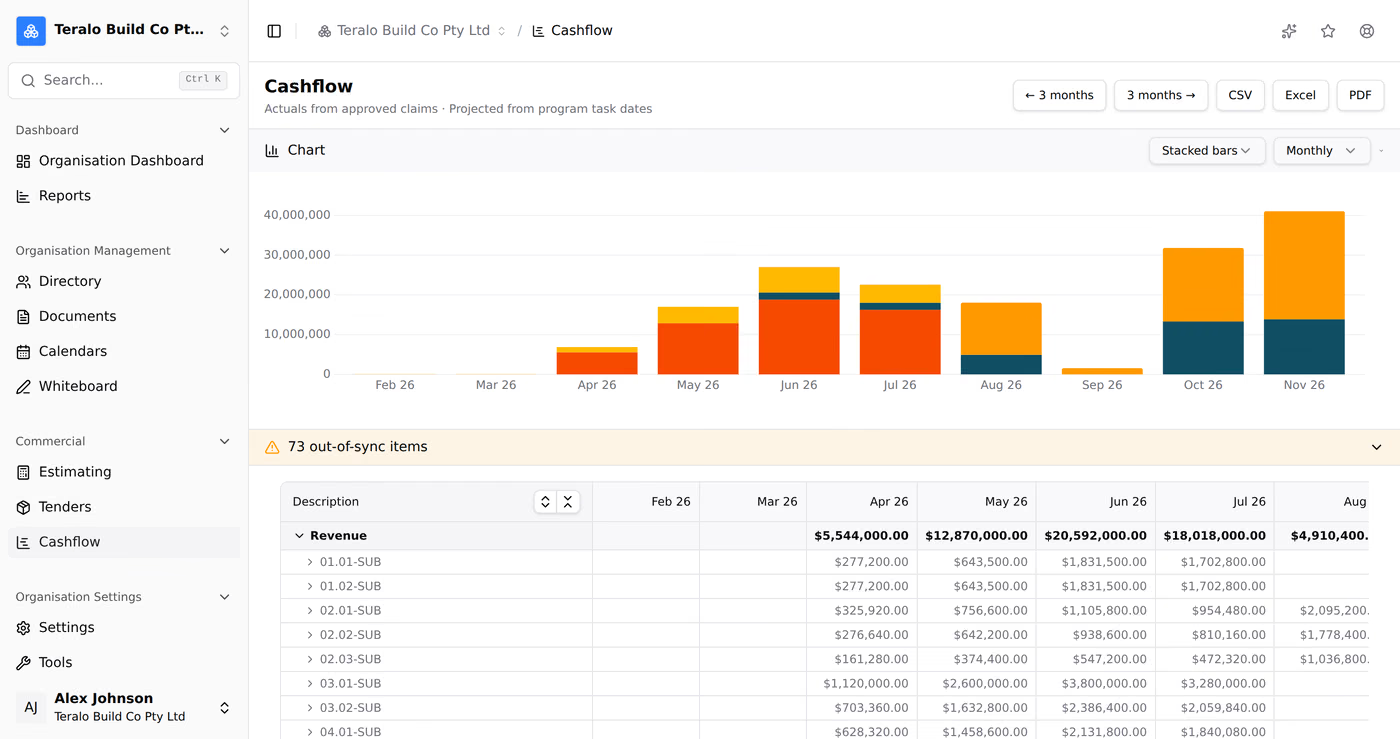
- For every project: in the organisation sidebar, under Commercial, select Cashflow.
- For one project: in the project sidebar, under Resource Management, select Program, then the Cashflow tab.
A project's Cashflow tab has three tabs of its own: Table, Chart and Out of Sync.
Cashflow places a contract line in time only once the line is assigned to a task on an advanced program. Basic programs have no cashflow.

- On the program, open the task. Double-click its row or its bar, or select its Revenue or Cost cell.
- In Task Information, select the Cashflow tab.
- Expand Revenue, Contracted Cost or Forecast to Complete, then expand a contract or a budget code.
- Tick each item the task delivers.
Teralo saves each tick straight away; Save Changes isn't needed. To remove an assignment, untick the item. There is no confirmation.
An item can be assigned to more than one task. Its value is then split between the tasks in proportion to their durations, and the item shows which other tasks it is on.
Once an item is ticked, a select beside its amount sets how its value is spread across the task's months:
- Linear: an equal share in each calendar month from the task's start to its finish. This is the default.
- Back-loaded: the whole value in the task's finish month.
- S-Curve: smaller shares at the start and end of the task, larger ones in the middle.
The change saves straight away, and shows on the cashflow page the next time it loads.
The table groups rows under Revenue and Cost, then by budget code. Below them, Difference gives revenue less cost for each month, and Running Balance gives the cumulative difference.
- Contract lines: every item on the schedule of values of each of the project's contracts, whatever the contract's status. Lines on revenue contracts go under Revenue, and lines on every other contract under Cost. Variations are not included.
- Direct costs: under Cost, only direct costs with a Paid Date whose status is not set to be excluded from the budget. Each one is placed in the month of its paid date.
- Forecast to Complete: under Cost, from the budget. A budget code with a manual forecast offers each of its forecast lines. A code on the automatic forecast offers one item, marked auto, for its whole forecast to complete.
Each month cell on a line holds up to three amounts:
- Actual: approved progress claims, at the assessed amount where a line was assessed and the claimed amount where it was not, with no retention taken off. A claim is placed in the month its claim period starts. Paid direct costs are actual too.
- Pending: submitted claims that are not yet approved or rejected, placed the same way.
- Projected: the line's value less its approved claims, spread across every month of its task by the distribution method.
Forecast to Complete rows are projected only. A line assigned to no task shows Unscheduled, with its actual and pending amounts and nothing projected.
A contract line is overdue when its task's finish date has passed and the line has no approved claim. Teralo moves its projected value into the current month and flags it Overdue - no approved claim. A line with any approved claim is never overdue.
Today's date, and so the current month, is worked out in the project's time zone.
Teralo flags contract lines assigned to a task where the claims and the task's dates don't line up:
- Claimed ahead of schedule: an approved claim's period starts in a month after the task's finish.
- Claimed behind schedule: an approved claim's period starts in a month before the task's start.
- Partially claimed: the line has approved claims, but they total less than its value.
- Overdue - no approved claim: see above.
On the organisation page, flagged lines are listed in the out-of-sync panel above the table. On a project, they are on the Out of Sync tab. A flag clears only when the claims or the dates change.
The organisation page covers the projects your organisation hosts that aren't archived. A project where you don't hold the view permission is left out, so two people can see different totals. Projects your organisation is a guest on are never included.
- Filter by project: select one or more project chips, or Clear. The chips appear when there is more than one project.
- Move the months: select the 3 months buttons either side of the range.
- Open the chart: select Chart. The chart is closed when the page loads.

The chart draws revenue and cost as actual, pending and projected series. Above it, two selects set what it shows:
- the chart type: Stacked bars, Grouped bars or Line;
- the mode: Monthly amounts or Cumulative (S-curve).
The cumulative mode always draws lines, whatever the chart type.
- On the organisation page: select CSV, Excel or PDF.
- On a project: on the Table tab, select Export, then CSV, Excel or PDF.
Each month in the export is the line's actual, pending and projected amounts added together.
Cashflow has no settings of its own. What it shows is set where each record lives:
- Task dates: on the program task.
- Assignments and distribution methods: on the task's Cashflow tab.
- The project's time zone: in the project sidebar, under Project Settings, select Address.
- Paid dates and excluded statuses: on the direct cost, and in its status settings.
- Forecast to complete: on the budget code, in manual or automatic mode.
| Permission | Allows |
|---|---|
| Can view project cashflow page | Opening a project's Cashflow tab, and seeing that project on the organisation page |
| Can assign SoV items to program tasks for cashflow | Assigning and removing items on a task's Cashflow tab and setting the distribution method, as well as viewing |
Both are project permissions, listed under Resource Management as Cashflow. Both are host only: a guest granted either still can't open cashflow. Learn more about how permissions work.