Contracts
Track each contract, its value and everything linked to it.
Part of Contract Management.
Found in each project. What's the difference?
Hosts create and edit contracts; guests see only the ones their company is party to.
Contracts holds a project's contracts. Each contract is between the host organisation and one contracted organisation, and carries its schedule of values, progress claims, variations, payments and documents.
In the project sidebar, under Contract Management, select Contracts. The register has four tabs:
- Cost Contracts and Revenue Contracts: the project's contracts of each classification, grouped by contract type. Cost Contracts opens first.
- Direct Costs and Budget: seen only by host staff. Learn more about the contract budget.
The columns are Contract Number, Contract Name, Contract Type, Contract Status, Contracted Company, Total Schedule of Values, Approved, Progress and Claims. Select a contract number to open the contract. The register works like every other register.
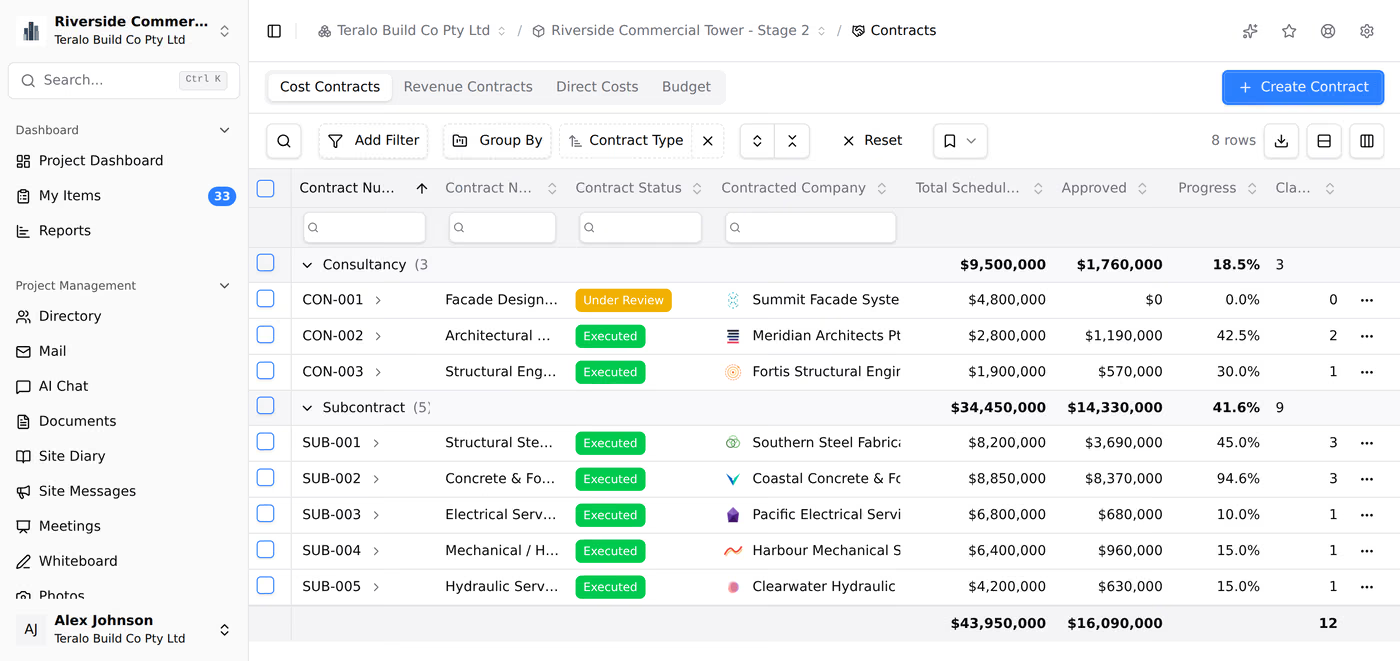
- On the register, select Create Contract.
- Under Contract Overview, enter the Contract Title, then choose the Contract Type, Contract Status, Contracted Organisation and Contract Classification.
- Under Contract Contacts, add at least one person from the contracted organisation.
- Fill in the other sections as needed. They are described under The contract form, below.
- Under Schedule of Values, add the contract's sections and items.
- Select Save Contract. If an execution workflow is chosen under Approval Workflows, the button reads Submit Approval Workflow and starts the approval.
Teralo numbers the contract with its type's prefix and eight random characters, for example SC-K3J9X2QA. To change the number, edit Contract Number on the contract's Settings tab.
The contracted organisation must be on the project. If none of its people are, add them in the Directory first.
A contract can also start from a procurement package: Copy to Contract Register opens this form filled in from the awarded package. The awarded amount becomes one schedule line with no budget code. Learn more about contract execution and e-sign.
If the project has no contract types or statuses yet, Create Contract shows a setup screen instead. Select Activate for Project to use your organisation's, or Create Defaults.
The create form and the contract's Settings tab share these sections. After a contract is created, its schedule of values and attachments are on the Contract Details tab.
- Contract Title, Description and Notes.
- Contract Type, Contract Status and Contracted Organisation.
- Contract Contacts: the people from the contracted organisation named on the contract. At least one is required.
- Contract Classification: Cost Contract, for money out, or Revenue Contract, for money in. Only cost contracts count in the budget. The payments tab reads Payments Issued on a cost contract and Payments Received on a revenue one.
- Progress Claim Frequency: Weekly, Fortnightly or Monthly.
- Warranty Period (Months), Payment Terms (Days) and Payment Terms Notes.
Start Date, Execution Date, Estimated Completion Date and Actual Completion Date.
The retention basis and release terms, which start from your organisation's retention defaults. Learn more about retention on progress claims.
The statement printed on the cover page of each progress claim PDF. Under Statement Source, choose:
- Project default, the default;
- Organisation default; or
- Custom, up to 2,000 characters. Buttons fill in the wording for NSW - SOPA 1999, VIC - SOP 2002, QLD - BIF 2017 or NZ - CCA 2002.
A claim keeps the statement that applied when it was submitted.
- Restrict visibility: only the named contacts from the contracted organisation can see the contract. Everyone at the host still can.
- Cross-organisation access: on by default. Turned off, the contracted organisation can't submit claims or variations, add attachments, comment, or request retention release. It can still see the contract.
Allow claiming on unapproved variations. Learn more about variations.
The documents the contracted organisation provides with its claims. Add a document type from the buttons below the table. A claim can't be submitted until every required document is attached, or approved until each one is verified.
The contract's three workflows: Progress Claim Workflow, Contract Execution Workflow and Variation Workflow. Learn more under Workflows, below.
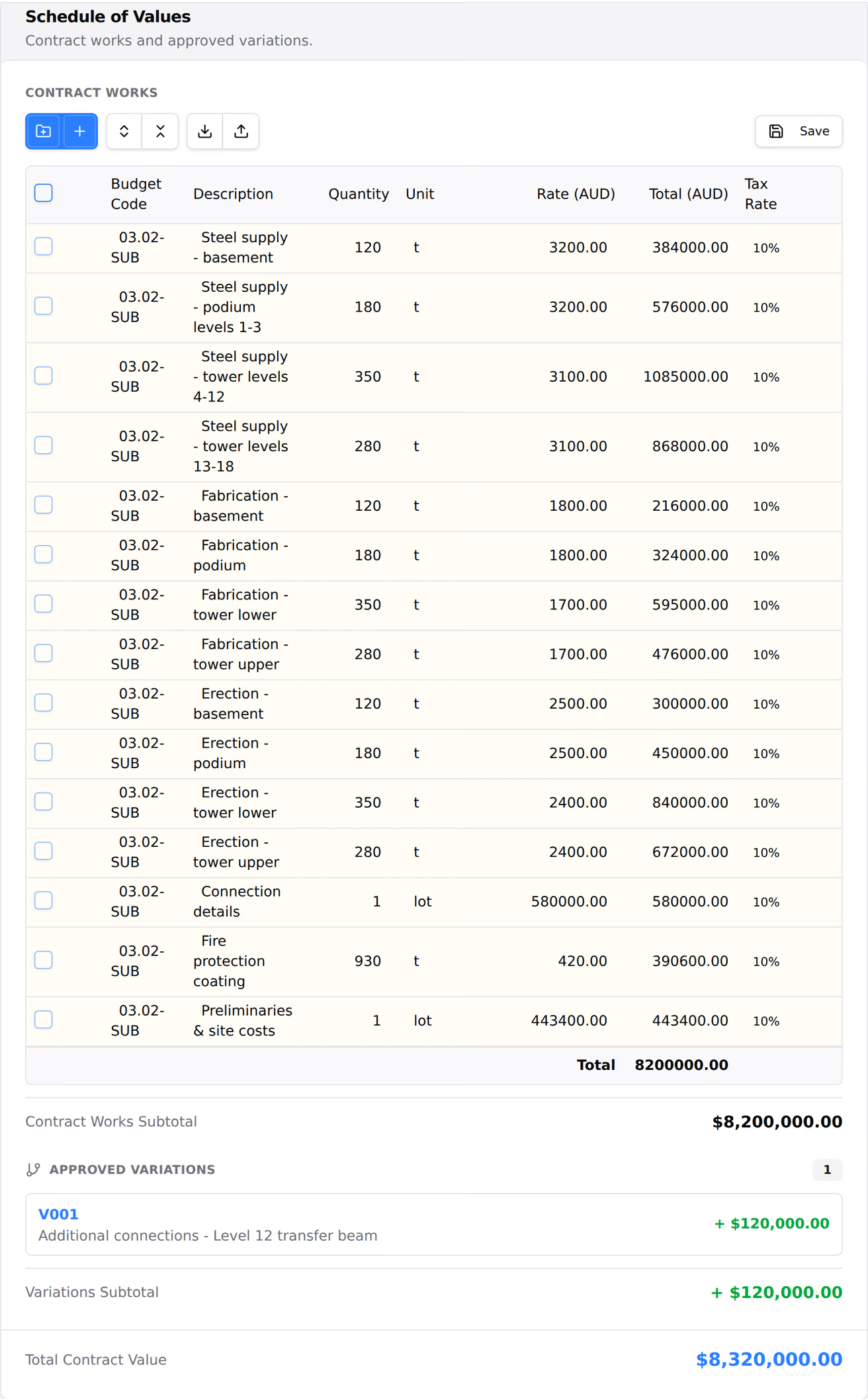
The contract's priced sections and items, each with a Budget Code, Description, Quantity, Unit, Rate, Total and Tax Rate. Select Add Section or Add Item, or Import from Excel. The contract's value is the total of its items, and an item that has been claimed against can't be changed or deleted.
The executed contract, insurances and any other documents. Select Add attachment.

A contract opens on its Progress Claims tab. Its tabs are:
- Progress Claims and Variations: the contract's claims and variations.
- Payments Issued or Payments Received: payments against the contract's claims. Only host staff see it.
- Contract Details: the contract's approval, Activity History, the schedule of values with its approved variations and Total Contract Value, the attachments, and the Timeline of changes.
- Settings: the contract form's sections, plus Danger Zone. Only host staff see it.
- On the Payments Issued or Payments Received tab, select Record payment.
- Choose the Linked claim, then enter the Amount (AUD) and Payment date.
- Optionally, enter a Reference, a Method (EFT, Cheque, Cash, Card or Other) and Notes.
- Select Record payment.
A payment can't exceed the claim's remaining balance, and the claim's payment status updates to match. Payments synced from Xero, MYOB, QuickBooks or Jobpac appear on the same tab and can't be edited. To edit or delete a manual payment, use the three-dot menu on its row.
A contract with a Contract Execution Workflow can be approved inside Teralo. This is separate from signing, which happens on the procurement package's Contract Execution tab.
- On Contract Details, select Submit for approval.
- Follow the approval on the strip at the top of the tab.
The default workflow sets the contract to Under Review when it starts and Approved when it completes. Rejecting it returns the contract to Draft, with a Revise contract task for the person who submitted it. While the workflow runs, nobody can change the contract's status by hand.
To stop the approval, select Cancel workflow, then Cancel workflow again. The contract returns to Draft, and the run's review history is deleted.
- On the contract's Settings tab, under Contract Overview, choose the Contract Status.
- Select Save Contract Overview.
Under Review and Approved are system statuses, set only by the execution workflow, so they aren't offered here.
On the Settings tab, under Contract Overview, choose another Contracted Organisation, then select Save Contract Overview. The new organisation must be on the project, and the old organisation's contacts are removed.
The contracted organisation can't be changed once the contract has progress claims or variations, or while its execution workflow runs. Create a new contract instead.
Warning: Deleting a contract is permanent, and deletes its claims, variations and documents.
- On the register, open the contract's three-dot menu and select Delete Contract.
- Select Delete Contract to confirm.
Alternatively, on the contract's Settings tab, under Danger Zone, select Delete Contract, type the contract number, and select Delete Contract.
A contract with an approved progress claim or variation can't be deleted.
A type has a name, a prefix for contract numbers and a description. The default types are Head Contract (HC), Subcontract (SC), Purchase Order (PO), Consultancy Agreement (CA) and Supply Contract (SP).
A status has a name, a description and a badge style. Under Review and Approved are locked system statuses: they can't be edited, deleted or deactivated.
A cost contract whose type is named Head Contract feeds its approved variations into the budget's Approved HCV's column.
A guest sees the contracts their organisation is the contracted party to, and only with Can view contracts. Where Restrict visibility is on, only the people named as the contract's contacts see it.
On their contracts, guests see the Progress Claims, Variations and Contract Details tabs. They don't see the payments or Settings tabs, so they don't see the contract's dates, terms, retention or contacts.
With the submit permissions, and while Cross-organisation access is on, guests can submit progress claims and variations. They can't approve them, or create, edit or approve a contract.
A contract's own settings are on its Settings tab. Host staff can open it, and Can edit contracts is needed to change it. Each section has its own save button, such as Save Contract Overview, and the switches save straight away.
The lists a contract chooses from are set at organisation level. In the organisation sidebar, under Organisation Settings, select Tools, then Contracts. The tabs are grouped as:
- Accounting: the connection to your accounting system.
- Types & Statuses: Contract Types, Contract Statuses, Direct Cost Types and Direct Cost Statuses.
- Financials: Tax Rates, Retention Defaults, Payment Claim Statement and Compliance Documents.
- Workflows: Progress Claim Workflows, Execution Workflows and Variation Workflows.
On a project, in the project sidebar, under Project Settings, select Tools, then Contracts. The same tabs, without Accounting, activate the organisation's entries for the project and hold the project's own. Learn more about organisation level and project level.
| Permission | Allows |
|---|---|
| Can view contracts | Opening the register |
| Can create contracts | Creating contracts, including from a procurement package, and submitting one for approval |
| Can edit contracts | Changing a contract's details, schedule, attachments, settings and workflows, and cancelling its approval |
| Can delete contracts | Deleting contracts |
| Can approve contract execution workflows | Acting on a contract's approval steps |
| Can view contract payment records | Seeing the payments tab |
| Can record and edit manual contract payment records | Recording and editing payments |
| Can delete manual contract payment records | Deleting manual payments |
Creating, editing and approving contracts, and every payments permission, are host only: a guest granted one still can't use it. Only host staff can delete a contract. Progress claims, variations, the budget and direct costs have permissions of their own. Learn more about how permissions work.
Each contract has its own three workflows, set on the contract itself:
- Progress Claim Workflow: runs when a progress claim is submitted. Claims can't be submitted until it is set.
- Variation Workflow: runs when a variation is submitted. Variations can't be submitted until it is set.
- Contract Execution Workflow: runs when the contract is submitted for approval.
To change one, open the contract's Settings tab, choose the workflow under Approval Workflows, and select Save. The list offers the project's own templates and your organisation's templates, except organisation templates that name specific people. Copy to this project copies an organisation template into the project.
An approver must be assigned to the active step. Learn more about binding a workflow to a tool.