Procurement
Tender packages, compare the quotes and award the work.
Part of Contract Management.
Found in each project. What's the difference?
Only the host runs procurement; invited firms reply through Tenders.
Procurement holds a project's trade packages: each package's budget, schedule, scope and documents, the firms invited to tender, the prices they return, the recommendation and the award. Only the host organisation uses Procurement. Invited firms respond in Tenders, or through an emailed link if they have no Teralo account.
In the project sidebar, under Contract Management, select Procurement. It has three tabs:
- Register: one row per package, grouped by category, with its budget, forecast final cost, successful tenderer and stage.
- Timeline: each package's six milestones on a chart, planned and actual. Select a row to see its dates.
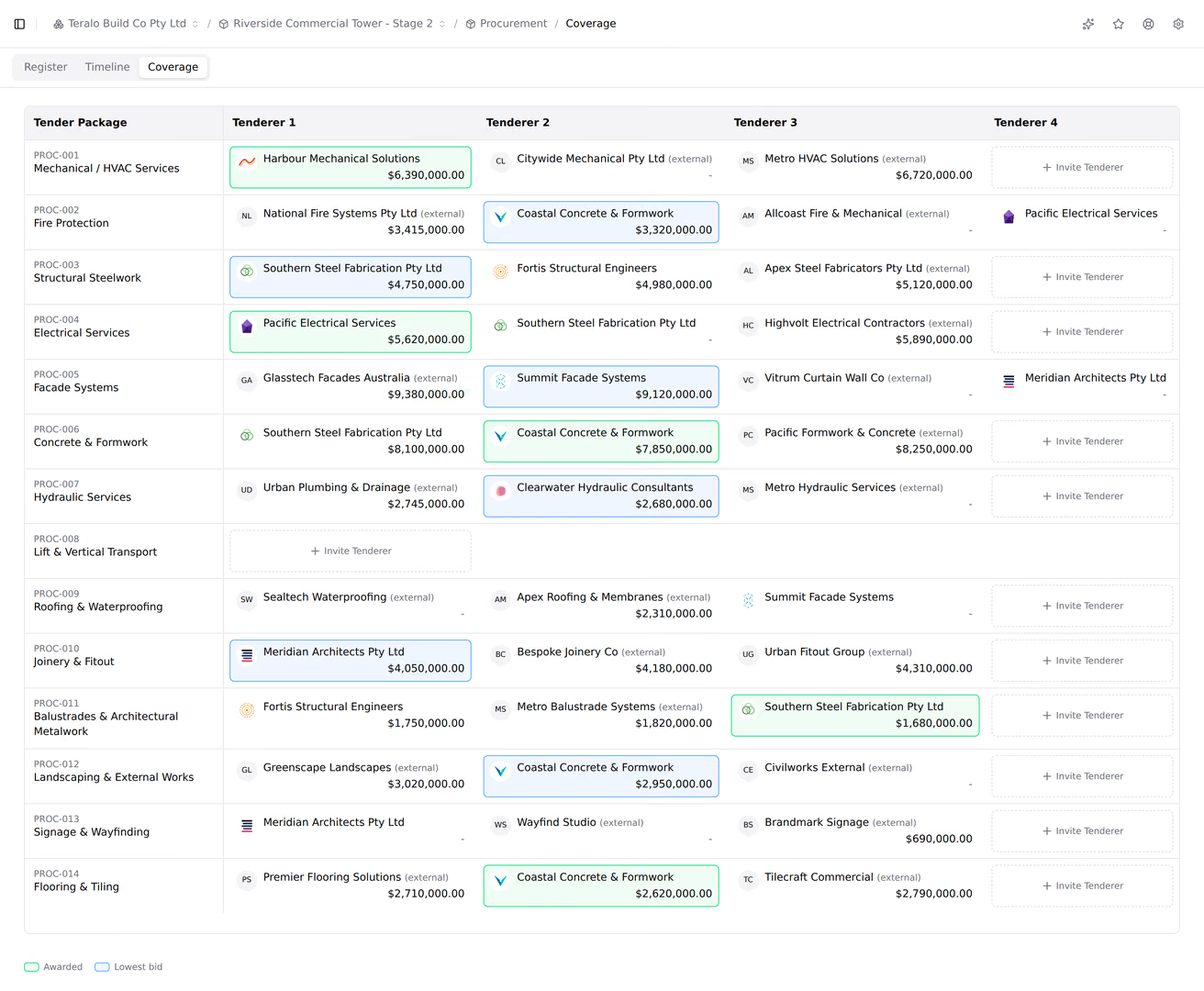
- Coverage: packages down the side and their invited firms across the top as Tenderer 1, Tenderer 2 and so on, each with their latest price.
On the Coverage tab, the awarded price is boxed green, and the lowest price is boxed blue once a package has two or more bids. A sealed package shows Sealed in place of prices, and the first empty slot in a row is an Invite Tenderer button.
- On the Register tab, select Create Trade Package.
- Under Basic Information, enter the Package Title.
- Optionally, choose the Cost Type and Cost Code, a Category, and the Responsible User, and enter a Description and the Total Budget.
- Under Tender Information, set the Tender Due Date and, optionally, a Close time. Without one, bids are accepted all day on the due date.
- Optionally, set the Tender Open Date and change the Tender Instructions and Project Description.
- Select Create Trade Package.
Teralo numbers the package PKG- followed by eight characters. If the project has no package categories yet, the register shows Procurement Settings Required instead.
- On the register or the package's Overview tab, select the Total Budget.
- In Edit Budget Breakdown, enter the Trade Budget, Budget Adjustments, Provision Sums and Unlet Budget. Their sum is the total budget.
- Optionally, enter a Target Budget. It is kept apart from the total.
- Select Save Changes.

A package has seven tabs: Overview, Tender Package, Tenderers, Addenda, Communication, Recommendation and Contract Execution. Its stage shows in the header, and changes as things happen to the package:
- Package: Draft, Package in review, Package returned, Ready to issue.
- Tender: Out to tender from the first invitation, then Tender closed once the deadline passes.
- Recommendation: Recommendation in review, Recommendation returned, Awarded.
- Contract: Out for signature, Signing declined, Executed.
- Closed, for a package someone has closed.
The stage follows the latest event, so a package can skip stages. Hover over the stage to see its phase and every milestone, with Auto against the dates Teralo recorded itself.
The Tender Package tab has five tabs of its own: Schedule, Scope, Linked Documents, Uploaded Files and Addenda.
The schedule is a grid with the columns Budget code, #, Description, Qty, Unit, Rate and Total. Right-click a row to insert items or sections, indent, outdent, copy or delete. Import and Export read and write a spreadsheet.
Changes stay in a draft, and firms see only published revisions. To publish:
- Select Publish revision.
- If the draft changes the quantity or description of a line a firm has priced, or removes one, Teralo shows Review before publishing. Select Accept & publish, or Request re-price & publish to flag those lines for re-pricing and email the firms affected.
Teralo records the schedule each price was quoted against. Where a line has changed since, the levelling grid marks the firm's subtotal, for example "Qty 100 → 120". Discard draft throws the draft away, and Compare revisions… compares two published revisions.
On Upload Document, select New Revision, choose a file, optionally enter a Revision Title, and select Upload. On Custom Editor, write the scope in Microsoft Word for the web, then select Publish as revision.
- Linked Documents: select Attach to link documents from the project's Documents register. Each link points at the revision you choose. Other records, such as photos or inspections, can be attached as references, which only the host sees.
- Uploaded Files: select Upload Files, choose the files and a File Category, then upload them. These files are kept apart from the Documents register.
- On the Addenda tab, select Create Addendum.
- Enter the Addendum Number, a Title and, optionally, a Description.
- Select Create Addendum.
- Expand the addendum, then select Upload Files or Link Documents to add its files.
Teralo dates the addendum and emails every invited firm that hasn't declined. An addendum doesn't move the deadline. To move it, change the Tender Due Date on the Overview tab.
- Select Submit for Approval.
- Choose the workflow, then select Submit for Approval.
When the approval completes, the package is Ready to issue and its Tender ready milestone is stamped. Return to draft cancels an approval in progress. Firms can be invited whether or not the package is approved.

- On the Tenderers tab, select Invite Tenderers.
- Choose how to invite:
- From Directory: search for people by name (at least 3 characters) and choose them. Their organisation is invited, and the package appears in its Tenders.
- By Email: enter the Company name, Contact name and Email of a firm with no Teralo account.
- Select Send Invitation.
Teralo emails each invitation. An emailed link works for 30 days; to send it again, select the resend icon on the firm's column. Each firm shows as Invited, Accepted, Declined or Submitted. To remove a firm, open the three-dot menu on its column and select Remove tenderer.
The Tenderers tab lays the schedule down the side and gives each firm its own Qty, Unit, Rate and Subtotal columns. Sections subtotal, and the total at the foot shows each firm's variance from the schedule's estimate.
- Your adjustments: changing a firm's figures saves your own levelling version. The firm never sees it, and Revert host levelling version returns to what they submitted.
- Cells: right-click a cell to set its Line status (Included, Excluded, Note only or TBC), add a Line note… or Attachments…, Drill down, or Mark as plug.
- Firms: the three-dot menu on a firm's column holds Submission history, Tenderer notes, Prefill Qty/Unit from schedule and Convert to lump sum.
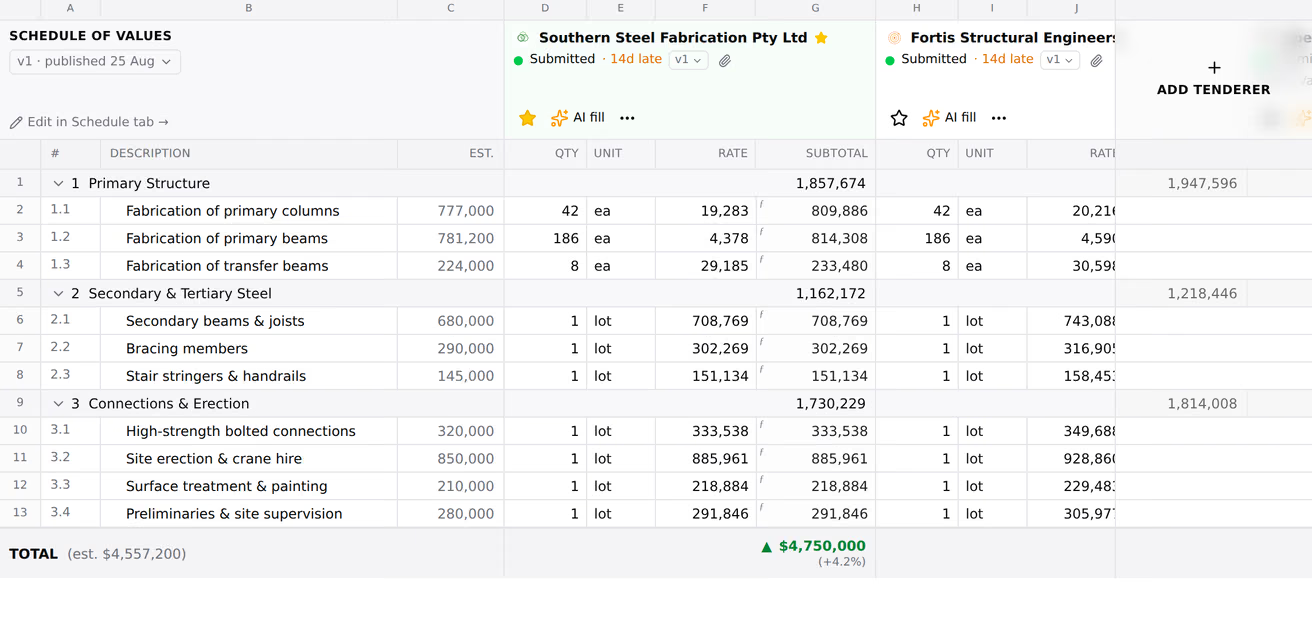
- Select AI fill, then choose the firm whose quote it is.
- Choose the quote: an Attached file, Upload PDF… or Pick from Documents…. It can be a PDF, PNG or JPEG of up to 20 MB.
- Select Extract.
- Review the prices Teralo reads from the quote, then select Accept all, or accept them a section at a time.
Nothing is saved until you accept, and Discard throws the prices away. On a firm that submitted a lump sum, Break down quote spreads its quote across the schedule's lines the same way. Both spend AI credits.
Each package has a Late submissions policy, set on its Overview tab:
- Accept late submissions, the default: a firm can submit after the deadline, and the grid shows how many days after the close it arrived.
- Close strictly at the deadline: firms can't respond after the deadline. A banner offers Extend deadline, which moves it for everyone, and Allow late submission, which lets one firm through.
The project sets the default for new packages.
On the Overview tab, set Tender box to Seal until the tender closes. The default is Show bids as they arrive. A sealed package needs a tender deadline.
While the box is sealed, you can see who has responded, but not their prices, documents or levelling grid, and the Recommendation tab is closed. Once the deadline has passed, select Open tender box, then Open tender box again. Opening can't be undone, and Teralo records who opened it and when.
- On the Tenderers tab, select the star on the recommended firm's column.
- On the Recommendation tab, under Commercial Terms, select Edit. Set the Payment Terms, Form of Security, Defects Liability Period (months), Liquidated Damages per day and Unfixed Materials Payment, then select Save.
- Under Required Attachments, upload each document, and enter your Recommendation Comments.
- Select Submit for Approval, choose the workflow, and select Submit.
When the recommendation is approved, Teralo:
- awards the package to the recommended firm, with its award date and amount;
- sets the package's Forecast Final Cost from the firm's total and locks it;
- stamps the Tender recommendation milestone.
An approved recommendation can't be returned to draft. Teralo emails no firm about the award. Firms see the package as Awarded, and a firm invited by email sees whether it won.

A package has six milestones: Tender ready, Tender issued, Tender recommendation, Contract executed, Start works and Date for Practical Completion. They show as a strip on the Overview tab, each one Complete, Overdue, Upcoming (within 14 days) or Not due.
To plan them, select a milestone or the pencil icon to open Edit tender milestones:
- Start works (anchor): Teralo works out the planned dates of the four milestones before it, counting back by the gaps between them (7, 21, 14 and 14 days by default).
- Date for Practical Completion (anchor): a second date you set.
- Inter-milestone gap overrides: different gaps for this package.
- Actual override: an actual date you enter, which replaces the one Teralo recorded.
Select Save milestones. Teralo records the actual dates itself: Tender ready when the package is approved, Tender issued at the first invitation, Tender recommendation when the recommendation is approved, and Contract executed at the last signature.
On the Communication tab, choose a Recipient (All Tenderers (Broadcast) or one firm), enter a Subject and a Message, and send it. Firms invited by email can't see messages.
- Select Close package.
- Optionally, enter a Reason. Only your team sees it.
- Select Close package.
Firms can no longer respond, but nothing is deleted and the package can still be edited. Reopen package reverses it and clears the reason. Closing doesn't withdraw a contract that is out for signature, and an executed package can't be closed.
Once the recommendation is approved, the Contract Execution tab sends the contract out for signature. Learn more about contract execution and e-sign.
When the last signer signs, the package is Executed and becomes read-only. Copy to Contract Register then opens a new contract filled in from the package: its title, the awarded firm, the awarded amount as one schedule line, the payment terms, the defects liability period as the warranty period, and the form of security as the retention basis, with the signed PDF attached. Liquidated damages and unfixed materials aren't copied. Learn more about contracts.
Warning: Deleting a package is permanent, and deletes its submissions, messages and documents.
- On the register, open the package's three-dot menu and select Delete Package.
- Select Delete Package to confirm.
An executed package can't be deleted.
Procurement is set up at both levels. Learn more about organisation level and project level.
At organisation level, in the organisation sidebar, under Organisation Settings, select Tools, then Procurement:
- Categories: the categories packages are filed under. Create Defaults adds Preliminaries, Structure, Finishes, Design, Metalwork, Services and Landscaping.
- Attachment Types: the documents a recommendation asks for, each with a Required switch.
- Recommendation Workflow and Tender Package Workflow: the organisation's workflow templates for the two approvals.
On a project, in the project sidebar, under Project Settings, select Tools, then Procurement:
- Categories and Attachment Types: turn on Activate for each organisation entry the project uses, or add the project's own.
- Tender Instructions: the Default Tender Instructions that fill each new package.
- Tender Policy: the default late submission and tender box policies.
- Milestones: the Default Milestone Gaps.
- Scope Templates and Clause Library: reusable scope content.
- Workflows: the project's own workflow templates, and copies of the organisation's.
| Permission | Allows |
|---|---|
| Can view procurement packages | Opening the register, timeline, coverage and packages |
| Can create procurement packages | Creating packages |
| Can edit procurement packages | Changing packages, inviting firms, levelling, approvals, the tender box, late submissions, closing and contract execution |
| Can delete procurement packages | Deleting packages |
Procurement is host only: a guest granted any of these still can't open it. Copy to Contract Register also needs Can create contracts. Learn more about how permissions work.
A package goes through two approvals: the tender package and the recommendation. Neither is bound to the tool. The workflow is chosen each time one is submitted, from your organisation's templates for that approval and the project's own. Learn more about the workflow builder.
The default templates are Tender package approval, Tender package auto-approve (no review), Recommendation approval and Recommendation auto-approve (no review). In the two that review, rejecting sends a Revise tender package or Revise recommendation task back to its author.
To act on a step, a reviewer must be assigned to it and hold Can edit procurement packages. Learn more about approving and rejecting.