The workflow builder
Build an approval on the canvas, reject lane included.

The workflow builder is where you create and edit a workflow template. The canvas shows the workflow's blocks and connections, read from left to right, and the panel on the right shows the settings of the selected block.
The canvas needs a desktop-sized screen. On a phone, the builder lists the workflow's blocks and can't edit them.
- Open the tool's settings, then its Workflows tab. Learn more about templates and runs.
- Select Add Workflow, or the pencil icon beside a template.
A new template offers three ways to start:
- Start from scratch: a Trigger connected to an End block.
- Describe your workflow...: enter a description, or choose one of the suggestions under the box, then select the arrow button. Teralo drafts the workflow on the canvas with AI, which uses AI credits. A draft never names people: each block is set to Anyone with a permission or From the record.
- On a project, Use organisation template (optional): choose an active organisation template to start from.
- Select the Trigger block.
- Enter a Template name, and optionally a Description (optional).
The trigger itself is fixed for each tool.
- With no block selected, the Blocks panel lists the blocks. To show it, select Add block or press B.
- Drag a block onto the canvas, or select it to add it.
- Drag from one block's handle to another block to connect them.
To insert a block between two others, point at the connection and select the plus sign. To delete a connection, select it, then select the ×. Each outcome or path can have one connection, and a new one replaces the old.
Select a block to open its settings. The two icons at the top of its settings are Duplicate block and Delete block. You can also delete the selected block with Delete or Backspace.
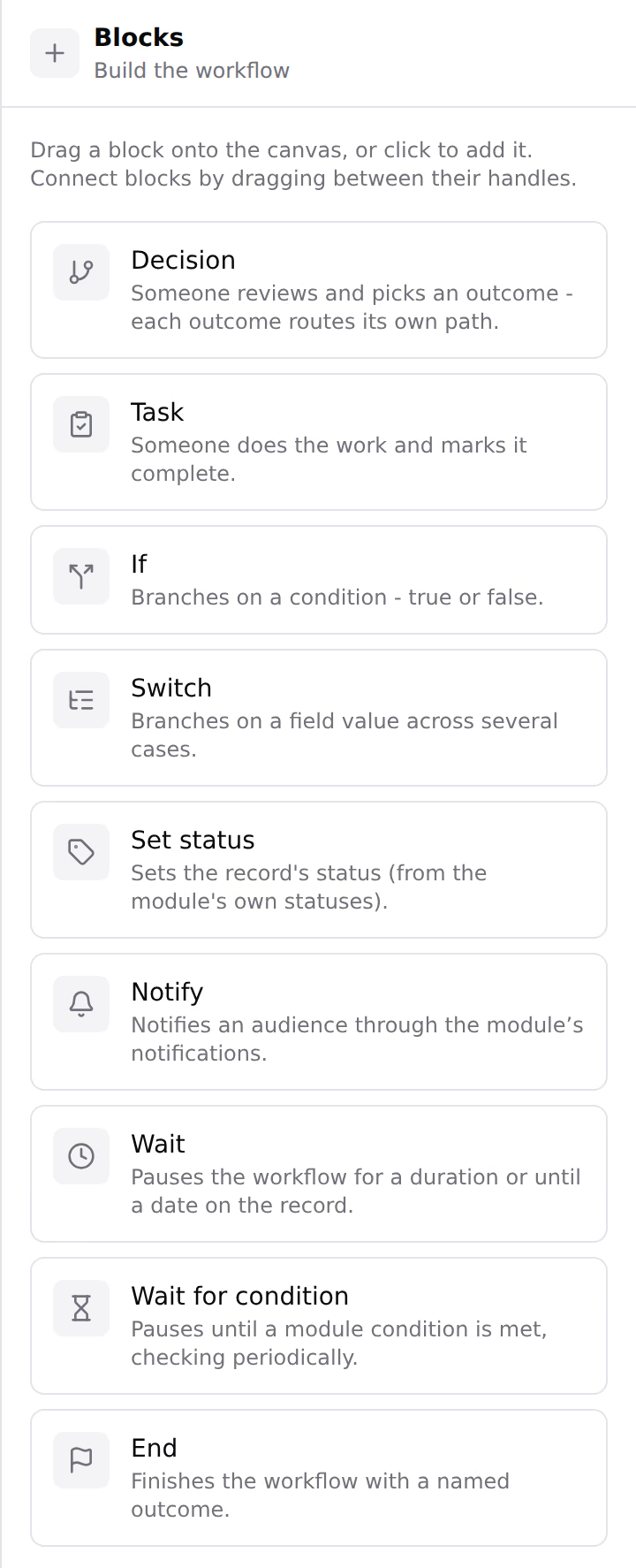
Every tool offers the same blocks. The tool decides the trigger and the choices inside each block, such as its statuses, fields and permissions.
- Block name and Description (optional).
- Who acts (approvers): Specific people, Anyone with a permission or From the record. Learn more about assigning approvers.
- Outcomes: each has a label, a kind (Positive, Negative or Neutral) and Require a note with this outcome. Select Add outcome to add one, or choose from Use a preset: Approve / Reject, Approve / Reject / Revise & Resubmit or Review stamp (5-way).
- When several people are assigned: Positive outcomes need everyone or First response decides.
- Send reminders: how often to remind the people on the step, and at most how many times.
A new decision has two outcomes: Approve (Positive) and Reject (Negative, with a note required).
- Who acts (assignees): the same three choices as a decision.
- Require a note on completion.
- Completion requirements: checks that must pass before the task can be completed, on tools that have them.
- Send reminders.
- If: choose a Condition field, a Comparison and a Value. The run follows Yes or No.
- Switch: choose a Field and add Cases. The run follows the matching case, or Otherwise.
- Set status: choose the Status to set, from the tool's statuses.
- Notify: choose the Audience, and optionally enter a Subject (optional) and Message (optional). Teralo emails the audience, leaving out the person whose action triggered it and anyone who has turned that email off.
- Wait: under Wait mode, choose For a fixed time (in minutes, hours or days) or Until a date on the record. If the date has already passed, the run carries on straight away.
- Wait for condition: choose the Condition to wait for. Teralo checks it every 15 minutes, and the record's step reads "Waiting:" followed by the condition.
- End: enter the Outcome name, which is recorded as the run's outcome. An End block doesn't change the record's status. To set one, add a Set status block before it.
A workflow can have several End blocks.
In the default workflows, a rejection goes to a lower lane that returns the record for revision:
- From the decision's Reject outcome, add a Set status block that sets the rejected status.
- Add a Notify block that tells the submitter.
- Add a Task, such as Revise and resubmit, set to From the record so it goes to the submitter.
- Connect the task's completed path back to the decision.
Every loop must pass through a decision or a task.
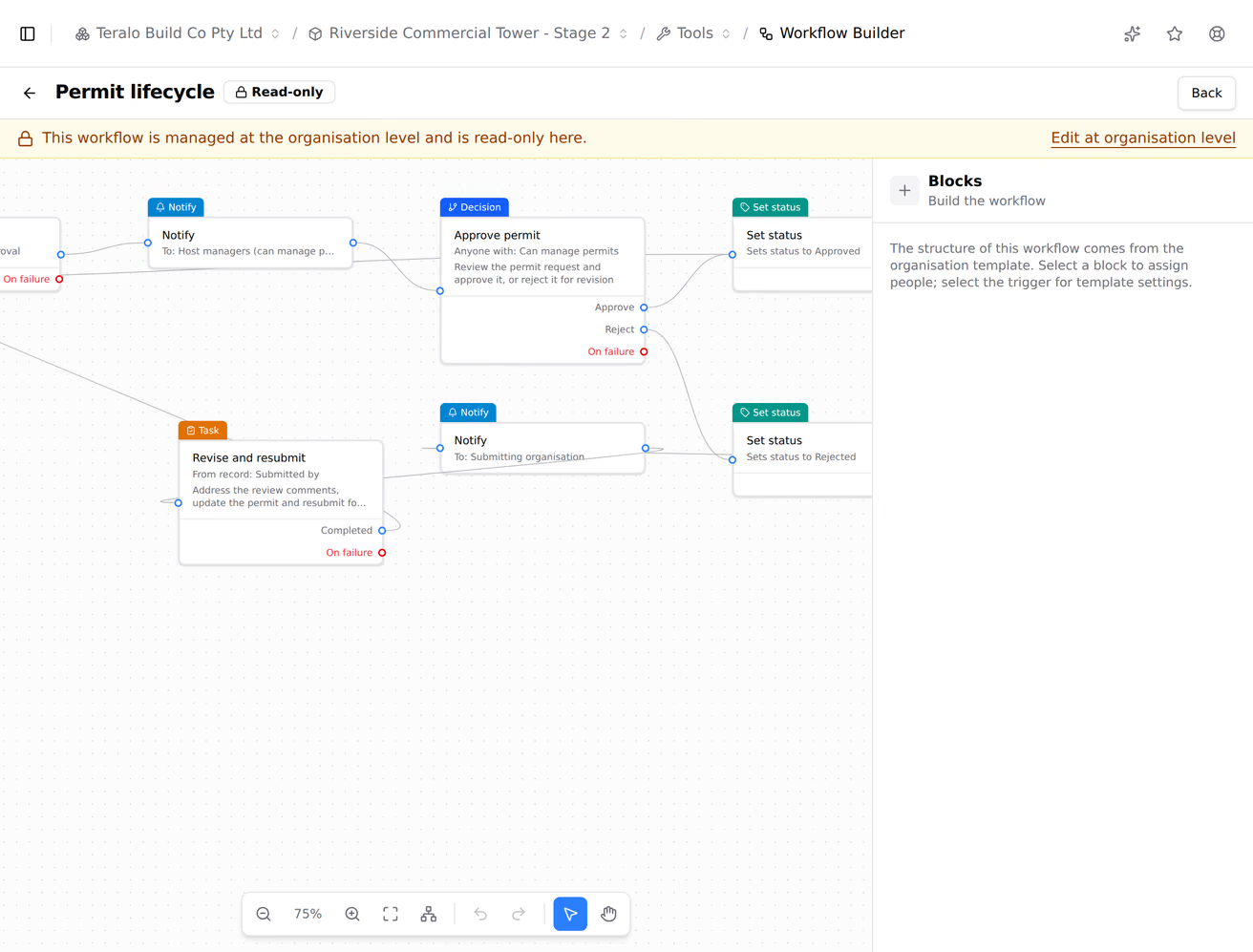
Some blocks have an optional On failure connection:
- decisions and tasks set to Anyone with a permission or From the record, which fail when nobody holds the permission or the record has nobody in the field;
- Set status;
- Wait set to Until a date on the record, which fails when the record has no date.
When a block fails, the run follows its On failure connection. Without one, the run stops and the record shows Workflow needs attention.
The toolbar at the bottom of the canvas holds icon buttons for Zoom out, Zoom in, Fit view, Auto-arrange blocks, Undo and Redo, the pointer tool and the hand tool, plus Add block. Auto-arrange blocks lays the workflow out from left to right and fits it to the view.

Keyboard shortcuts:
- Ctrl+S (⌘S on a Mac): save.
- Ctrl+Z (⌘Z): undo. Ctrl+Shift+Z or Ctrl+Y (⌘⇧Z): redo.
- B: show the Blocks panel.
- Esc: deselect.
- Select AI assistant at the top of the builder.
- Describe the change you want.
The assistant changes the canvas, and each change can be undone. Nothing is kept until you save. The assistant uses AI credits, works on a desktop-sized screen only, and isn't available on a project copy of an organisation template.
Select Create template for a new template, or Save changes. The button is unavailable until the workflow is valid; select the canvas background to see the Blocks panel, which lists what needs fixing. A workflow needs a name, every outcome and path connected, and an End block that the trigger can reach.
Until you save, the header shows Unsaved changes, and leaving asks you to confirm. Saving returns you to the tool's settings.
Saving doesn't put the template to use. Learn more about binding a workflow to a tool.
On a project, the eye icon beside an organisation template opens it read-only, with a Read-only badge and a link to Edit at organisation level.
On a project copy of an organisation template, only the people on Specific people blocks can be changed.