My Items
See everything on a project that is waiting on you.
My Items lists the records on a project that are waiting on you, from every tool, on one screen. Each project has its own My Items, in the Dashboard group of the sidebar. On a phone, open it from the My Items tile on the project's home screen.
The number beside My Items in the sidebar counts the items ready for you to act on, plus any compliance documents the project still needs from your organisation.
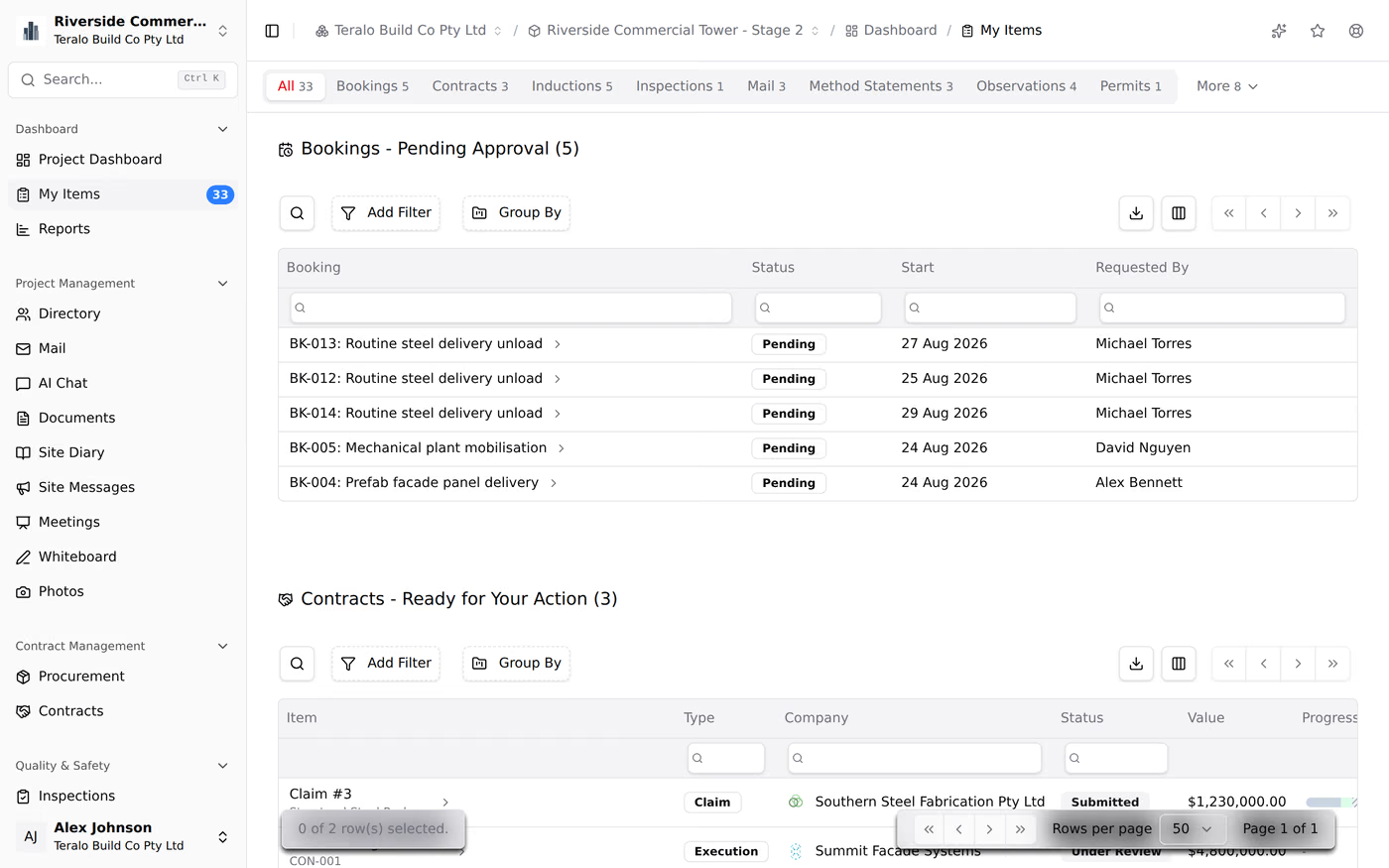
The tabs across the top are All, one tab for each tool with something waiting, and Compliance. Each tool tab shows a count, and a tool with nothing waiting has no tab.
The All tab shows a block for each tool. Each block is a register with search, filters, grouping and export, but no saved views. Select a tool's tab to see its block on its own.
When nothing is waiting, the All tab reads All clear.
My Items collects items from 13 tools: Bookings, Contracts, Inductions, Inspections, Mail, Meetings, Method Statements, Observations, Permits, Procurement, Site Diary, Submittals and Timesheets. Each block's heading says what it lists:
| Block heading | Tools |
|---|---|
| Action Required | Inductions, Inspections, Meetings, Method Statements, Observations, Permits |
| Pending Approval | Bookings |
| Awaiting Your Response | |
| Ready for Your Action and Upcoming in Your Queue | Contracts, Procurement, Site Diary, Submittals, Timesheets |
Some examples of what each block lists:
- Inspections: inspections in progress where you're the inspector.
- Meetings: action items assigned to you.
- Observations: open observations assigned to you or your company, and resolved ones you raised, for you to verify.
- Mail: mail sent to you as a To recipient with a response date.
- Permits: permits pending approval that you can see, and active permits you hold.
- Bookings: bookings pending approval that you can see.
Approval steps that a workflow assigns to you appear in their tool's block. Learn more about how approvals work.
On Contracts, Procurement, Site Diary, Submittals and Timesheets, the block is split in two:
- Ready for Your Action: steps you can act on now.
- Upcoming in Your Queue: steps assigned to you by name that will reach you once someone before you has acted. You can't act on these yet.
A tool's tab count includes its upcoming items. The sidebar count and the All count don't.
Compliance lists the documents the project requires from your organisation, such as insurance certificates and licences, and which are still outstanding. The tab appears when the project has at least one required document.
To submit a document:
- On the Compliance tab, select Submit on the requirement.
- Select Choose from library to use a document your organisation already holds, or Upload New File.
- Select Submit Document.
Learn more about compliance documents.
An item leaves My Items once it no longer waits on you: for example, when you respond to an approval, complete an inspection or close an observation. Every item is also in its own tool's register.
- The project dashboard: the Open Items card, with a My Open Items and All Open Items switch.
- Your personal dashboard: the Waiting on you card lists up to 8 items from all your projects, for progress claims, contract execution, variations, submittals, site diary, timesheets, incidents and procurement.
- Email: Teralo emails you when a workflow notifies you. Learn more about notification settings.
Teralo has no in-app notification list and no push notifications.