Notification settings
Choose which emails you get, and which you cannot unsubscribe from.
Preferences is the page where you choose which emails Teralo sends you, and set your theme, language and timezone. Teralo notifies you by email at your account's email address, and site messages can also reach you by text message at your profile's phone number. Teralo has no notification bell. What is waiting on you is listed in My Items.
To open it, select your name at the bottom of the sidebar, then Account. In the Account group of the settings sidebar, select Preferences.
The switches are at the bottom of the page, under Danger Zone, in Notification Preferences. Each of the 24 modules lists its notifications, each with a switch and a description. A collapsed module shows how many of its notifications are on, for example "4/4 enabled".
- Select a module to expand it.
- Turn off the switch beside each notification you don't want.
Teralo saves each change straight away. There is no save button.

Every notification is on until you turn it off, including notifications added to Teralo later. Your settings apply in every organisation and project.
Warning: Turning off Published under Site Messages also stops emergency site messages, by email and by text message.
Most modules have a Workflow updates switch. Contracts has one for each workflow (Progress claim workflow updates, Variation workflow updates and Contract execution workflow updates), and Procurement has Recommendation workflow and Tender package workflow.
The warning above the switches says workflow approval requests cannot be turned off. They can: turning off a module's workflow switch stops that module's workflow emails, including reminders that a step is still waiting on you. It doesn't take you off any approval step.
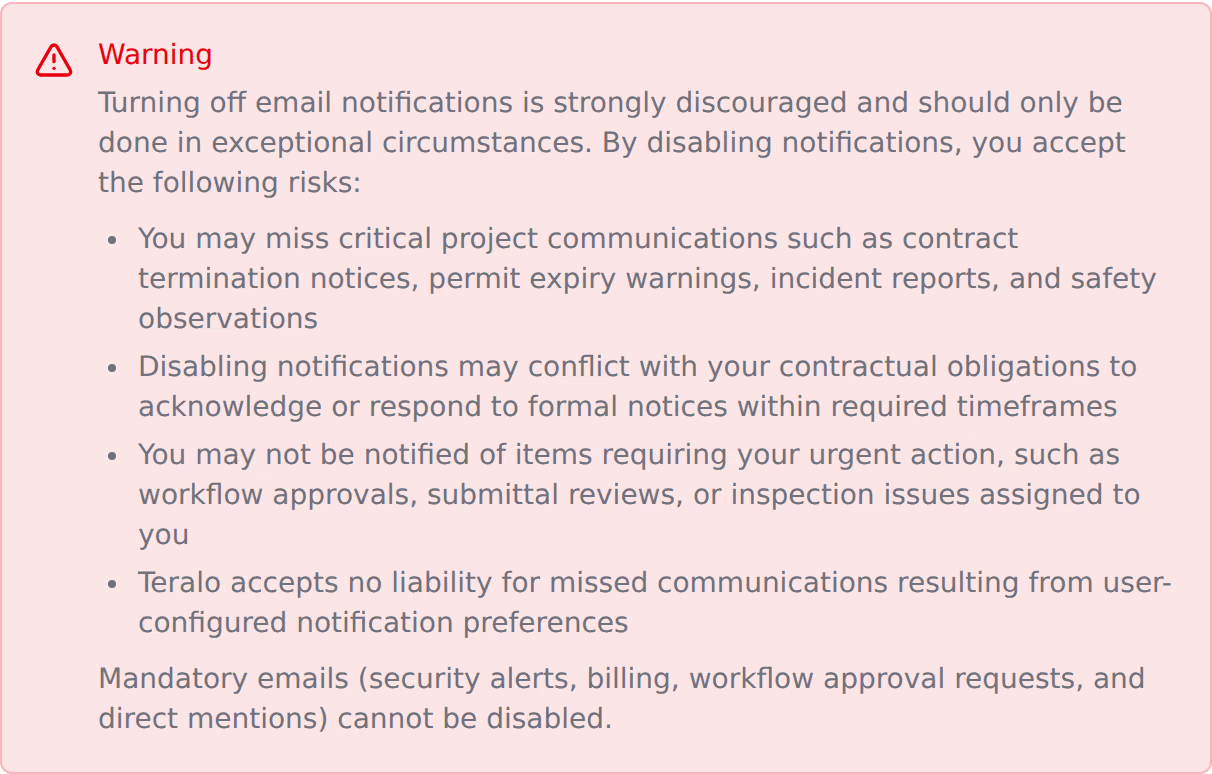
These emails have no switch:
- Security: verification codes for changing your email address or password, the notice sent to your old address after an email change, and password reset links.
- Billing: payment, plan and receipt emails, sent to everyone who can manage billing.
- Mentions: a reply on a document markup that mentions you with @.
- Scheduled reminders: overdue observations, overdue meeting action items, permits close to expiry, equipment due for service, the daily bookings digest, and compliance documents close to expiry.
- Projects: the email telling you that you have been added to a project.
When someone chooses recipients for mail, a meeting, an observation, an incident, an injury, a site message or a report, a person who has turned off that kind of email shows a crossed-out bell beside their name. The Notification Preferences card says so: "Your notification preferences may be visible to other users when they compose mail, messages, or select recipients in other modules."
A person who has turned off an email doesn't receive it. Mail still arrives in their Teralo Mail.
The Communication card has five switches: Transactional emails, Security emails, Marketing emails, Newsletter and Product updates. Teralo records your choices, but no email it sends reads them. The switches under Notification Preferences decide which emails you get.
In Display & Regional, under Theme, select Light, Dark or System. System follows your device's setting. Teralo saves the theme in the browser you are using, so set it on each device. You can also change it from the menu under your name in the sidebar: select Theme, then the theme.
Language has nine options, and Teralo shows English whichever you choose.
Timezone is set from your browser each time you sign in with your email and password, and Teralo doesn't use it. Dates and times show in your device's timezone.
Mail notification emails include the mail's attachments unless you turn them off.
- Select your name at the bottom of the sidebar, then Settings. Your Mail settings open.
- Select the Notifications tab.
- Turn Include attachments in notifications on or off.
Learn more about mail.
Teralo's emails end with a Manage preferences link, which opens this page after you sign in. There is no one-click unsubscribe.
No. Your notification settings apply to every project. To get fewer emails from one project, ask to be taken off its distribution lists.