Security and two-factor authentication
Change your password, link sign-ins and turn on two-factor.
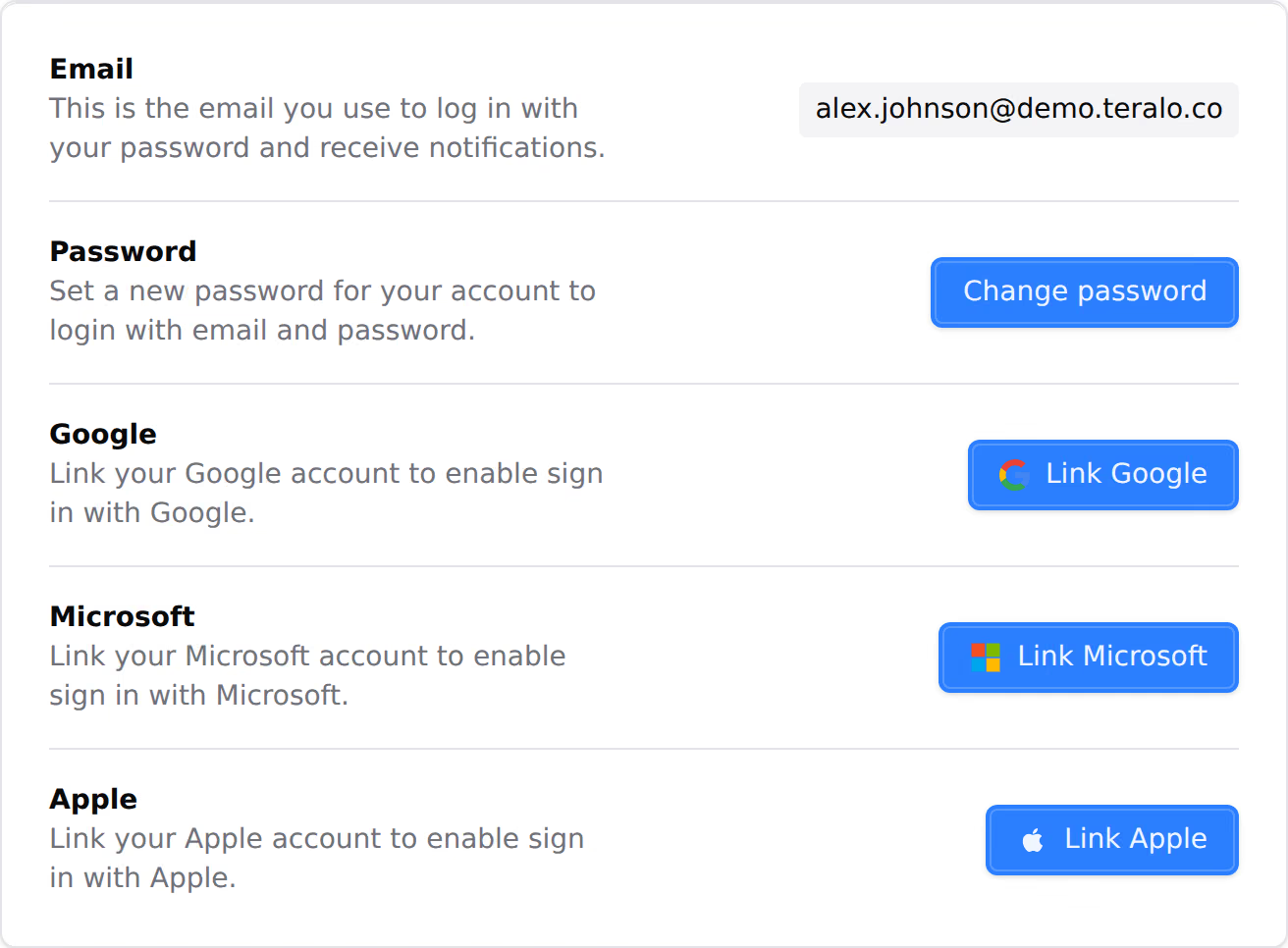
Security & Access is the page where you manage how you sign in to Teralo: your password, the Google, Microsoft and Apple accounts linked to yours, and two-factor authentication. It has two cards, Login Methods and Multi-Factor Authentication.
To open it, select your name at the bottom of the sidebar, then Account. In the Account group of the settings sidebar, select Security & Access.
These settings belong to your account. Your organisation cannot change them or require two-factor authentication.
- In Login Methods, on the Password row, select Change password.
- Enter the new password in both fields.
- Select Send Verification Code. Teralo emails a 6-digit code to your account's email address.
- Enter the code, then select Verify & Change Password.
Teralo changes your password and signs you out everywhere else: every other browser session, the mobile app on your other devices, Teralo Desktop and any AI connectors. You stay signed in on the device you used.
You aren't asked for your current password. The code works for 15 minutes and stops working after 5 wrong attempts. To get a new code, select Cancel and start again.
Change password also sets a password on an account that has never had one, such as an account created with Google.
A password must be at least 8 characters, with an uppercase letter, a lowercase letter, a number and a special character. The form names any rule the password misses.
- On the sign-in screen, select Forgot password?.
- Enter your Email, then select Reset Password.
- Open the link in the email Teralo sends. It works for 1 hour.
- Enter a New Password and enter it again in Confirm Password, then select Reset Password.
- Sign in with the new password.
A reset signs out every session on your account, including the one on the device you used.
The sign-in screen offers Continue with Google, Continue with Microsoft and Continue with Apple. Microsoft sign-in takes a work or school account, not a personal one.
A linked account is another way to sign in. Your password keeps working alongside it.
Teralo links a provider account only when it uses the same email address as your Teralo account.
- In Login Methods, select Link Google, Link Microsoft or Link Apple.
- Sign in to the provider.
- On Confirm account link, enter your Teralo Password and select the link button.
If two-factor is on, Teralo asks for a code before it links the account. The provider's row then shows the email address it holds.
Warning: If the provider account uses a different email address, Teralo does not link it. It signs you in to the Teralo account for that address instead, and creates one if none exists.
An account without a password can't confirm a link. Set one first with Change password.
Select Unlink Google, Unlink Microsoft or Unlink Apple. Teralo unlinks it straight away, with no confirmation.
Teralo lets you unlink a provider even when it is your only way to sign in. If your account has no password, set one with Change password before you unlink.
While Google or Microsoft is linked, you cannot change your email address. Unlink it first. Learn more about changing your email.
Two-factor authentication adds a second step to signing in: a 6-digit code from an authenticator app on your phone, such as Google Authenticator or 1Password. Teralo uses the standard TOTP method, so any authenticator app works. There is no text message or email option.
Two-factor applies however you sign in, with a password or with Google, Microsoft or Apple.
- In Multi-Factor Authentication, on the Authenticator app row, select Set up two-factor.
- Scan the QR code with your authenticator app. If you can't scan it, select Copy under the secret and enter the secret in the app.
- Enter the 6-digit code the app shows, then select Enable two-factor. Two-factor is now on.
- On Save your backup codes, select Copy or Download.
- Select I have saved these codes somewhere safe., then Continue.
Teralo shows the backup codes once. Keep them somewhere other than the phone with your authenticator app.
You get 10 backup codes, and each one works once. The Backup codes row shows how many are left, for example "7 of 10 codes remaining."
To get a new set:
- On the Backup codes row, select Regenerate codes.
- Enter your Password, then select Regenerate codes.
- Select Copy or Download, then Done.
Your old codes stop working, including any that were unused.
- Sign in with your password, or with Google, Microsoft or Apple.
- On Two-factor verification, enter the code from your authenticator app.
To use a backup code, select Use a backup code instead, enter the code, then select Use backup code.
The verification screen expires after 5 minutes. If Teralo rejects a code, select Cancel and sign out and sign in again from the start. A code that keeps failing usually means the time on your phone is wrong: set its clock to update automatically.
- Select Disable two-factor.
- Enter your Password and a current Authenticator code, then select Disable MFA.
A backup code doesn't work here. Turning off two-factor deletes your backup codes, and turning it on again starts a new setup with a new QR code and new codes.
Note: Regenerating backup codes and turning off two-factor both need a password. If you sign in only with Google, Microsoft or Apple, set a password first with Change password.
Only Teralo support can remove two-factor from your account. Nobody in your organisation can.
- On Two-factor verification, select Contact support for account recovery.
- Enter your Email address, Full name and What happened?, then select Send request.
Support replies to the email address you entered. When support removes two-factor, Teralo signs you out everywhere, and you sign in with your password alone. You can then set up two-factor again.
A session lasts 30 days, and using Teralo in its last 15 days extends it to 30 again. Teralo has no list of your signed-in devices.
To sign out, select your name at the bottom of the sidebar, then Log out. This ends the session on your device and removes the mobile app's saved sign-in on all your devices.
To sign out of every browser session as well, change your password or reset it.
Warning: Signing out on a phone or tablet deletes the offline copy of Teralo on it, including any changes that have not synced yet.
- Change your password. Teralo signs out every other session.
- Unlink any Google, Microsoft or Apple account that may also be compromised. A device still signed in to that provider can use it to sign in to Teralo again.
- Turn on two-factor if it is off.
- Tell your administrator, and contact support.