Your profile
Set the name, photo and job title others see.
Your profile holds your name, contact details and photo, along with the organisations you belong to and the projects you are on. It belongs to your account, so it is the same in every organisation and project.
To open it, select your name at the bottom of the sidebar, then Account. The page has six cards: Account, Organisation, Profile, Avatar, Danger zone and Projects.
The User ID row on the Account card holds your account's identifier. To copy it, select the copy icon beside it.
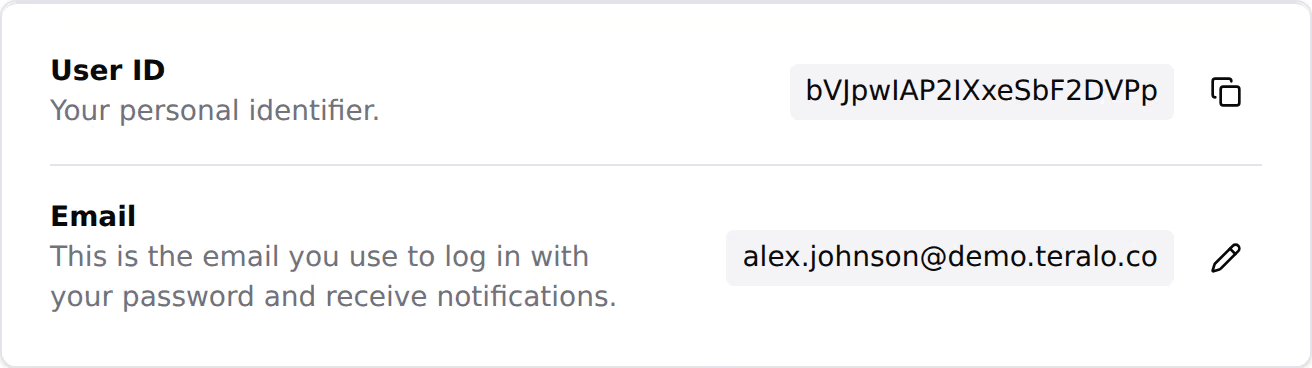
You sign in with your email address, and Teralo sends every email to it.
- On the Email row, select the pencil icon.
- Enter the new address, then select Send Verification Code. Teralo emails a 6-digit code to the new address.
- Enter the code, then select Verify Email.
Teralo changes the address and emails the old one to say so. The code works for 15 minutes and stops working after 5 wrong attempts. To get a new code, close the dialog and start again. An address that another Teralo account uses is refused.
Note: You can't change your email while a Google or Microsoft account is linked to yours. Unlink it on the Security & Access page first.
Learn more about linked sign-ins.
- On the Profile card, fill in the fields.
- Select Update Profile.
The fields are:
- First Name and Last Name: 2 to 30 characters each. Without a name, you appear to other people as "Unknown".
- Job Title: any text, up to 100 characters.
- Phone Number: an Australian number by default. To enter a number from another country, select the flag. To clear the number, select the cross beside it.
Your profile has no date of birth. If a site needs one, it is collected on your induction and kept on your worker record.
The Avatar card holds your profile photo.
- On the Avatar card, select the circle, or drag an image onto it.
- Position the image and use the zoom slider to fit it in the circle.
- Select Crop.
To remove your photo, select the red cross at the top right of the circle. Teralo removes it straight away.
- Name and photo: beside your records and actions, to anyone who can see them. Your photo also appears in emails Teralo sends for you, such as mail notifications, including to people without a Teralo account.
- User card: selecting your name in a register or a directory opens your user card. It shows your email address, job title, phone number, organisation, the date you joined, and your access on the project.
When you are inducted onto a site, the host organisation keeps a worker record for you. If the worker record is linked to your Teralo account, saving your profile copies your first name, last name, email address and phone number to it, in every organisation that holds one.
The copy runs one way. A change to your worker record, including its date of birth, doesn't change your profile. Learn more about inductions.
While your profile is incomplete, a Your profile pill sits above your name at the bottom of the sidebar. It counts three items, for example "2/3":
- First name
- Last name
- Phone number
Select the pill to see what is missing. It disappears when all three are filled in. To hide it for good, select …, then Mark all as complete. You can't bring it back.
If you belong to more than one organisation, one of them is your active organisation. New projects are created in it.
- Select the switcher at the top of the sidebar.
- Under Your other organisations, select Switch beside the organisation.
Teralo opens that organisation's dashboard. You can also select Set as active on an organisation's card under Your Organisations, on the Organisation card. Learn more about organisations and projects.
- On the Organisation card, select Join Organisation.
- On the Search & Join tab, enter the Organisation Name. Optionally, enter a Business Number or choose a Country.
- Select Search, then Request to Join beside the organisation.
- Optionally, enter a message, then select Send Request.
Teralo emails the organisation's administrators. Your request appears under Join Requests as Pending. A declined request shows as Not approved for 14 days.
To withdraw a request, select Withdraw beside it, then Withdraw request.
To start an organisation of your own, select Create New Organisation. You become its administrator, and it becomes your active organisation. Learn more about setting up your organisation.
- Under Your Organisations, select the red circled cross on the organisation's card.
- Select Leave Organisation.
You lose access to the organisation and its projects, and to any other organisation's projects you were on through it. The records you created stay where they are. If you leave your active organisation, Teralo makes another one active.
If you are the organisation's only administrator, Teralo asks you to choose who takes over. Choose a New administrator, then select Hand over and leave. If you are its only member, you cannot leave it, but you can close the organisation.
- On the Projects card, select Leave beside the project.
- Select Leave Project.
Any open approvals assigned to you need someone to reassign them. On a project your organisation doesn't host, only the host can add you back.
Warning: Closing your account takes effect immediately. Only Teralo support can reopen it.
- Under Danger zone, select Close Account.
- Type your email address exactly as shown.
- Select Close Account.
Teralo removes your memberships and project access, your email address, phone number, job title, photo, linked sign-ins and two-factor authentication. Your name stays on the records, documents and mail you created.
If you are the only administrator of an organisation, hand it to another member or close the organisation before you close your account.
No. Close Account is the way to delete your account. It removes your personal details and access, and keeps your name on the work you did in each project.