Method statements
Review, sign and keep safe work method statements current.
Part of Quality & Safety.
Found in each project and your organisation. What's the difference?
Hosts set it up; guests submit their own company's SWMS and see site-wide ones too.
Method Statements holds the project's safe work method statements (SWMS). Each method statement sets out an activity's job steps, the hazards in each and their control measures, and records its review and the workers who have signed on to it.
In the project sidebar, under Quality & Safety, select Method Statements. Each row is one method statement, numbered with its activity type's prefix: HW-001, WH-002. One sequence runs across the whole project, and a type with no prefix uses SWMS.
A method statement's status is one of:
- For Review: waiting for a reviewer.
- Accepted: reviewed and accepted. Only accepted method statements can be signed.
- Rejected: sent back to the organisation that provided it.
- Not In Use: no longer in use, or replaced by a new version.
Learn more about the register screen.
- On the register, select New Method Statement.
- Optionally, under Upload Method Statement PDF, select Choose PDF to fill the form in from an existing SWMS. Reading a PDF uses AI credits.
- Under Document Details, choose the Activity Type, enter the Activity Name, and choose the Providing Organisation.
- Optionally, enter the Review Date and Work Description, and tick High-risk construction work (per WHS Regulations) if it applies.
- Add the job steps, hazards and control measures, described below.
- Add the PPE and licences, and link any related items.
- Select Create Method Statement.
Activity Type, Activity Name and Providing Organisation are required. Guests can only write method statements for their own organisation. The activity type needs a workflow before a method statement of that type can be created.
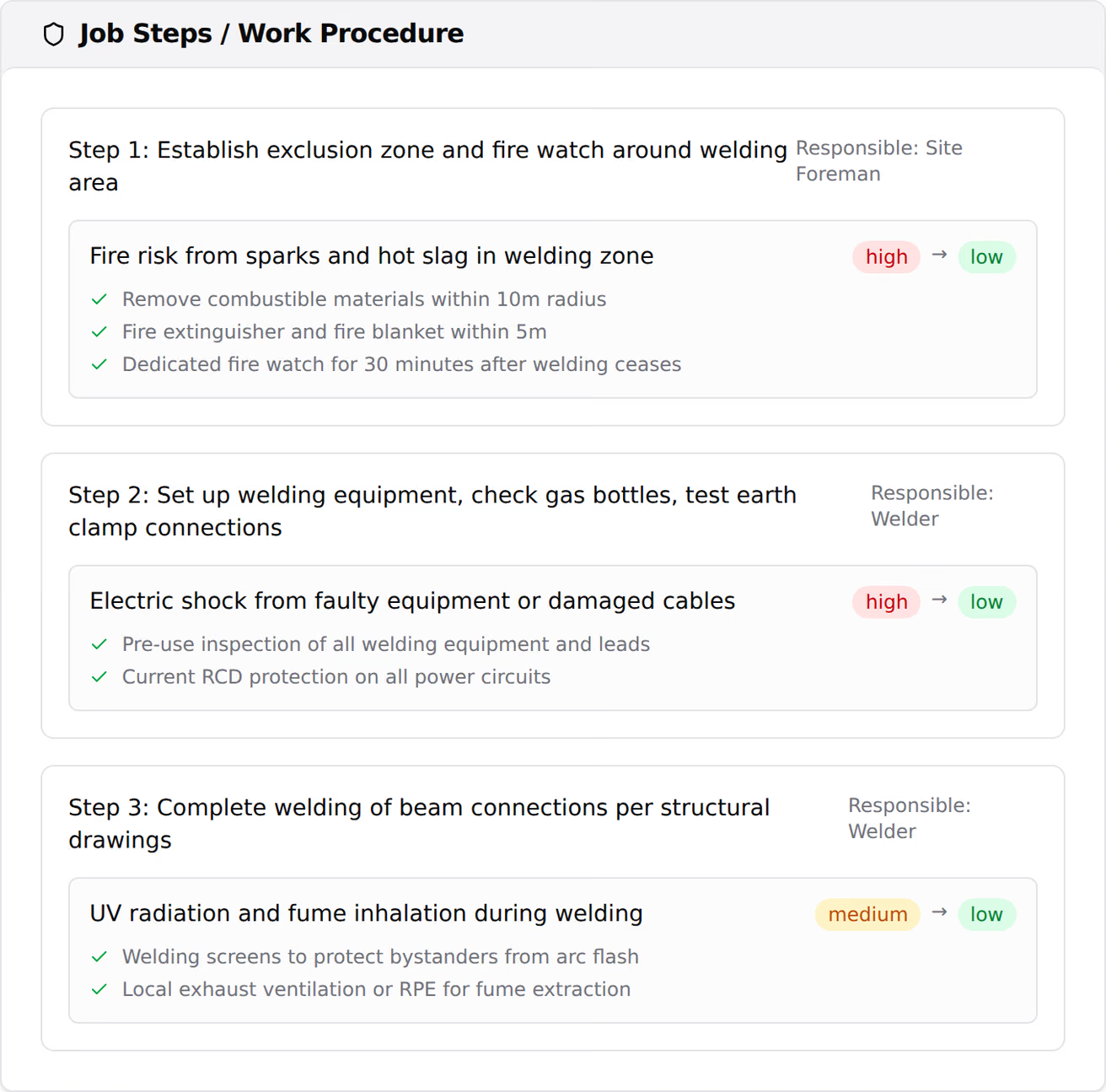
Under Job Steps / Work Procedure:
- Select Add Step, then enter the step's Description and, optionally, its Responsible Person.
- Under the step's Hazards, select + Hazard and describe the hazard.
- Choose the Risk Before Controls and Risk After Controls: High, Medium or Low.
- Under Control Measures, select + Control for each control.
If the activity type has a default hazard library, its hazards are added to the first step.
- PPE Requirements: select the PPE tiles that apply, or enter a custom requirement and select Add.
- Required Licenses / Competencies: enter each licence or competency and select Add.
- Related Items: select Link existing to link equipment, permits or safety data sheets.
Any fields the activity type adds are filled in afterwards, under Type-Specific Fields when you edit the method statement.
With the default workflow, a method statement written by host staff who can review method statements is accepted straight away. Every other one goes to For Review, and the host's reviewers are notified.
To review one:
- Open the method statement.
- Select Accept, or select Reject and enter the reason in Notes.
If the activity type has a review checklist, Accept opens it. Answer each item Pass, Fail or N/A, then select Accept.
A rejected method statement goes back to the organisation that provided it, with a Revise and resubmit task. To resubmit it, open the method statement and select Complete on the task. It returns to For Review. To change it before resubmitting, issue a new version instead.
- Open the method statement and select Edit.
- Make your changes.
- Select Save Changes.
The providing organisation can edit its method statement while it's For Review. Editing in any other status needs Can approve, reject, and manage all method statements. Editing doesn't create a new version, and doesn't affect sign-ons.
Warning: A new version retires the previous version's sign-ons. Everyone signed on to it is asked to sign again once the new version is accepted.
- Open the latest version and select Supersede.
- Make your changes.
- Select Create Method Statement.
A method statement can be superseded when it's Accepted, Rejected or Not In Use. The new version gets a new number and starts its own review. The previous version moves to Not In Use, and its workflow stops.
Each version is listed on the method statement's Version History card, with View.
Workers sign on to an accepted method statement, and each sign-on records the version they signed. Signers are workers inducted onto the project.
On the method statement, the Worker Sign-On card lists Signed Workers with how and when each signed, then the workers still Pending. To add a worker, find them under Add a signatory, then:
- Sign In Person: the worker signs on your device. Select Confirm Sign On.
- Send Link: select Send SMS or Send Email. The worker signs from the link. To send it again, select Resend Link.
Workers also sign method statements during their induction: every site-wide method statement, and the accepted ones their employer provided.
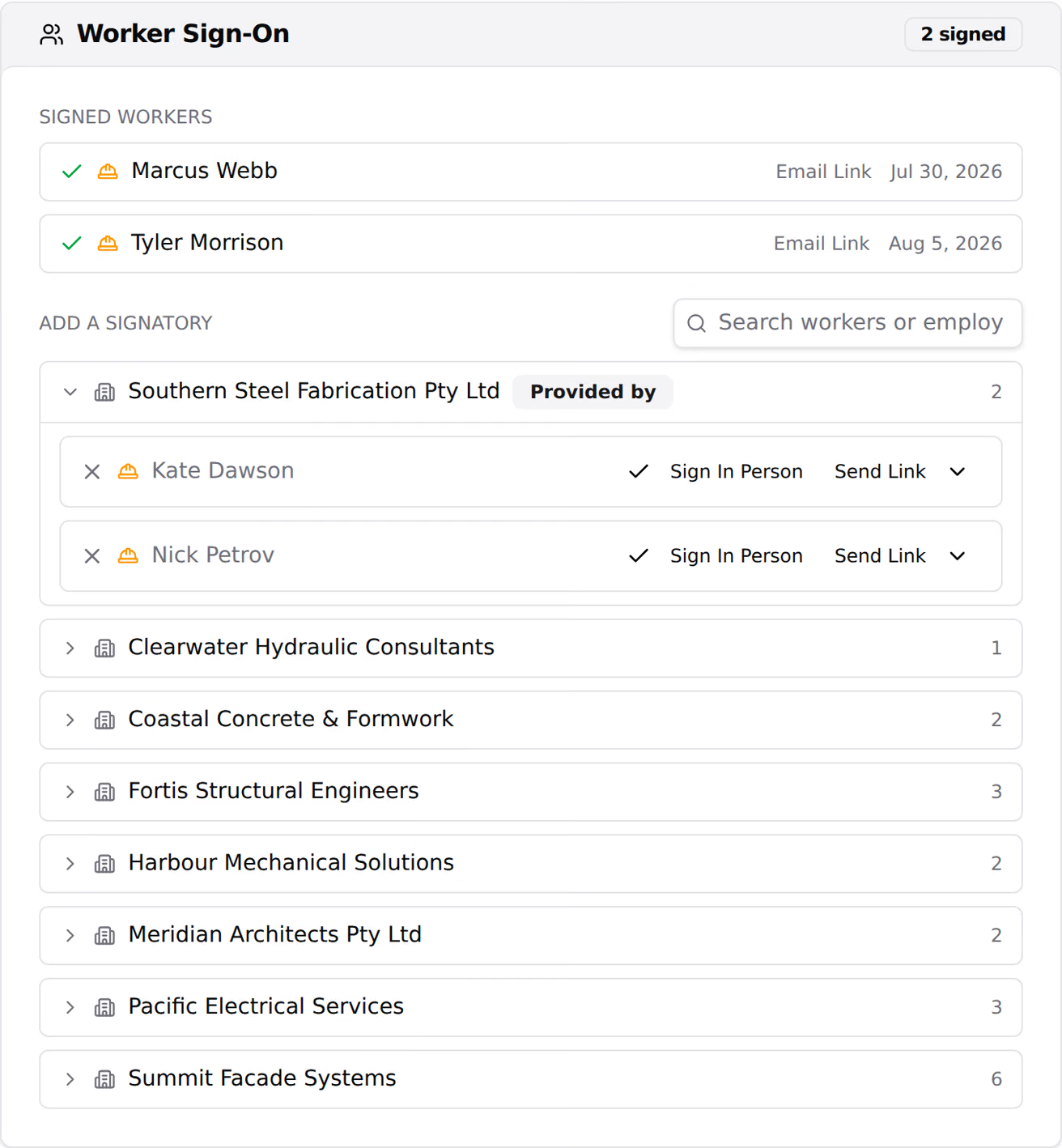
On the Worker Sign-On card, turn on Every worker on this project must sign this. Every worker inducted onto the project then signs it, and every guest on the project can see it.
On an accepted method statement, select Mark Not In Use. Its sign-ons stop counting. To bring it back, select Mark In Use, which restores them.
Warning: Deleting a method statement is permanent.
- Open the method statement and select Delete.
- Select Delete again to confirm.
Only method statements that are For Review can be deleted.
To download a method statement, open it and select Export PDF.
The project's public portal lists its accepted method statements for anyone with the link. To share it, select QR on the register.
In the organisation sidebar, under Registers, select Method Statements. The organisation register lists the method statements on the projects your organisation hosts, with the number of sites each is active on and its status. Administrators see every hosted project; other members see the ones they're on.
The organisation register is read-only, and a guest organisation's is empty. Learn more about organisation level and project level.
A guest sees the method statements their own company wrote or provides, the site-wide ones, and the ones whose workflow they take part in. Guests sign on only their own company's workers, and see only their own workers on the sign-on card.
Activity types are set up at organisation level:
- In the organisation sidebar, under Organisation Settings, select Tools, then Method Statements.
- On the Activity Types tab, select New Activity Type, enter the Name, Prefix, Colour and Description, then select Add Type.
- To configure a type, open its three-dot menu and select Edit.
- Set its Review Workflow, Custom Fields, Review Checklist, Default PPE Requirements, Default Required Licenses and Default Hazard Library.
- Select Save.
Warning: Deleting an activity type is permanent. Method statements of that type lose their type.
On a project, under Project Settings, select Tools, then Method Statements. Turn on Activate for the organisation types the project uses, or add a type for this project only.
| Permission | Allows |
|---|---|
| Can view method statement register and details | Seeing method statements and their sign-ons |
| Can create and submit method statements | Writing method statements, new versions, revise tasks, and signing on your own company's workers |
| Can approve, reject, and manage all method statements | Accepting and rejecting, editing in any status, marking not in use, and signing on any worker |
| Can permanently delete method statements | Deleting your own company's method statements |
Manage includes create, and create includes view. Delete is separate.
Changing the activity types needs Can manage organisation tools, or Can manage project tools on a project, and only host staff can hold either. Learn more about how permissions work.
Each activity type is bound to a workflow, chosen under Review Workflow when you configure the type. Turn on Locked to stop projects choosing a different one.
The default template is Method statement review: a Review method statement decision with Accept and Reject, and a Revise and resubmit task after a rejection. Only people with Can approve, reject, and manage all method statements can decide.
Each method statement runs its own workflow. Learn more about binding a workflow to a tool.