Submittals
Submit for review and track each revision to approval.
Part of Quality & Safety.
Found in each project. What's the difference?
Hosts set it up; guests see their own company's submittals and those they review.
Submittals tracks each submittal on the project, such as shop drawings, product data or a sample, through review to an outcome. Each revision of a submittal is its own record, under the same number.
In the project sidebar, under Quality & Safety, select Submittals. The register has four tabs:
- Items: every submittal.
- Packages: groups of related submittals. A package's status comes from the submittals in it, and reads Mixed when they differ.
- Spec Sections: a card for each specification section, with the number of submittals in each status.
- Action Required: submittals you manage that are submitted, or past their Final Due Date. The tab shows a count and a red dot when it isn't empty.
The tabs appear once the project has a submittal type. Learn more about the register screen.

A submittal's status is one of:
- Draft: being written.
- Open: ready, not yet submitted.
- Submitted: in review.
- Approved, Approved as Noted, Revise & Resubmit or Rejected: the review's outcome.
- Closed: finished.
- Void: cancelled.
- Superseded: replaced by a newer revision.
Submittals waiting on you also appear in My Items.
- On the register, select New Submittal.
- Under Submittal Details, choose the Type and enter the Title. Optionally, choose the Spec Section and Package, and enter a Description.
- Under Responsibility, choose the Responsible Contractor and, optionally, the Submittal Manager and Received From. The submittal manager is you unless you choose someone else.
- Under Schedule & Location, enter the dates: Submit By Date, Final Due Date, Required On Site and Lead Time (days). Optionally, choose the Location.
- Under Submittal Documents and Supporting Documents, select Add to attach files.
- Optionally, enter the Anticipated Delivery and Confirmed Delivery dates.
- Select Save Draft, or Submit to submit it for review now.
Type and Title are required. A submittal is numbered with its type's prefix, or SUB if the type has none. One sequence runs across the whole project, so a shop drawing SD-001 can be followed by a sample SA-002.
Under Options, turn on Private Submittal to hide it from guests other than its submittal manager, its distribution list and its reviewers. Host staff see every private submittal.
A submittal's Spec Section files it against the specification's numbering, such as 05 12 00 Structural Steel Framing. The Spec Sections tab shows how many submittals in each section are at each status.
- On the Packages tab, select New Package.
- Enter the Title, and optionally choose the Spec Section and enter a Description.
- Select Create Package.
To put a submittal in a package, choose the Package on the submittal.
- On the Items tab, select the upload icon above the table.
- Choose a CSV file with a Title column. It can also have Type, Spec Section, Description, Submit By, Due Date and Required On Site columns, with dates written as YYYY-MM-DD.
- Select the import button, which shows the number of rows: for example, Import 12 Rows.
Each row becomes a draft submittal. The upload icon appears once the register has at least one submittal.
Open the submittal and select Submit for Review. The submittal moves to Submitted, and its workflow starts.
The reviewer on the current step chooses an outcome:
- Approved
- Approved as noted
- For information only, which marks the submittal Approved
- Revise and resubmit
- Rejected
To record one, select the outcome, optionally enter a Comment and select Attach Files, then confirm. A comment is required for Revise and resubmit and Rejected.
Approved as noted means the work can go ahead, following the comments and markups on the returned documents, with no further submission. An approved-as-noted submittal can be closed, but not revised.
To stamp a submitted PDF, open the submittal and select Review & Annotate. In the viewer, select Review Stamps on the toolbar and choose a stamp.
The stamps offered are the project's own and the organisation's activated ones. A stamp is placed on the document only, and doesn't change the submittal's outcome.
When a submittal comes back as Revise & Resubmit or Rejected, create a revision:
- Open the submittal and select Create New Revision.
- Select the button naming the next revision, such as Create Revision 1.
The revision is a new draft submittal with the same number and the next revision number, linked to the one before. It copies the details, the distribution list and the linked documents, but not the attached files. The earlier submittal becomes Superseded, and keeps its own review and comments.
On an Approved or Approved as Noted submittal, select Close & Distribute to close it and email the distribution list, with an optional message. To close it without the email, select Close Without Distributing.
Open the submittal, select Update Status, then Void. Voiding cancels its workflow.
- Open the submittal and select Edit.
- Make your changes. To add people to the distribution list, select Add Internal Member or Add External Recipient.
- Select Save Changes.
People with Can manage all submittals (edit, delete, reassign) can edit a submittal in any status. Its creator and its submittal manager can edit it while it's Draft or Open.
Warning: Deleting a submittal is permanent.
- On the register, open the submittal's three-dot menu and select Delete Submittal.
- Confirm the deletion.
Only Draft and Open submittals can be deleted.
On the register, select the download icon, then CSV or PDF.
Host staff see every submittal on the project. A guest sees the submittals their company is responsible for, manages or created, and the ones they review. A guest sees a private submittal only if they manage it, are on its distribution list, or review it.
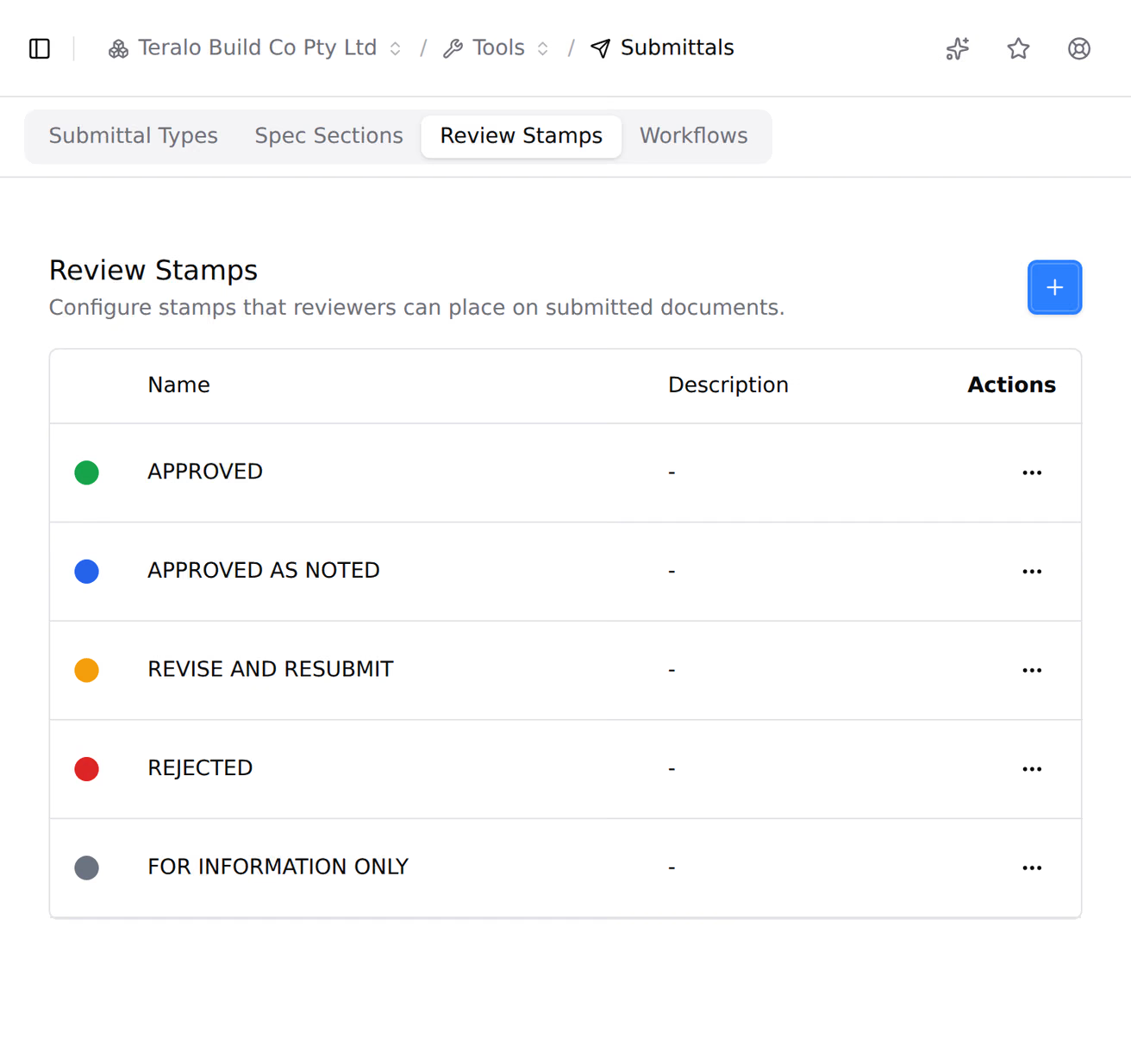
The settings are on the project. In the project sidebar, under Project Settings, select Tools, then Submittals. The settings have four tabs:
- Submittal Types: each type has a Name, a Prefix, a Colour, a Description, a Workflow and a Locked switch.
- Spec Sections: each has a Number, a Name and a Description. Load MasterFormat adds the MasterFormat sections.
- Review Stamps: each stamp has a Name and a Colour.
- Workflows: the workflow templates submittal types can use.
On the first three tabs, the organisation's items are listed with an Activate switch, and the plus icon adds an item for this project only. The same page at organisation level holds the items every project can activate.
| Permission | Allows |
|---|---|
| Can view submittals and packages | Seeing submittals and packages |
| Can create submittals and packages | Creating submittals, packages and revisions, and importing from CSV |
| Can review and approve submittals in workflows | Recording outcomes on steps you're assigned to, and Review & Annotate |
| Can manage all submittals (edit, delete, reassign) | Editing, closing and voiding any submittal, and acting on any step |
| Can permanently delete submittals | Deleting draft and open submittals |
Manage includes create, and create includes view.
Changing the tool's settings, including the review stamps, needs Can manage project tools, which only host staff can hold. Learn more about how permissions work.
Each submittal type is bound to a workflow, chosen in the type's Workflow field. A submittal can't be submitted until its type has one. The workflow starts when the submittal is submitted, so a draft has none.
A submittal can use a different workflow from its type's, chosen under Review Workflow before it's submitted. When the type is Locked, it can't.
There are two default templates:
- Submittal review: a Technical review step, then a Final approval step, each assigned to people with Can manage all submittals (edit, delete, reassign).
- Submittal auto-approve (no review): approves a submittal when it's submitted.
Revise and resubmit and Rejected end the workflow. The next attempt is a new revision, with its own workflow. Learn more about binding a workflow to a tool.