Permits
Request and approve permits for high-risk work.
Part of Quality & Safety.
Found in each project and your organisation. What's the difference?
Hosts set it up; guests apply for and see their own company's permits.
Permits holds each permit to work on the project, from application and approval to close-out. Each permit's type sets its fields and its three checklists, and the project's live permits are listed on its public permit board.
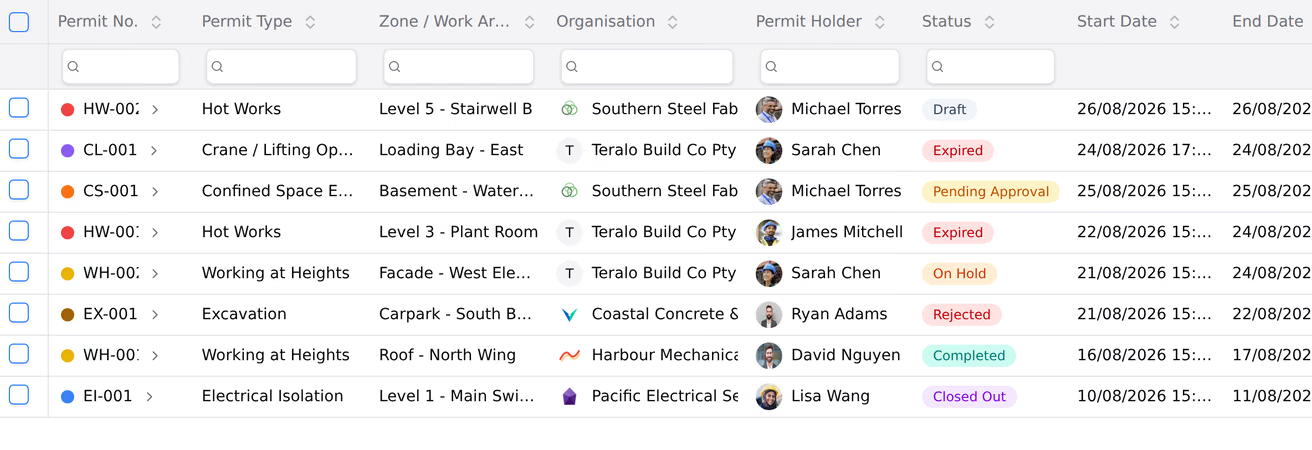
In the project sidebar, under Quality & Safety, select Permits. The register's columns include Permit No., Permit Type, Zone / Work Area, Organisation, Permit Holder, Status, Start Date and End Date.
A permit's status is one of:
- Draft: being written.
- Pending Approval: submitted and waiting for approval.
- Approved: approved, and the work hasn't started.
- Active: the pre-start checklist is done and the work is under way.
- On Hold: an active permit paused.
- Completed: the work is finished and the finish checklist is done.
- Closed Out: the close-out checklist is done.
- Rejected: sent back with a reason.
- Cancelled: ended before the work started.
Learn more about the register screen.
An Approved or Active permit whose end time has passed shows as Expired. Expired isn't a stored status, and it stays until someone with Can approve, reject, and manage all permits changes the permit's End Date.
While a permit shows as expired, its checklists are read-only, and it can't be put on hold or cancelled.
- On the register, select New Permit.
- Choose the Permit Type. The rest of the form depends on the type.
- Choose the Zone / Work Area from the project's locations, or select or enter manually and type it.
- Check the Organisation the permit is for, and choose the Permit Holder.
- Enter the Work Description, and the Start Date, Start Time, End Date and End Time.
- Optionally, fill in Associated Equipment, the hazards and control measures, the Personnel, and the Type-Specific Details.
- Optionally, answer the Pre-Start Checklist.
- Select Apply for Permit.
Permit Type and Organisation are required. Guests can only apply for their own organisation.
The permit is saved as a draft. With the default workflow, a permit created by host staff who hold Can approve, reject, and manage all permits is approved straight away.
Open the draft and select Submit for Approval. The permit moves to Pending Approval, and the people who can approve it are notified.
- Open the permit.
- Select Approve, or select Reject and enter the reason in Notes.
A rejected permit goes back to the person who submitted it, with a Revise and resubmit task. To resubmit it, open the permit and select Complete on the task. It returns to Pending Approval.
A permit has three checklists, each set by its type. Each must be complete before its step can be completed:
- Pre-Start Checklist: then Start work moves the permit to Active.
- Finish Checklist: then Complete work moves it to Completed.
- Close-Out Checklist: then Close out permit moves it to Closed Out.
To fill in a checklist, open the permit, expand the checklist, answer every item, and select Save Checklist. Then select Complete on the step. An item answered Fail or N/A counts as answered.

On an Active permit, select Put On Hold. To restart it, select Resume Work.
Warning: Cancelling a permit can't be undone.
- Open the permit and select Cancel Permit.
- Select Cancel Permit again to confirm.
A permit can be cancelled while it's Draft, Pending Approval or Approved.
On the permit's Related Items card, select Link existing to link equipment, method statements, safety data sheets or observations. To raise a new observation from the permit, select Raise observation.
- Open the permit and select Edit.
- Make your changes.
- Select Save Changes.
With Can apply for and create permits, you can edit a permit while it's Draft or Pending Approval. After that, editing needs Can approve, reject, and manage all permits. Guests can only edit their own organisation's permits.
Warning: Deleting a permit is permanent.
- On the register, open the permit's three-dot menu and select Delete Permit.
- Select Delete Permit again to confirm.
Only Draft and Pending Approval permits can be deleted.
Open the permit and select Export PDF.
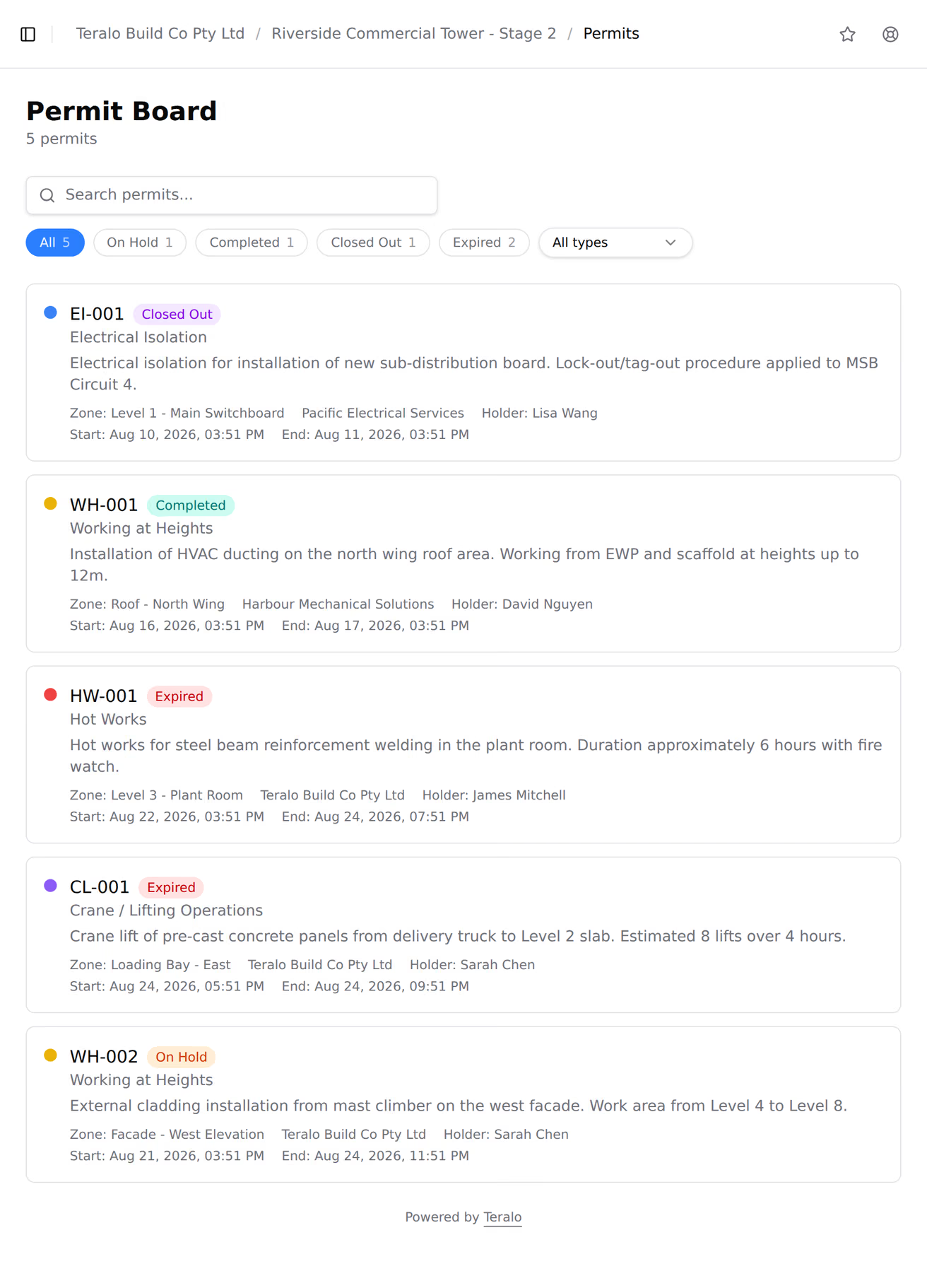
The project's public portal shows its permit board to anyone with the link, with no Teralo account needed.
The board shows permits that are Approved, Active, On Hold, Completed or Closed Out, with expired ones marked. It doesn't show drafts, or pending, rejected or cancelled permits. Nobody can apply for a permit through the portal.
To share the board, select QR on the register.
In the organisation sidebar, under Registers, select Permits. The organisation register lists the permits on the projects your organisation hosts, with a Project column. Administrators see every hosted project; other members see the ones they're on.
A guest organisation's register is empty. Learn more about organisation level and project level.
My Items lists permits waiting for approval, and active permits you hold.
A guest sees the permits their own company submitted, holds or has workers on, and the ones whose workflow they take part in. A permit a guest creates is never approved straight away.
The settings are on the project. In the project sidebar, under Project Settings, select Tools, then Permits. The settings have two tabs:
- Permit Types: the organisation's permit types, each with an Activate switch. To add a type for this project only, select New Permit Type.
- Workflows: the permit workflow, described under Workflows below.
At organisation level, the same page holds the permit types every project can activate. To set up a type:
- In the organisation sidebar, under Organisation Settings, select Tools, then Permits.
- On the Types tab, select Add Type, or open a type's three-dot menu and select Edit.
- Enter the Name, Prefix, Colour and Description.
- Optionally, set the Max Duration (minutes), and turn on Exclusive Zone.
- Under Custom Fields, select Add Field for each field the application asks for.
- Add the items for the pre-start, finish and close-out checklists.
- Select Save.
The prefix numbers each permit of that type on a project: a prefix of HW gives HW-001. Max Duration limits how long a permit of that type can run. Exclusive Zone refuses a new permit of that type for a zone that already has an approved or active one.
| Permission | Allows |
|---|---|
| Can view the permits register | Seeing permits and their checklists |
| Can apply for and create permits | Applying, submitting, and cancelling your own permits before approval |
| Can approve, reject, and manage all permits | Approving, rejecting, the checklist steps, holds, cancelling and editing any permit |
| Can permanently delete permits | Deleting draft and pending permits |
There's no separate approve permission. Manage includes create, and create includes view. Delete is separate.
Changing the tool's settings, including the permit types, needs Can manage project tools, which only host staff can hold. Learn more about how permissions work.
Permits runs one workflow for every permit on the project, whatever its type. A permit can't be submitted until one is bound.
To choose it, open the Workflows tab of the Permits settings, and under Permit Workflow, choose a workflow or Inherit organisation default. At organisation level, the Approval Workflow card can be locked to stop projects choosing a different one.
The default template is Permit lifecycle: an Approve permit decision, then the Start work, Complete work and Close out permit steps. Putting a permit on hold, resuming it and cancelling it happen outside the workflow. Learn more about binding a workflow to a tool.