Import
Turn checklists into inspection templates, or bring a project in from Procore.
Found in your organisation. What's the difference?
Host organisations only; members who can manage organisation tools use it.
Import brings in work kept outside Teralo. The Templates tab reads inspection checklists into inspection templates, and the Project data tab brings a project's files in from a Procore export.
- In the organisation sidebar, under Organisation Settings, select Tools.
- At the top of the page, select Import.

Import opens on the first tab your plan includes. Templates needs Inspections in the plan, and Project data needs Documents and Photos. With neither, there's no Import button.
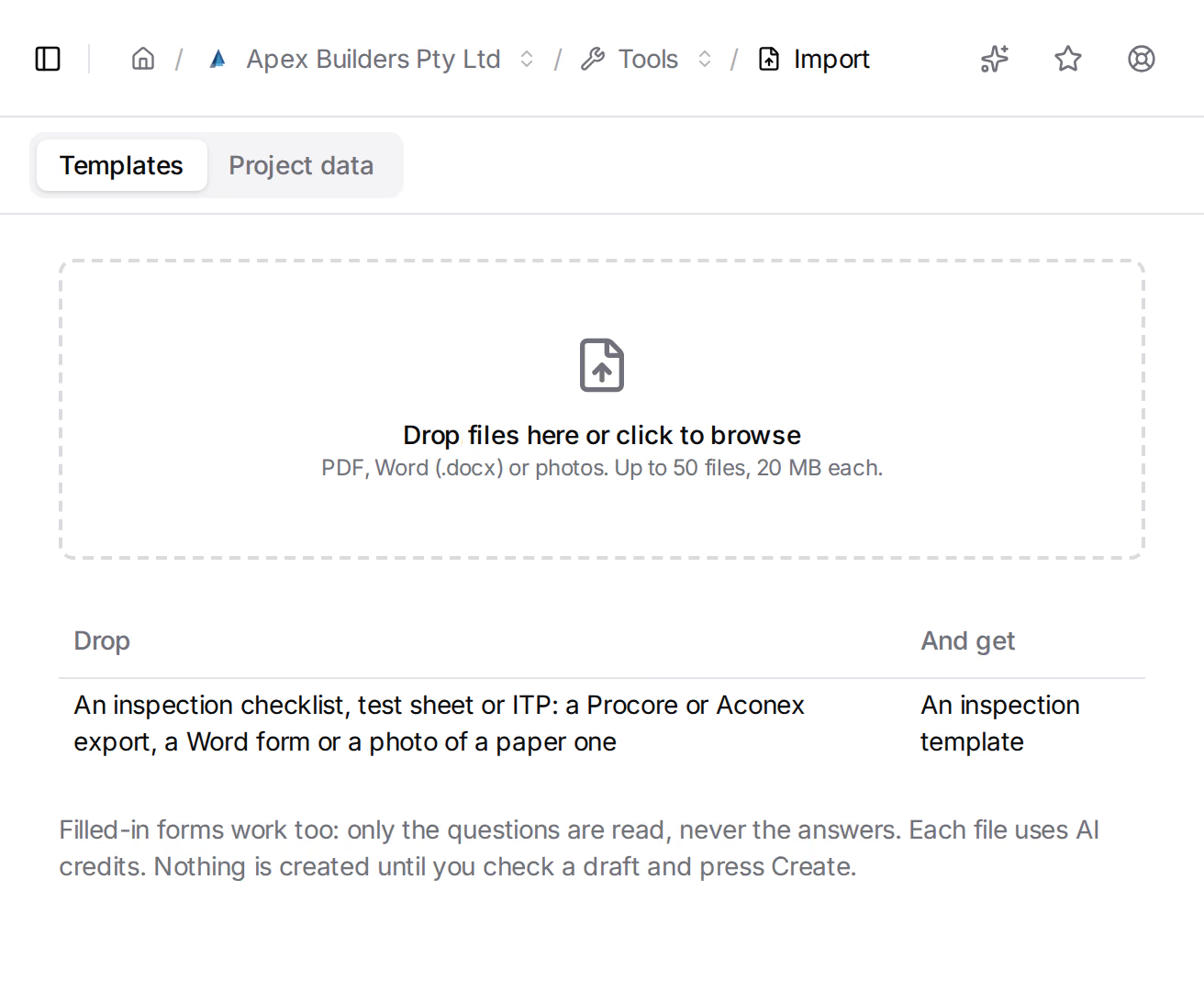
On the Templates tab, Teralo reads each file you drop into a draft inspection template. You check the draft, then create the template. Nothing is created until you select Create template.
Import reads:
- PDFs, including inspection exports from Procore and Aconex;
- Word files (.docx);
- photos of paper forms (PNG, JPG, WebP or HEIC).
A filled-in form works too. Only the questions are read, never the answers.
To read files:
- Drag the files onto the drop zone, or select it and choose them. You can add up to 50 files at a time, of up to 20 MB each.
- Teralo reads the files one at a time, in the order you added them. Each one waits under Reading until its turn.
- To add more files, select Add files.
Each file read uses AI credits, paid by the organisation. If the organisation runs out, reading stops, and the files not yet read wait until you try again.
A file that couldn't be read shows why under its name. Select the circular arrow beside it to read it again, or the X to remove it.
The left of the page lists each draft under Inspections, marked To check, Created or Discarded, with the file it came from. A file can hold more than one checklist, and each becomes its own draft. Teralo opens the next draft to check by itself.
The draft opens in the inspection template editor, with the file beside it. Change anything the editor allows:
- Template Name, as the checklist's title is printed;
- Category, chosen from the organisation's inspection categories;
- Description;
- the Checklist: its sections, and each item's wording, answer type, whether it is required and whether it needs a photo.
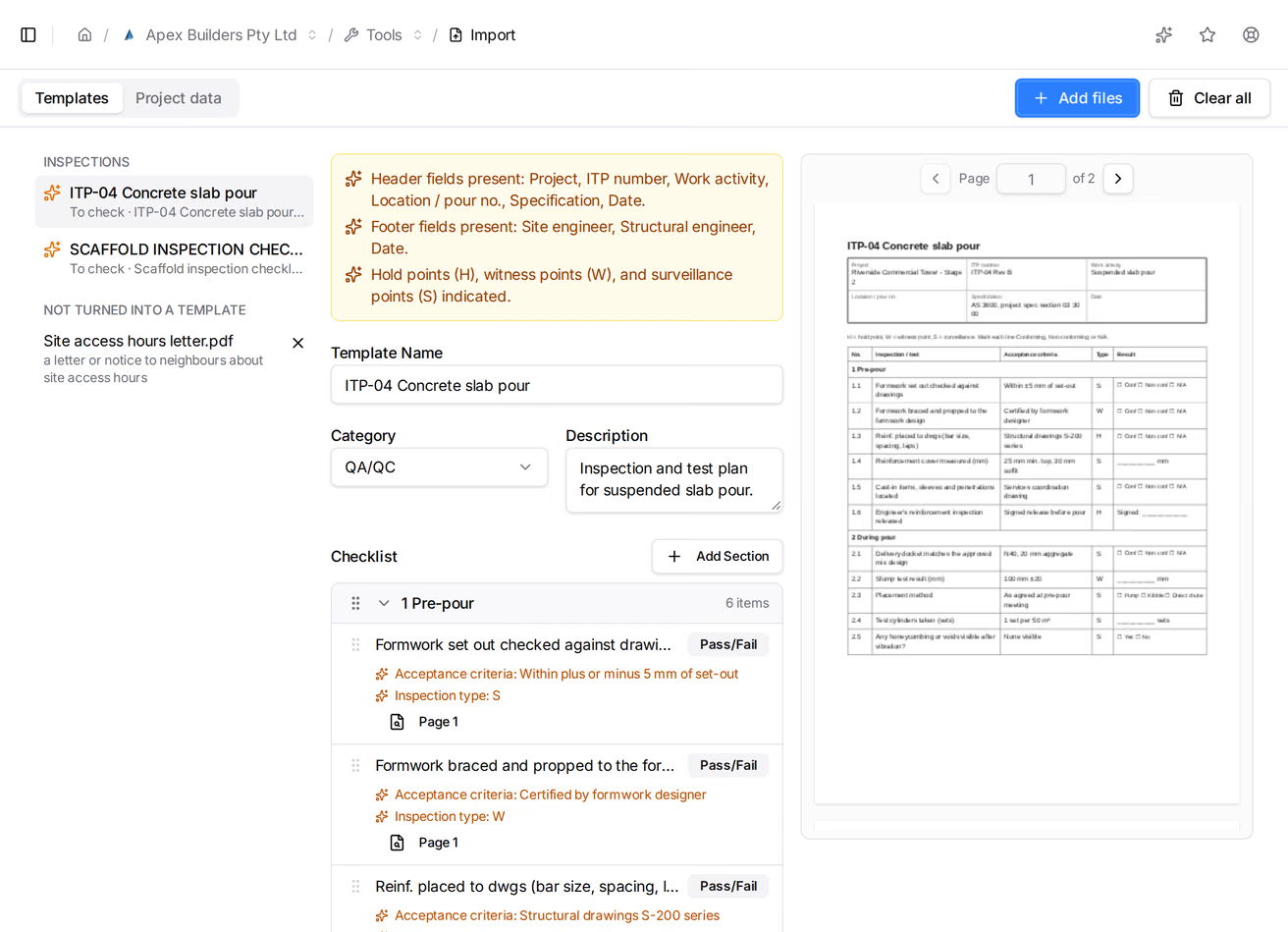
The reader's notes are in amber. Notes about the whole template sit above Template Name, for example the answers the form offered, or fields on the form that aren't carried across. Notes about one item sit under it.
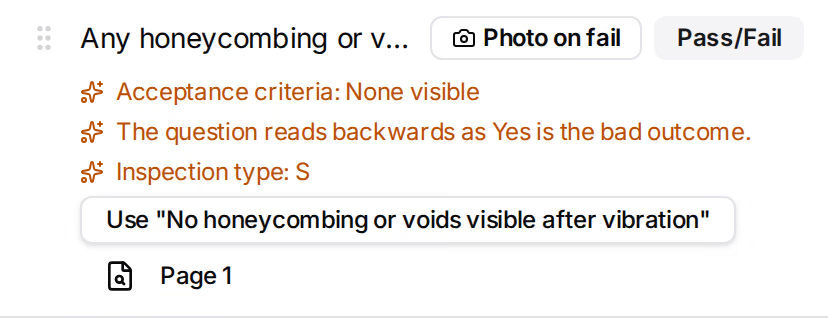
Under an item with a note:
- Use followed by a new wording replaces the item's wording with it. The reader offers one when a question reads backwards, so that Pass is the good answer.
- Page followed by a number shows that page of the file. It appears when the file has more than one page.
Your changes to a draft are kept as you make them.
- Open the draft and check it.
- Select Create template.
The template joins the organisation's inspection templates, and the draft is marked Created. Select Open inspection templates to see it there. Learn more about inspections.
If a template with the same name already exists, Teralo asks before replacing its checklist. The replaced template becomes its next version, and inspections already started keep their answers. If the existing template already has the same checklist, nothing changes and the draft is marked Created.
- Open the draft.
- Select Discard, then confirm.
The draft is marked Discarded. Getting it back means reading the file again, which uses AI credits again.
A file that holds no inspection checklist, such as a letter or a drawing, is listed under Not turned into a template, with what the reader took it for. Select it to see the file.
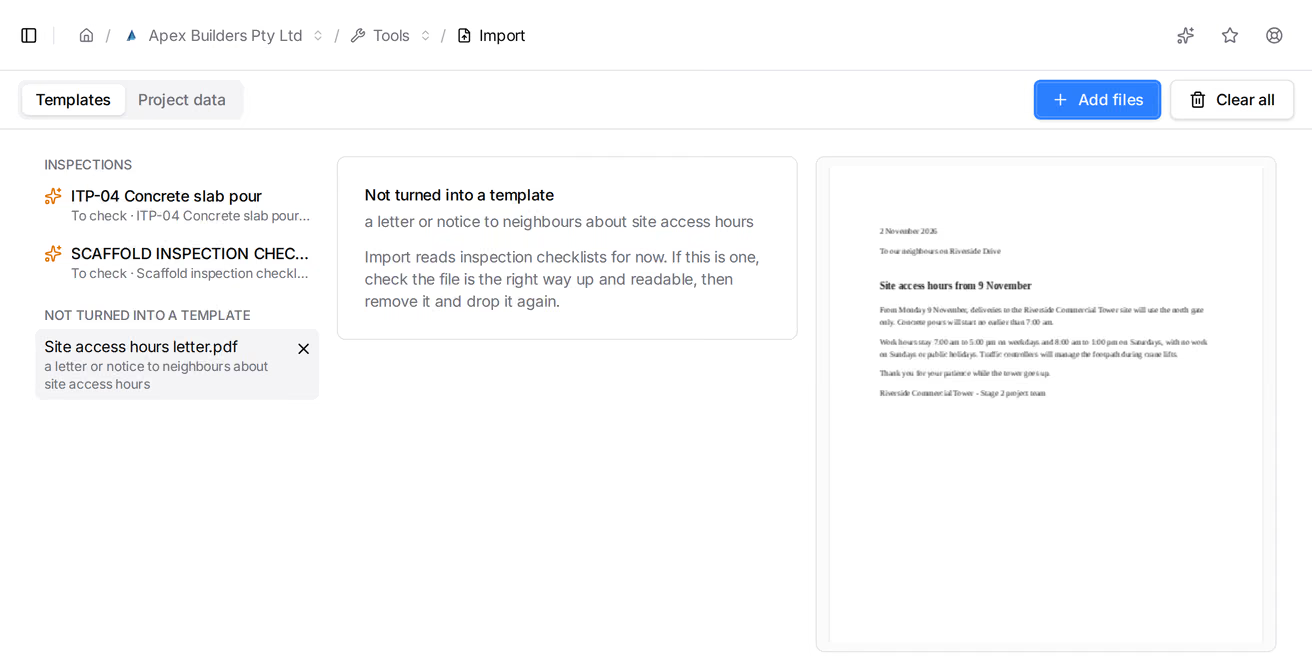
If the file is a checklist, check it is the right way up and readable. Then select the X beside it to remove it, and add it again.
Drafts and their files stay in the browser you read them in, on that computer. They are kept through a refresh, and go when you create or discard every draft from a file, select Clear all, or sign out.
Clear all removes every file and draft. If any draft is still to check, Teralo asks first. A file being read stays until it is read.
If the browser cannot store the files, Teralo warns you that a refresh loses them.
The Project data tab copies a project's files from a Procore Extracts export into a Teralo project: drawings, photos, documents and the records of every other Procore tool. It runs only in the desktop app on Windows. In a web browser, the tab says so.
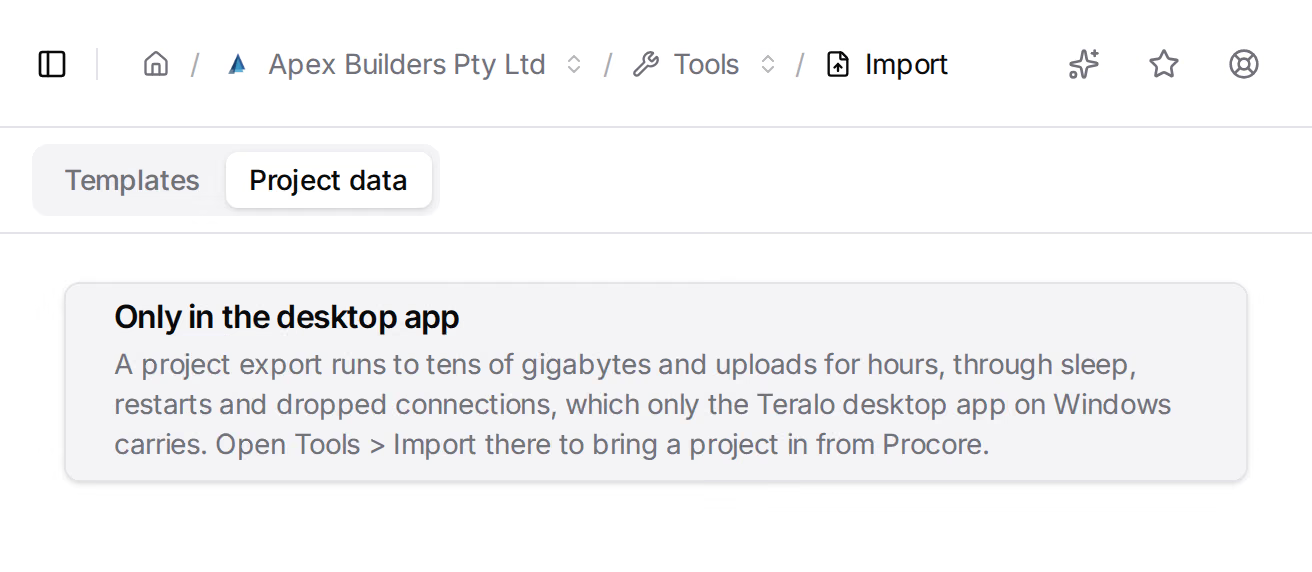
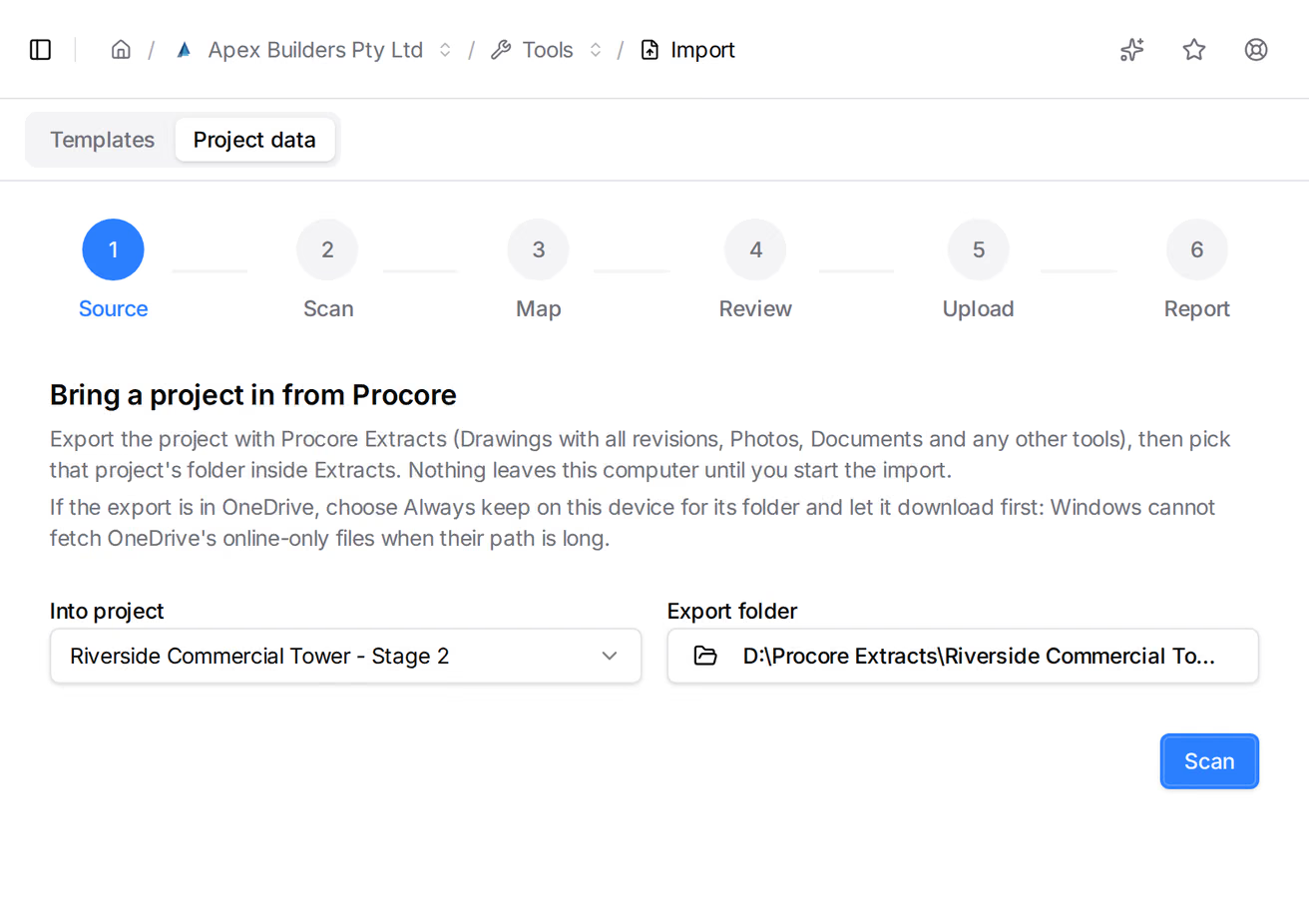
The import has six steps: Source, Scan, Map, Review, Upload and Report. Nothing leaves your computer until you select Start import.
In Procore, export the project with Procore Extracts: Drawings with all revisions, Photos, Documents and any other tools. Procore writes one folder per project inside its Extracts folder.
Note: If the export is in OneDrive, choose Always keep on this device for its folder and let it download first. Windows cannot fetch OneDrive's online-only files when their path is long.
- In the desktop app, open Tools, select Import, then the Project data tab.
- Under Into project, choose the Teralo project.
- Under Export folder, select Choose folder, then choose the project's folder inside Procore's Extracts folder.
- Select Scan.
If the project has had imports before, they are listed under Earlier imports into the project, with the files imported, refused and still to upload. Select Open to see one.
Scan reads the folder on your computer and sends nothing. It shows how many files go where, and their size:
- Documents register: each drawing in the export's
Drawingsfolder, read from its file name as a number, a title and a revision. Every revision of a drawing becomes a revision of one document, and the latest is current. If the register already holds the drawing, its current revision stays, and the imported ones are added as its history. Learn more about documents. - Photos: each photo in the
Photosfolder, in albums matching its folders in Procore. Teralo makes any album that does not exist yet. Learn more about photos. - Project Drive: everything in the
Documentsfolder, in the same folders. Learn more about the project Drive. - Records Archive: every other tool's folders, such as RFIs, emails, meetings and daily logs. Each record's folder becomes one archive record, with Procore's printout of it and its attachments.
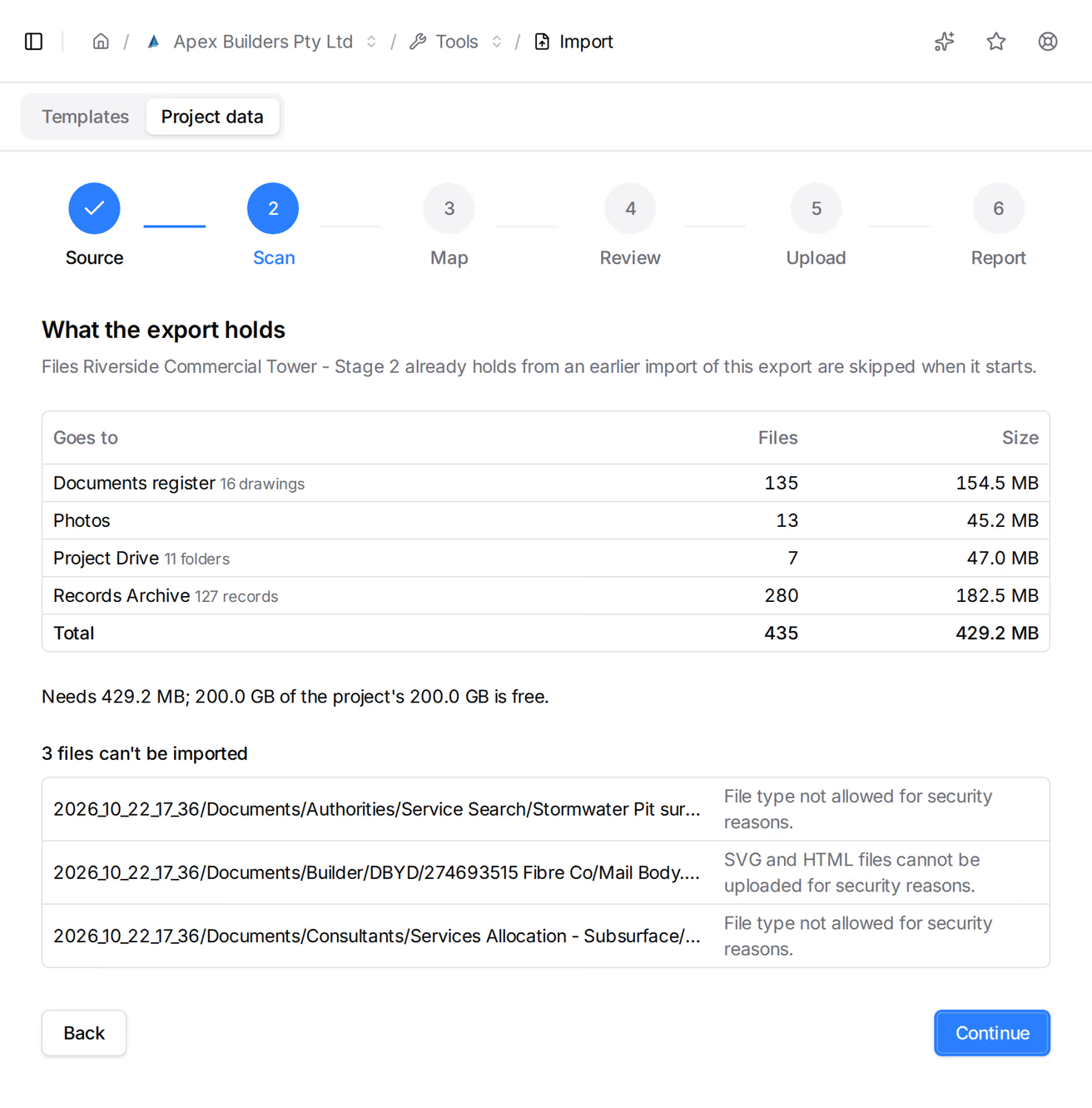
Below the table, Teralo shows the storage the import needs and what is free on the project. If the export doesn't fit, Continue is unavailable: email support@teralo.co to raise the project's limit.
Files that can't be imported are listed with the reason, for example a file type Teralo does not accept. Files the project already holds from an earlier import of the same export are skipped when the import starts.
If the folder is not a Procore extract, or holds the extracts of several projects, Teralo says so. Choose one project's folder and scan again.
Select Continue.
On Map, each Procore drawing set becomes a document status, and each discipline a document discipline. For each one, choose:
- Create, followed by its name, to add it to Tools > Documents when the import starts;
- Leave blank, to import those drawings without one;
- an existing status or discipline of the organisation.
Each one starts on the choice made at the last import from Procore. With none, it starts on the organisation's status or discipline of the same name, or else on Create. Your choices are kept for the next import.
Select Continue.
Review shows what goes where once more, and the statuses and disciplines it creates.
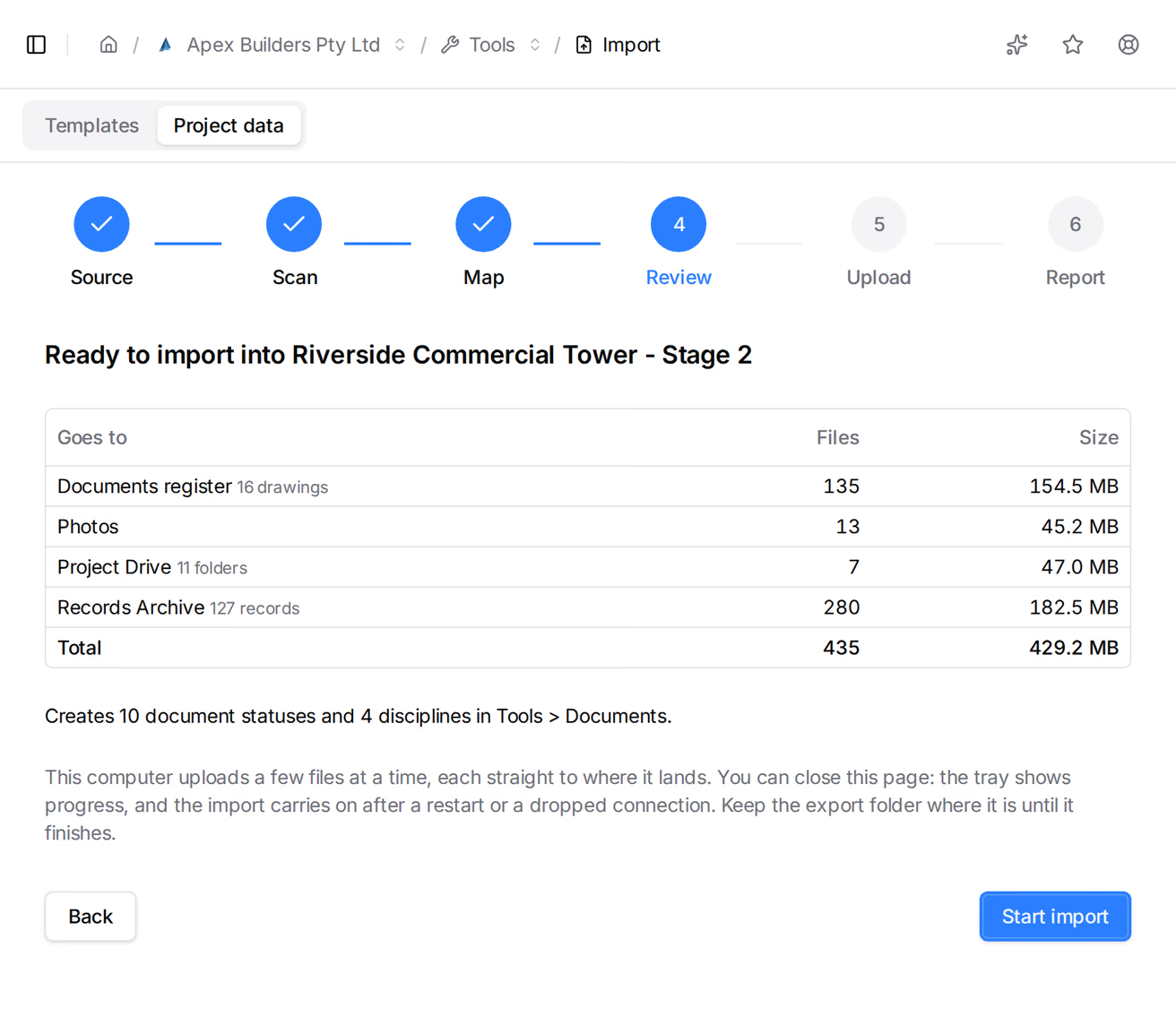
- Keep the export folder where it is until the import finishes.
- Select Start import.
Your computer uploads a few files at a time, each straight to where it lands. You can close the page: the import carries on, shows its progress in the system tray, and continues after a restart or a dropped connection. Reopening Project data on that computer shows it.
The import uploads through Teralo Drive on your computer. If Teralo Drive is not signed in, Start import signs it in. If it is signed in as an account outside the organisation, Teralo asks to sign it in as you. That account's Drive folders come off the computer, and files already downloaded stay as ordinary files.
While the import runs, Upload shows the files and data sent, the upload speed and the time left.
- Pause: starts no more files. Files under way finish.
- Resume: carries on.
- Cancel import, on a paused import: stops it and removes what it has brought into the project so far.
Warning: Cancelling removes the imported files, except documents and photos used since and Drive files changed since, which are kept.
When the network drops, the import waits and carries on by itself.
When the upload ends, Report shows the files imported and refused, and their size. A file is refused when, for example, it changed after the scan or was moved out of the export folder. Each refused file is listed with the reason.
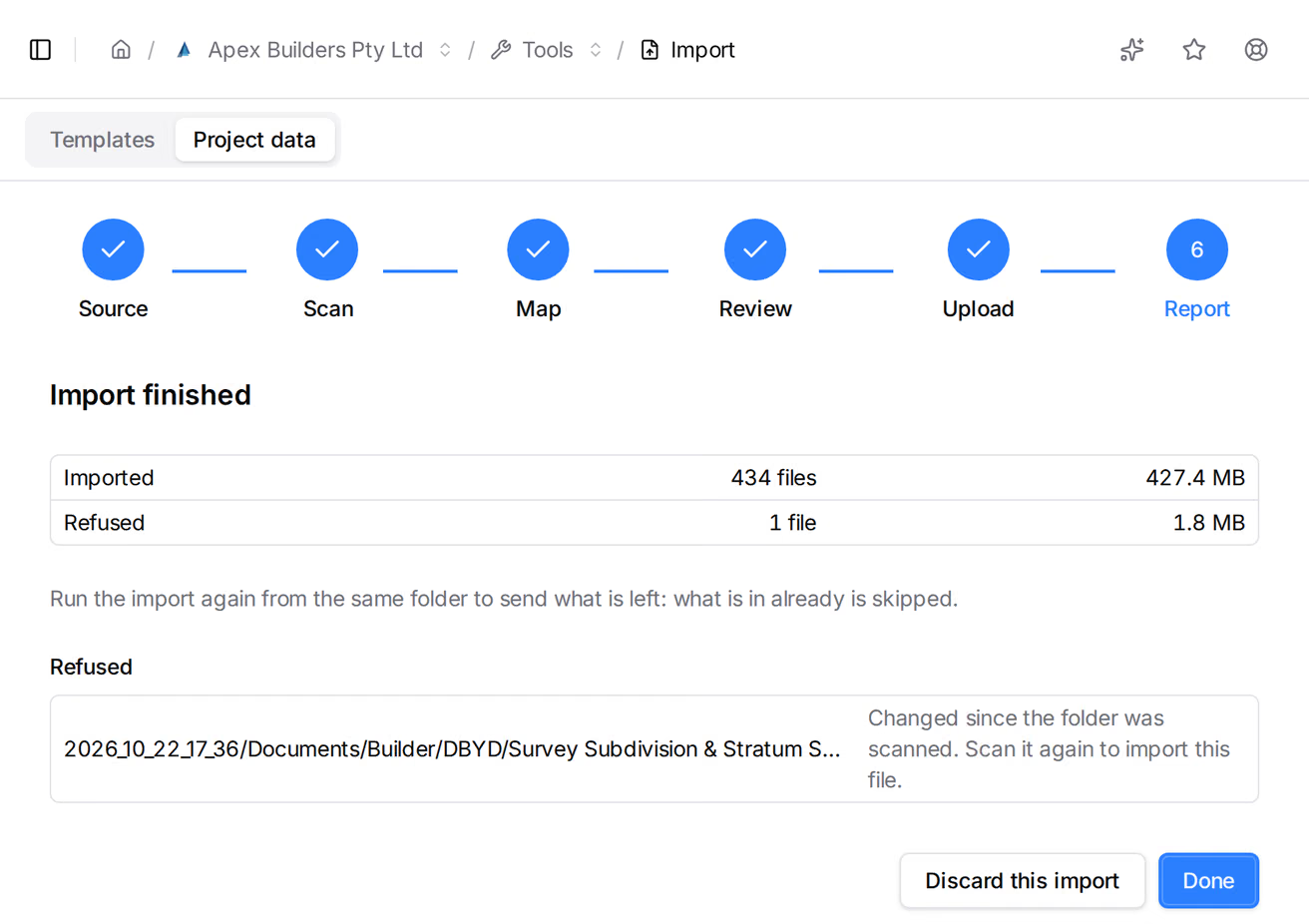
To send the rest, run the import again from the same folder. Files already in the project are skipped.
Select Done to start another import.
Warning: Discarding removes everything the import brought into the project, except documents and photos used since and Drive files changed since.
- Open the import's report. For an earlier import, choose the project on Source, then select Open beside it.
- Select Discard this import, then confirm.
Teralo lists what it removed, and what it kept.
| Permission | Lets you |
|---|---|
| Can view organisation tools | Open Tools, where the Import button is |
| Can manage organisation tools | Use Import: read files, create templates and import a project |
Both are organisation permissions, on the Tools row of a permission template as View and Edit. Only a host organisation has Tools.
A project import also needs you on the project, with these project permissions:
- Can edit and register documents their organisation did not upload
- Can upload photos
- Can view records imported from Aconex or Procore
- Can add to and change the project Drive (upload, create folders, rename, move, copy, supersede and restore)
Learn more about how permissions work.
No. Project data reads Procore Extracts exports only. The Templates tab reads inspection checklists exported from Aconex.
No. A project import runs only in the desktop app on Windows.