Organisation Register
See every organisation on your projects, with documents and ratings.
Found in your organisation. What's the difference?
Host organisations only; members with its permissions see it, or keep its documents and ratings.
The Organisation Register is a host organisation's private record of every organisation on its projects: the documents it keeps for each one, its own tags, ratings and notes, and the work each organisation has done on its projects. The organisations listed never see any of it.
The sidebar calls the register Organisations. To open it, in the organisation sidebar, under Registers, select Organisations. It's only in a host organisation, and only while that organisation is your active organisation.
An organisation is listed when it:
- has people on one of your projects;
- is invited to tender on one of your procurement packages;
- is the other party to one of your cost contracts;
- employs a worker with an approved or pre-approved induction on one of your projects.
Archived projects count. An organisation you've tagged, rated, kept a document for or written a note on stays listed. Your own organisation is never listed, and a closed one shows a Closed badge.
The register shows these columns to begin with:
- Organisation: the organisation's name and logo.
- Discipline: the discipline the organisation set on its own profile.
- Tags: your tags on the organisation. The first two show, then a count of the rest.
- Activity: chips counting its Projects, Workers and Open Tenders.
- Contract Value: the number of cost contracts and their total value, in your organisation's base currency. A contract's value is its schedule of values plus approved variations.
- Rating: the average of its ratings, with the number of ratings in brackets.
- Documents: a chip for each document type, showing its short code in the colour of its status. An optional type with no document shows a dashed chip.
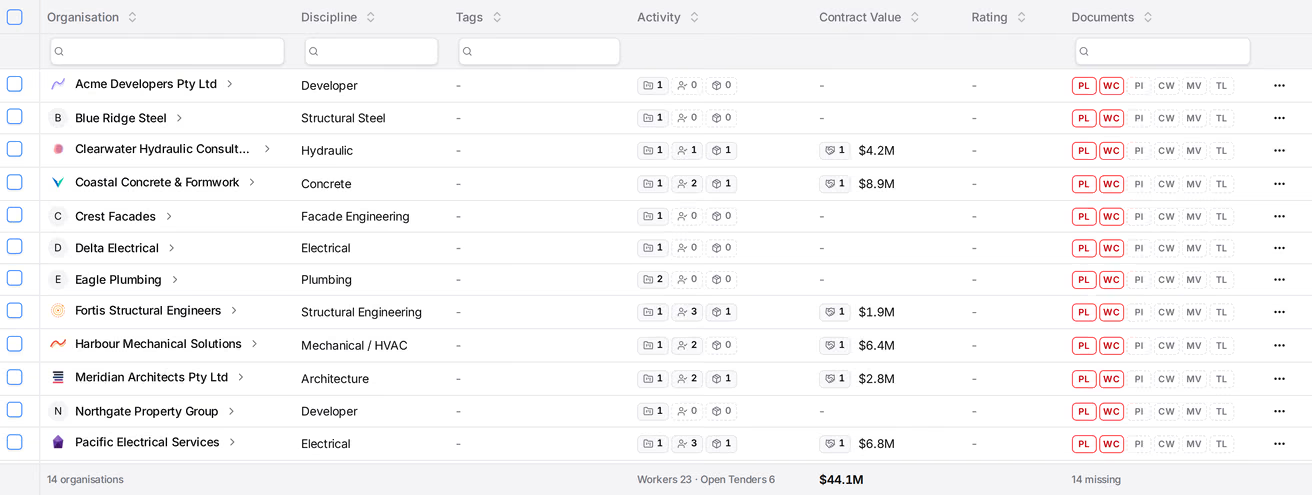
The columns button adds more: Projects, Workers, Open Tenders, Contracts, Document Status (the organisation's overall status), a column for each document type, and Next Expiry.
A totals row at the bottom counts the organisations listed and adds up the workers, open tenders and contract value. Under Documents, it counts the organisations whose overall status is expired, missing or expiring.
Workers counts workers on projects where you hold Can view the inductions register and worker profiles. Open Tenders counts invitations on packages at Out to tender or Tender closed that the organisation hasn't declined, on projects where you hold Can view procurement packages. Contracts and Contract Value cover projects where you hold Can view contracts.
The register has the same toolbar as every register. Learn more about registers.
- Search finds an organisation by its name or by one of its tags.
- A Tags filter shows organisations carrying any of the tags you choose.
- A Documents filter, and sorting by Documents, use the organisation's overall status.
To see what a count, a rating or the document chips cover, point at the cell or select it. A summary opens with a link to the matching tab of the organisation's page.
The search at the top of the sidebar also finds organisations on the register, by name or business number, when you're at organisation level. They're grouped under Organisation Register.
- In the register, select the organisation's name. You can also select the three dots on its row, then View Organisation or Documents.
- Choose a tab.
The page has the tabs Overview, Documents, Ratings and Projects. Workers, Tenders and Contracts appear when you can view inductions, procurement or contracts on at least one of your projects. A badge beside the tabs shows the organisation's overall document status.
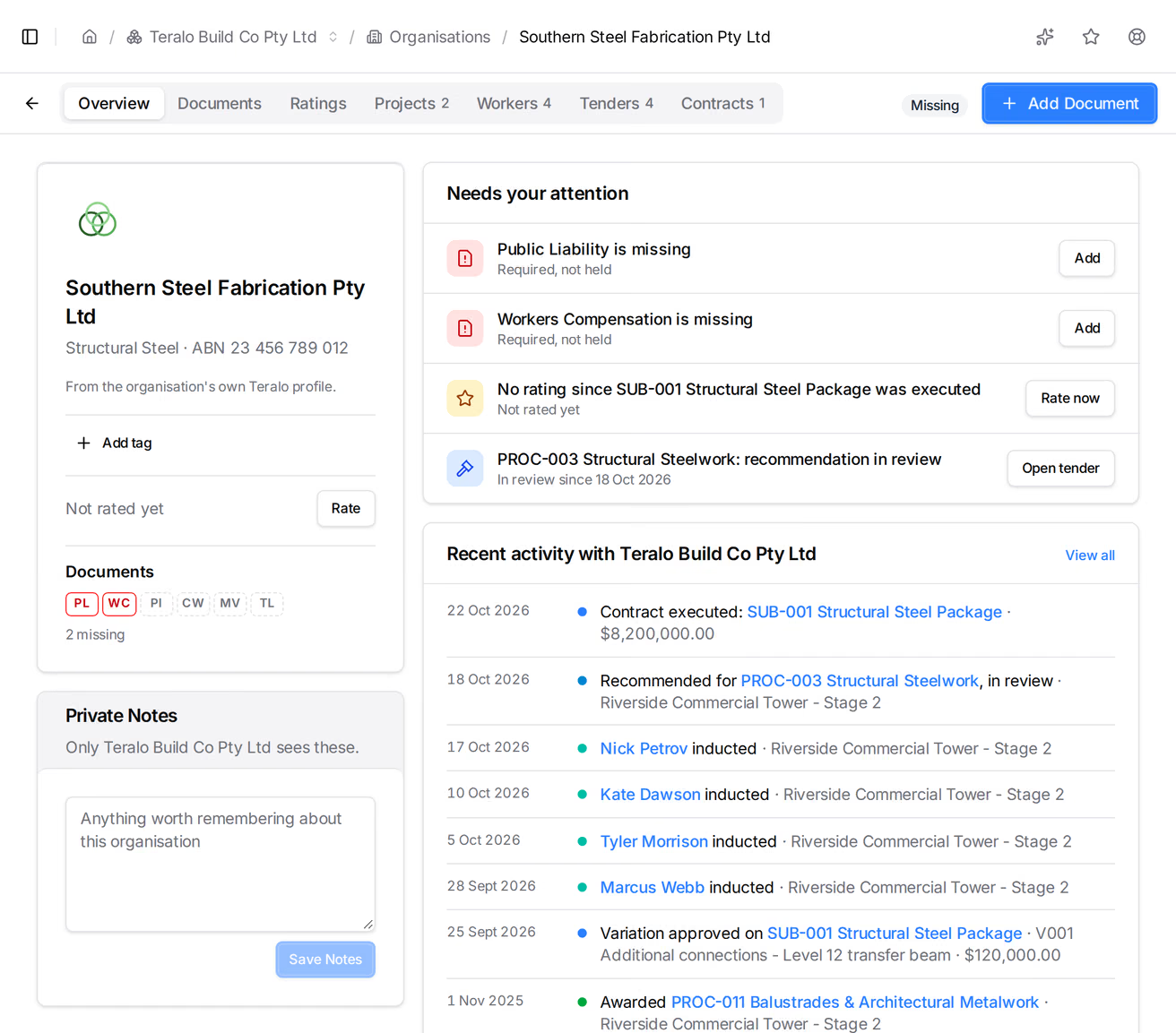
The card on the left holds:
- the organisation's profile: its discipline, business number, website and description, taken from its own Teralo profile;
- your tags on it;
- its rating, with Rate;
- a chip for each document type, with a count of required documents missing, expired or expiring. Select the chips to open the Documents tab.
Below it, Private Notes holds your notes on the organisation, up to 5,000 characters. Only your organisation sees them. Enter the notes, then select Save Notes.
On the right are three sections:
- Needs your attention: required documents that are missing, expired or expiring, with Add or Renew. It also lists a contract executed since the organisation was last rated, with Rate now, and a tender whose recommendation is in review, with Open tender.
- Recent activity with, followed by your organisation's name: contracts executed, variations approved, tender invitations, submissions and awards, workers inducted, and documents and ratings added, newest first. Select View all to see more than 10.
- On your projects: a card for each of your projects the organisation is on, with its contracts and their value, its tenders and its inducted workers.
Each is a register of the organisation's records on your projects:
- Projects: Project, Status and People.
- Workers: Worker, Job Title, Projects and Site Access.
- Tenders: Package, Title, Project, Stage, Invitation and Tendered price, the organisation's latest bid. The price shows Sealed while the tender box is sealed, and Withdrawn for a withdrawn bid.
- Contracts: Contract, Title, Project, Status, Original schedule, Approved variations and Contract value.
The Tenders and Contracts tabs have a totals row. Tendered prices in another currency are left out of the total.
- On the organisation's page, select Add Document. On the Documents tab, you can also select Add on a document type.
- Choose the Document type.
- Under File, choose the file: a PDF, PNG or JPEG, up to 20 MB.
- Optionally, select Autofill with AI to fill in the fields from the file.
- Enter or check each field. Fields marked with a red asterisk are required.
- Select Add Document.
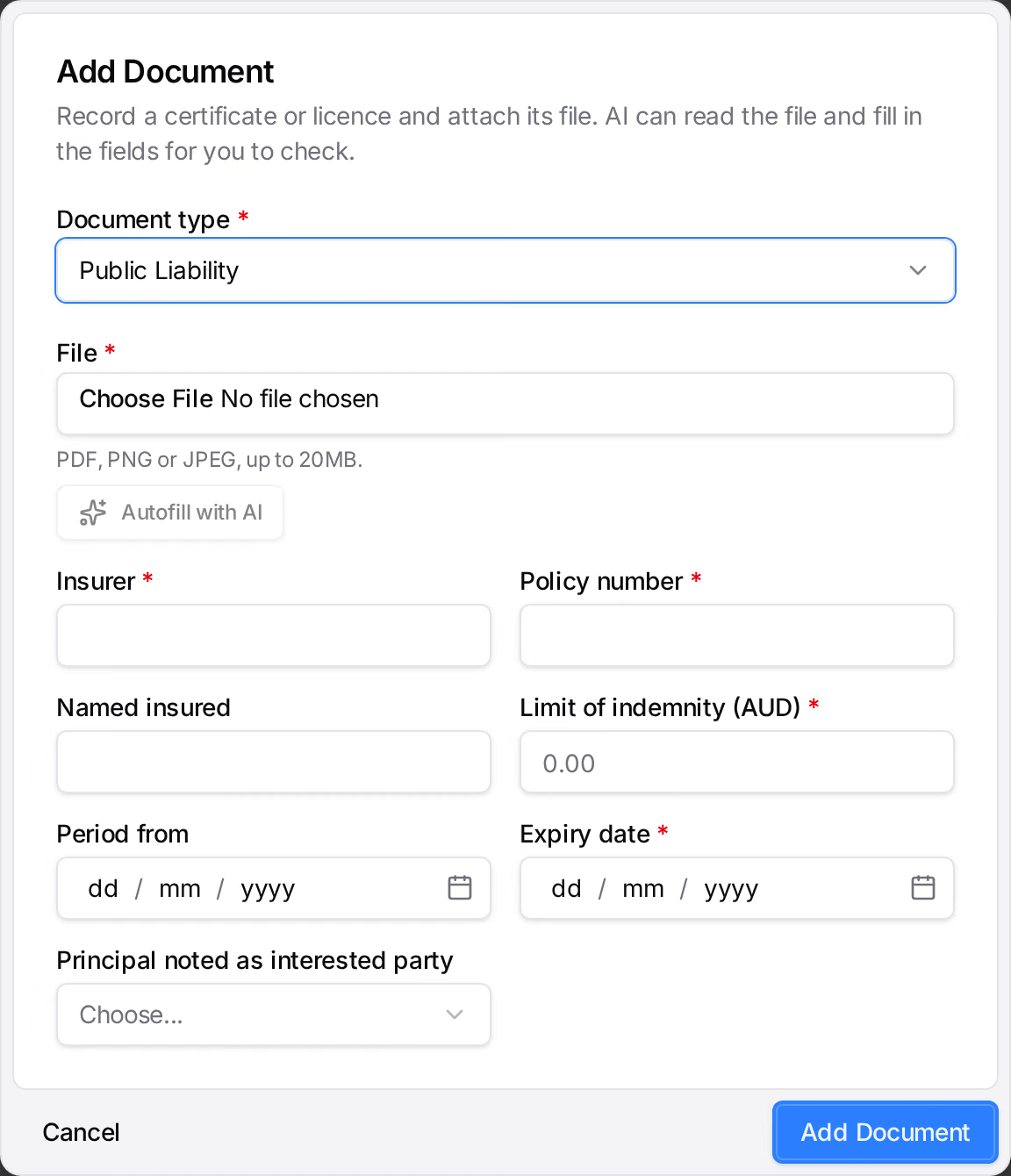
The document type sets the fields. One date field can be the document's expiry date.
Autofill with AI reads the file and fills in the fields, beside a preview of the file. Without a document type chosen, it also suggests the type. Reading a file uses your organisation's AI credits. Learn more about AI credits.
Each field AI filled is marked AI until you change it. To accept every marked value, select Mark all checked. A field AI couldn't find on the file is flagged for you to check. Autofill again replaces the last read, and so does choosing another file.
A value still marked AI when you save shows a sparkle beside it on the Documents tab.
- On the Documents tab, select Renew on the document.
- Choose the new file.
- Optionally, select Autofill with AI.
- Check the fields. They start from the current document, without its dates.
- Select Renew.
The old document stays as an earlier version. To see earlier versions, select the count of earlier versions under the document.
To edit a document, select the three dots on it, then Edit. Change the fields, and optionally choose a file under Replace file, then select Save.
Warning: Deleting a document deletes its file and cannot be undone. If it renewed an earlier version, that version becomes current again.
To delete a document, select the three dots on it, then Delete, then Delete again. To delete an earlier version, open the earlier versions and select Delete on it.
A document of a retired type can't be edited or renewed, only deleted.
Each document has one of these statuses:
- Current: it has no expiry date, or 30 days or more left.
- Expiring: it has fewer than 30 days left, or expires today.
- Expired: its expiry date has passed.
A document type takes the best status among the organisation's documents of that type. A required type with no document shows Missing. The organisation's overall status is the worst status among its required types. Teralo counts the days on your organisation's Time Zone.
An expired or missing document doesn't stop the organisation working on your projects.
Teralo emails a daily summary to the members of your organisation who hold Can rate organisations and keep their documents in the organisation register. It lists each document once when it comes within 30 days of its expiry date, and once when it expires. Renewing a document stops its emails. The organisation the document belongs to isn't told.
To stop the email, turn off Document expiry under Organisation Register in Notification Preferences. Learn more about notification settings.
Tags are your own labels for organisations, up to 40 characters each.
- On the organisation's page, select Add tag.
- Choose a tag. To create one, enter its name and select Create tag followed by the name.
To remove a tag, select the cross on it.
To tag several organisations at once:
- In the register, tick the organisations.
- In the bar at the bottom, select Add tag or Remove tag.
- Choose the tag. When adding, you can enter a new name to create a tag.
- On the organisation's page, select Rate.
- Under Rating for, choose a contract, tender or project the rating is about, or General.
- Select from 1 to 5 stars for each criterion.
- Enter a Comment. A comment is required when any criterion scores under 3, unless the setting is off.
- Select Save Rating.
A rating's overall score is the average of its scores. The organisation's rating is the average of the overall scores of its ratings. Rate appears only once at least one rating criterion is set up.
The Ratings tab shows the organisation's average, how many ratings it has from how many people, and a bar for each criterion. Below it, Track record lists every rating, newest first, with who gave it, the date, what it was for, each score and the comment.
To change your own rating, select the three dots on it, then Edit, change it, and select Save Rating. The rating keeps its date and shows (edited).
To delete a rating, select the three dots on it, then Delete, then Delete again. You can delete your own ratings, and an administrator can delete anyone's.
On a procurement package, a returnable can have an Organisation Register document type. A tenderer's current document of that type on the register counts as received, and a file a tenderer hands in can be saved to the register with Save to the Organisation Register.... A tenderer's sheet also offers Rate followed by the firm's name. Learn more about procurement.
The register is separate from compliance documents, which each organisation keeps and submits for itself. Learn more about compliance documents.
In the organisation sidebar, under Organisation Settings, select Tools, then Organisation Register. The tabs are Document Types, Tags and Rating Criteria. Changing them needs Can manage organisation tools. Learn more about the tools catalogue.
To add a document type:
- On the Document Types tab, select Add Type.
- Enter the Name, and a Short code of up to 6 characters. The short code is the type's chip in the register.
- Select Add Type. The type's page opens.
- Optionally, turn on Required for every organisation. A required type shows Missing for an organisation with no document of that type.
- Under Fields, select Add Field, enter the Label and choose the Kind: Text, Number, Currency, Date, Yes/No or Choice. For Choice, add the Options.
- Optionally, enter a Hint for AI, and turn on Required. For a date field, turn on Expiry to make it the document's expiry date.
- Select Add Field. Repeat for each field.
- Select Save.
To change a type, select Edit on it. Drag a field to reorder it, or use Move up and Move down in its menu. A saved field keeps its kind. Removing a field leaves its values on documents already kept.
To retire a type, open it and select Retire, then Retire Type. It leaves the register and AI autofill, and its documents stay. Retired types are listed under Retired, with Restore.
With no types yet, Add Default Types adds Public Liability and Workers Compensation, both required, and Professional Indemnity, Contract Works, Motor Vehicle and Trade Licence.
Select Add Tag, enter the Name, choose a Colour, then select Add Tag. The list shows how many organisations carry each tag. On a tag's three dots:
- Rename or recolour.
- Merge into...: moves the tag's organisations to another tag, then deletes this one.
- Delete: removes the tag from every organisation. This cannot be undone.
Select Add Criterion, enter the Name and optionally a Hint, which shows under the name when rating, then select Add Criterion. Use the arrows to reorder the criteria.
To change a criterion, select Edit. To retire one, select Edit, then Retire, then Retire again. New ratings stop asking for it, and ratings that scored it keep the score. Retired criteria are listed under Retired, with Restore.
With no criteria yet, Add Default Criteria adds Quality, Safety, Programme, Commercial and Communication.
Require a comment when any criterion scores under 3 is on to begin with.
| Permission | Allows |
|---|---|
| Can view the organisation register | Opening Organisations and each organisation's page, its documents and its notes |
| Can rate organisations and keep their documents in the organisation register | Tagging and rating organisations, writing notes, adding, renewing, editing and deleting documents, and AI autofill |
Both are organisation permissions, on the Organisation Register row of an organisation permission template as View and Edit. Edit includes view. Both are for host organisations only, and administrators hold both. Learn more about how permissions work.
The register permissions don't open the register's Tool Settings, and Can manage organisation tools doesn't open the register.