The tools catalogue
Configure each tool once, then choose what each project uses.
Found in each project and your organisation. What's the difference?
Host organisations only, at both levels; members with the tools permission configure it.
Tool Settings holds each tool's configuration: its types, statuses, checklists, templates and approval workflows. A host organisation has two catalogues, one for the organisation and one on each project it hosts.
- For the organisation: in the organisation sidebar, under Organisation Settings, select Tools.
- For a project: in the project sidebar, under Project Settings, select Tools. Inside a tool, you can also select the gear icon at the top right to open that tool's settings.
The page shows a card for each tool, grouped under Project Management, Contract Management, Quality & Safety and Resource Management. Select a card to open the tool's settings.
To find a setting, enter a word in Search tools and settings. To move to another tool's settings, select Tools at the top of the page and choose the tool.
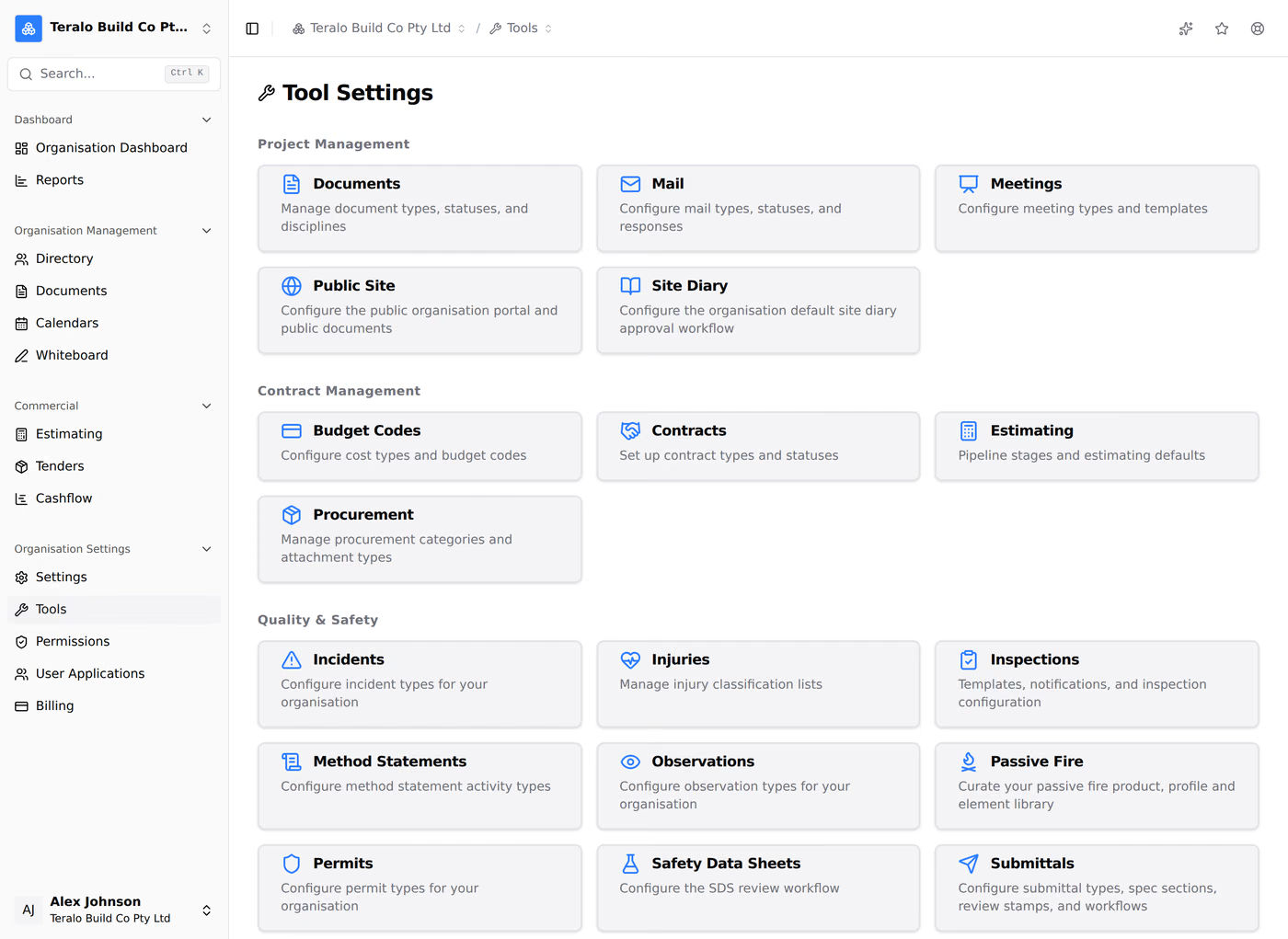
Each catalogue has 23 cards. Estimating is in the organisation catalogue only, and Locations in the project catalogue only. Learn more about organisation level and project level.
Teralo has no switch that turns a tool on or off for an organisation or a project. A tool appears in someone's sidebar when:
- their permission template gives them a permission for the tool;
- the plan includes the tool. On a project, that is the host organisation's plan.
Learn more about how permissions work and plans and entitlements.
Types, statuses and categories written in the organisation catalogue are available to every project. On a project, each one is used only once it is activated.
- In the project's Tool Settings, open the tool, for example Observations.
- Open the tab, for example Observation Types.
- Under the organisation list, turn on the switch in the Activate column for each entry the project uses. To change the whole list, select Activate All or Deactivate All.
The project's own list sits below the organisation's. An entry added there belongs to that project only, and is active straight away.
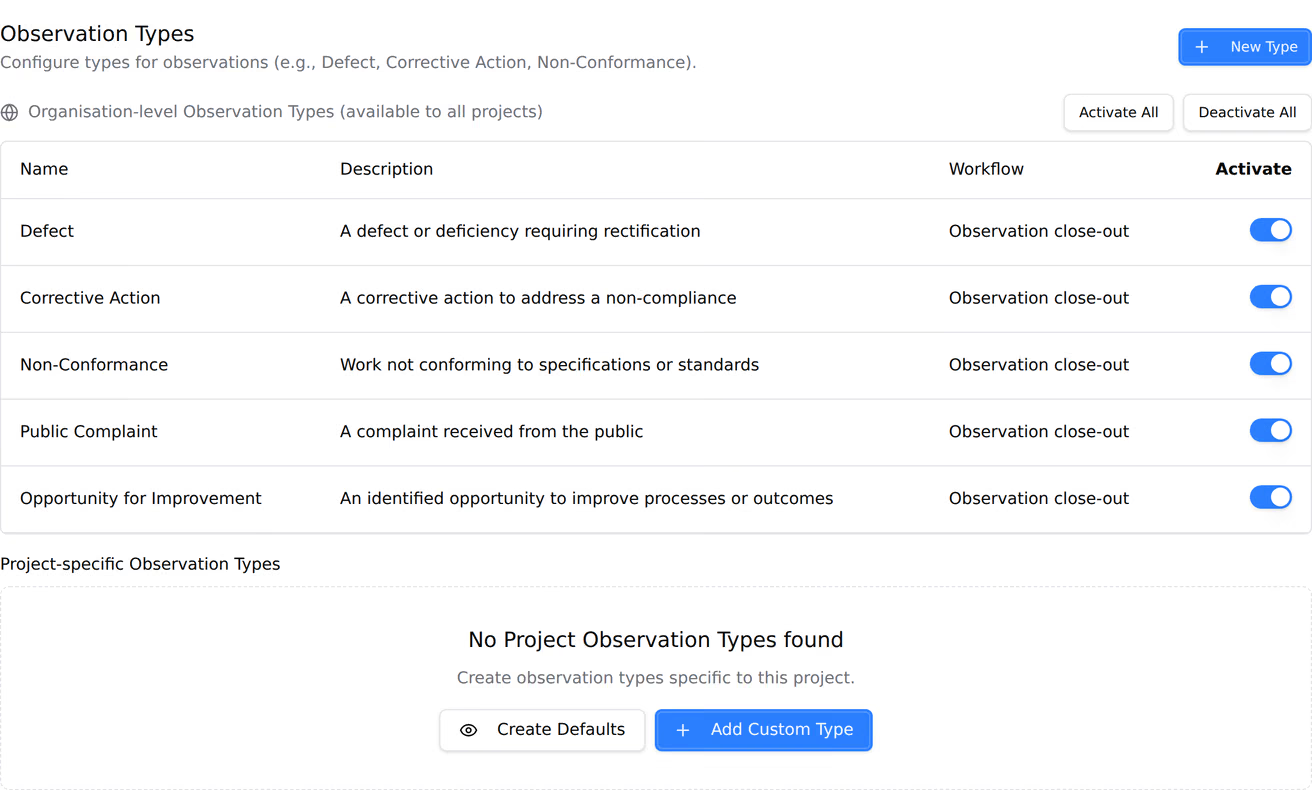
Some organisation lists apply to every project without a switch: mail text templates, the procurement clause library and scope templates, and the inductions job titles, licence types, questions and content tiers. Inspection templates are copied to a project with Use on Project.
The Tool Setup step of creating an organisation offers Create with Defaults. It writes a starting set of entries for the tools, including mail types, document types, contract types and statuses, procurement categories, observation types, permit types and their checklists, and a default approval workflow for each tool that has one. It also writes organisation permission templates and the base for project permission templates.
You can edit, rename or delete anything it writes. Learn more about setting up your organisation.
The Tool Setup step of creating a project offers Activate All Templates or Skip for now.
Activate All Templates:
- activates every organisation entry on the project;
- copies the organisation's project permission templates to the project;
- copies the organisation's workflow templates to the project, without their reviewers.
With Skip for now, the project gets only its inspection categories, which Teralo activates on every new project. You can activate entries later in the project's Tool Settings.
Either way, each tool uses the organisation's default workflow until the project picks its own.
Each tool that has an approval workflow has a Workflows tab in its settings. Select Add Workflow to open the workflow builder, or the pencil icon to edit a workflow. The workflow builder has no card of its own.
Learn more about the workflow builder and binding a workflow to a tool.
When the plan leaves a tool out, its card doesn't appear in the catalogue or in the Tools menu at the top of the page. Opening its settings page by its address shows Not included in your plan.
Only a host organisation has Tool Settings. A guest organisation's sidebar has no Tools item, and opening the page by its address is refused. On a project, only people in the project's host organisation can open its Tool Settings.
A guest organisation's Equipment, Permits and Method Statements registers are empty, since they list records on the projects an organisation hosts. The Inductions register is for host organisations only. Learn more about hosts and guests.
Two permissions at each level, shown as View and Edit on the Tools row of a permission template:
| Permission | Lets you |
|---|---|
| Can view organisation tools | Open the organisation's Tool Settings |
| Can manage organisation tools | Change the organisation's tool settings |
| Can view project tools | Open a project's Tool Settings |
| Can manage project tools | Change a project's tool settings and workflows |
A few project settings take the tool's own permission instead:
- Locations, and the inspections templates and categories: Can manage inspection templates, plans, and locations.
- The passive fire Settings tab: Can manage passive fire installations and tool settings.
- The bookings settings: Can manage all bookings, configure bookable resources, delete bookings.
No plan can remove Tool Settings.