Site Diary
Record the weather, labour, plant and events of each day.
Part of Project Management.
Found in each project. What's the difference?
Hosts set it up; guests see and submit only their own company's entries.
Site Diary holds the daily record of a project: the weather, the hours worked, what happened on site, and a progress report from each company.
Each entry covers one day and belongs to the company of the person who wrote it. You can write one entry per day.
- In the sidebar, select Site Diary, then New Entry. You can also select a day in the Calendar view.

- Under Entry Details, set the Date, the Hours Type and the Start and End times. Optionally, enter a Lost Hours Reason.
- Check the Weather card, and optionally add Weather Notes.
- Enter the General Notes.
- Under Sections, add an entry for anything else to record.
- Select Create Entry.
The entry is saved as Draft. The Hours Type is Standard, Overtime, Weekend or Shutdown, and the Start and End times default to the project's standard working hours.
For today's date, Teralo fills in the Weather card from the forecast for the project's site address: Condition, Temperature (°C), High (°C), Low (°C), Humidity (%) and Wind Speed (km/h). You can change any of them. For an earlier date, enter the weather yourself.
An entry has a section for each kind of record the project tracks, and the host chooses which appear. The sections and their fields are:
- Notes: location, comments
- Equipment: Equipment, Hours Operating, Hours Idle, location, Inspected, time
- Visitors: Visitor, Start Time, End Time
- Deliveries: Time, Organisation, Tracking Number, Contents
- Safety Observations: Description, Action Taken, location
- Quantities: Description / Activity, Quantity, Unit, location
- Delays: Delay Type, Start Time, End Time, Description, location
- Waste: Waste Type, Disposal Method, Quantity, Unit
- Programmed Work: Activity / Task, Status, location
To add a record to a section, expand it and select its add button, such as Add Delays Entry. A section can hold any number of records, and each record takes comments and attachments through Attach.
Equipment lists the plant on site on the project now, and Visitors lists the workers who signed in on the entry's date. Both also accept a typed entry.
A progress report records one company's day: Workers, Hours Worked, Visitors and a Summary. The diary has no labour section, so headcount and hours go here.
- Open the entry.
- Select + Add Report.
- Enter the figures and the summary, then select Add Report.
The report is recorded against your company. The entry's author and anyone with Can manage and approve site diary entries can add a report while the entry is unlocked.
The daily summary holds the project's totals for today: Total Headcount, Total Hours Worked, Start, End, Lost Hours Reason, Weather Summary and Admin Notes. Teralo doesn't add up the totals from the entries.
- In the register, select Export, then Edit Today's Summary.
- Enter the totals and notes.
- Select Save Summary.
Only today's summary can be edited, and only by people with Can manage and approve site diary entries. Everyone on the project can see it.
- Open the entry.
- Select Submit for Review.
The entry moves to Submitted and the workflow bound to Site Diary starts. In the default workflow, everyone with Can manage and approve site diary entries is asked to review it, and the first response decides.
Note: An entry can't be submitted until a workflow is bound to Site Diary.
Reviewers respond from the entry or from My Items.
- Approve moves the entry to Approved and locks it.
- Reject needs a note. The entry moves to Rejected, and the author is given a Revise and resubmit task.
To resubmit a rejected entry, edit it, then select Resubmit for Review. Learn more about approving and rejecting.
The author and anyone with Can manage and approve site diary entries can edit an entry while it's Draft or Rejected.
- Open the entry.
- Select the three-dot menu, then Edit.
- Make your changes, then select Save.
An entry's date can't be changed after it's created.
An approved entry is locked and can't be edited. Someone with Can manage and approve site diary entries can unlock it:
- Open the entry.
- Select Unlock Entry.
The entry returns to Draft, the unlock is added to its activity, and Teralo emails the author.
Warning: Deleting an entry is permanent.
- Open the entry.
- Select the three-dot menu, then Delete.
- Select Delete Entry.
You can delete your own drafts. Deleting any other entry needs Can delete site diary entries.
Add a comment in the entry's Activity log. Teralo emails the author when someone else comments.
- Draft: being written, or unlocked.
- Submitted: in the workflow.
- Approved: approved and locked. A Locked badge shows beside the status.
- Rejected: returned to the author to revise.
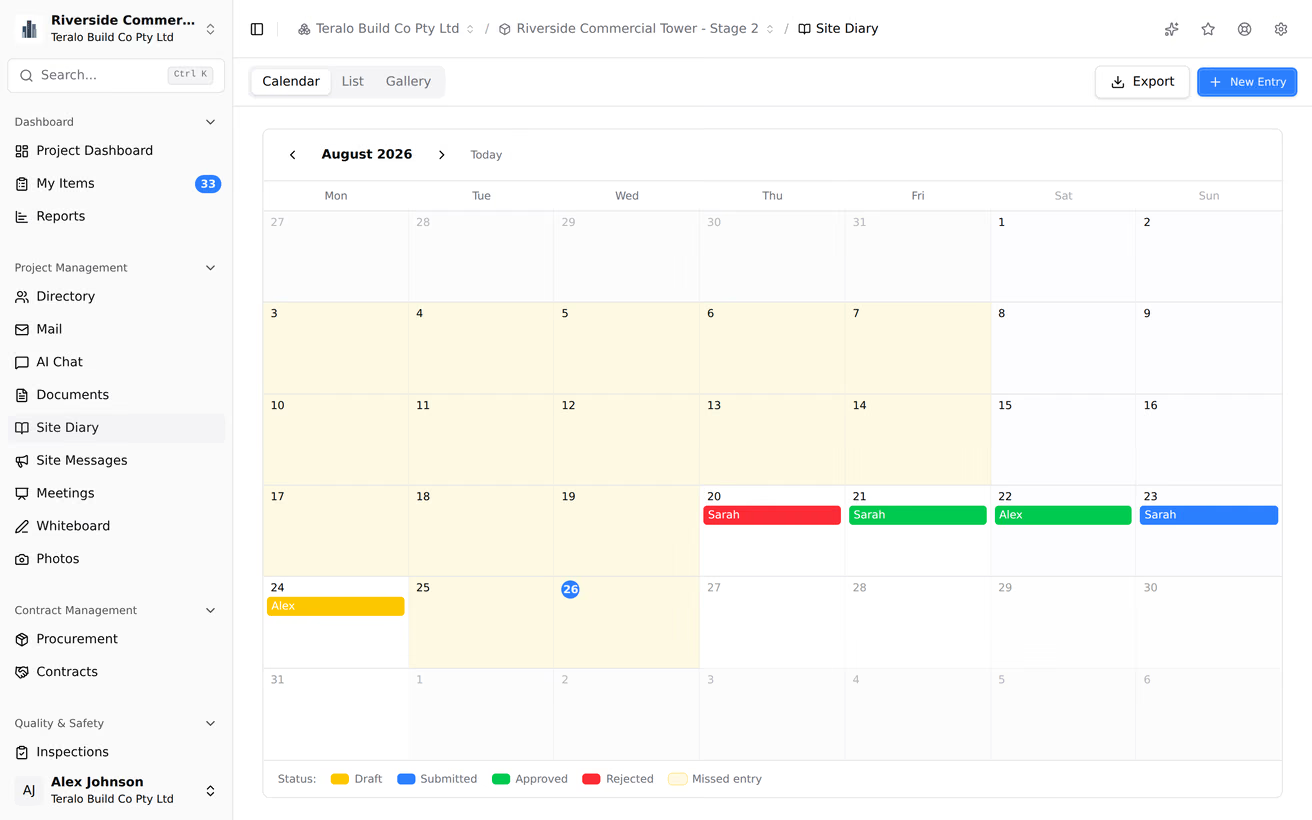
The register has three views: Calendar, List and Gallery.

Calendar opens first. Each entry shows as a pill with its author's first name, coloured by status. A past working day with no entry from anyone is tinted amber and marked Missed entry.
List is a register with the columns Date, Submitted By, Organisation, Status, Weather and Hours.
When you've submitted on consecutive days, a flame badge in the register's header shows your current run.
An entry's Activity on This Day card lists other records from the project for that date: Workers on Site, Active Permits, Meetings, Incidents, Observations, Injuries and Method Statements. It also lists the Equipment on Site now. Each list shows only what you can see in that tool.
Select Export in the register, then choose an export.
- Select Diary Range (PDF).
- Choose the From and To dates.
- Select Export PDF.
The PDF holds every entry you can see in the range, drafts included. To export one entry, open it and select Export PDF.
- Select Sign-in Book (PDF).
- Choose the From and To dates.
- Select Export PDF or Export Spreadsheet.
The sign-in book lists each sign-in and sign-out, with the hours between them.
The evacuation list holds everyone signed in to the site who hasn't signed out.
- Select Evacuation List.
- Select Export PDF or Export Spreadsheet.
The PDF has fixed columns: Name, Organisation, Role and Signed In. For a spreadsheet, choose any Additional Fields (Date of Birth, Phone, Email and Address) and enter a Reason for Export, which is printed at the top of the spreadsheet.
A guest sees their own company's entries, entries that carry their company's progress report, and entries whose workflow they take part in. In the exports and in the Equipment and Visitors lists, a guest sees only their own company's workers and plant.
Site Diary's settings are on the project. In the project sidebar, under Project Settings, select Tools, then Site Diary. The settings sit on three tabs.
Diary Configuration:
- Enabled Sections: the sections that appear on an entry.
- Working Days: the days that count as working days on the calendar.
- Standard Working Hours: the default Start and End for a new entry.
- Submission Deadline: the number of hours after the end of the working day that an entry is due.
Submissions:
- Weather Location Override: a location for the weather shown on the project's public portal, in place of the site address.
- Submission Tracking: turn on Require specific users to submit, then select Add Required Submitter to choose a person and their days. A person with no entry for today or yesterday sees a Submission item in their My Items.
Select Save Settings to save these two tabs.
Workflows holds the approval workflow, described under Workflows below.
| Permission | Allows |
|---|---|
| Can view site diary entries | Seeing entries |
| Can create and submit site diary entries | Creating and submitting entries, and editing your own |
| Can manage and approve site diary entries | Approving, rejecting, unlocking, editing any entry and the daily summary |
| Can delete site diary entries | Deleting any entry |
Manage includes create, and create includes view.
Site Diary runs one workflow for every entry. To choose it, open the Workflows tab of the Site Diary settings, and under Approval Workflow, choose a project workflow or the organisation default, then select Save.
Learn more about binding a workflow to a tool.