Bookings
Book a lift, crane or laydown area without a clash.
Part of Resource Management.
Found in each project. What's the difference?
Hosts set it up; guests see their own company's bookings, and others' only as busy time.
Bookings reserves the project's shared equipment and locations, such as a crane, a hoist or a loading dock, for a window of time. Each booking names the resources it needs and goes through an approval.
Two kinds of resource can be booked, and each is off until it is switched on in the settings:
- Equipment whose project induction is On Site. Learn more about equipment.
- Locations from the project's location tree, the same locations Inspections uses.
Each resource is Exclusive or Shared. An exclusive resource can't be double booked. A shared resource can, with a warning. A resource is shared until it is set otherwise.
In the project sidebar, under Resource Management, select Bookings. The tabs across the top are four views of the same bookings:


- Board: one day. Each bookable resource is a row, grouped under Equipment and Locations, against the site's operating hours. Pending bookings are amber, approved bookings green, and blocked periods hatched. On today's board, a red line marks the time.
- Week: Monday to Sunday, with a dot for each booking in each resource's day.
- Runsheet: today's bookings, by arrival. Learn more under Track arrivals on the runsheet, below.
- Register: the register screen, with Booking No., Title, Resources, Status, On The Day, Booked, Organisation, Start Date, Duration and Created By columns.
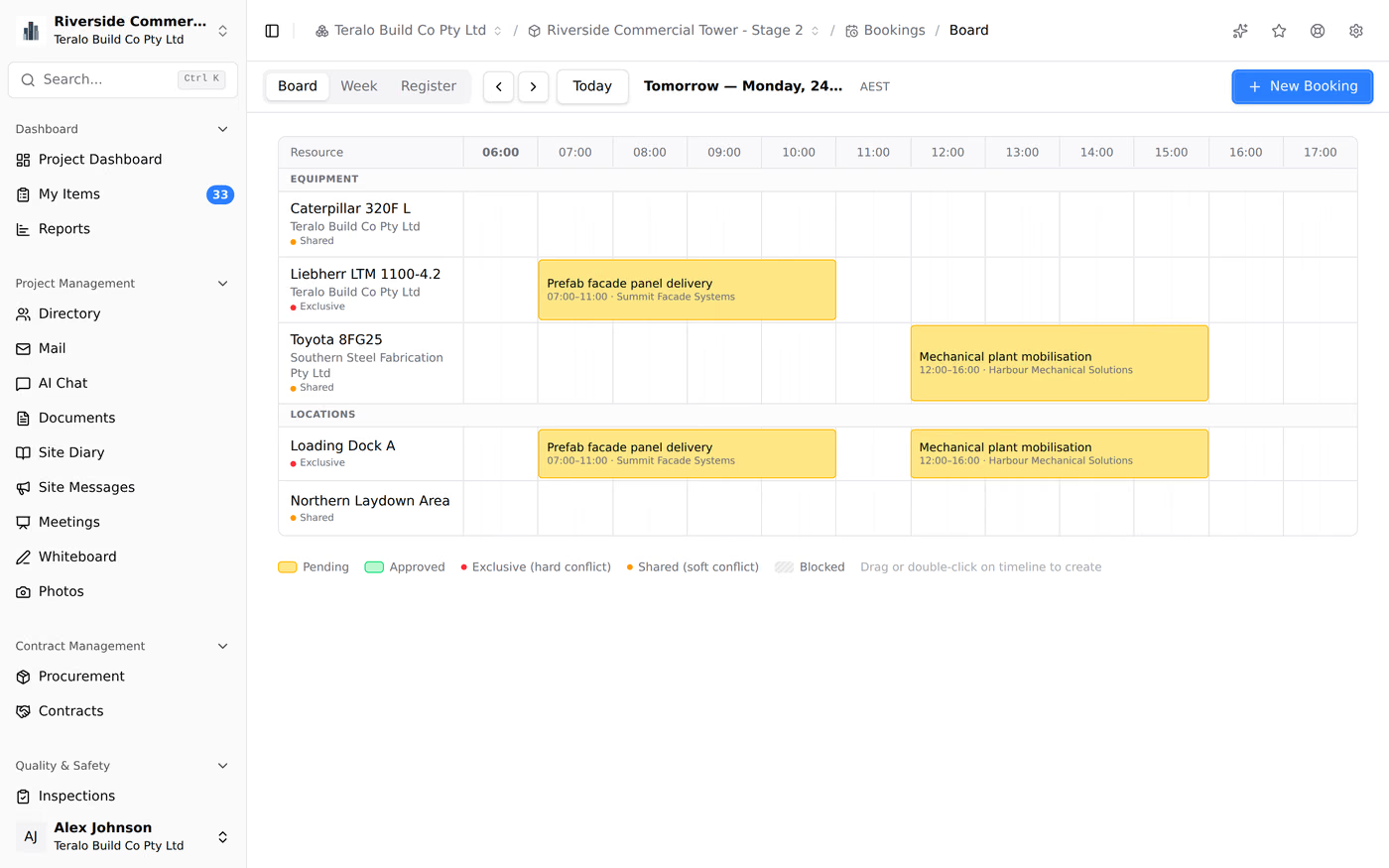
A booking's status is one of:
- Pending: submitted and waiting for approval.
- Approved: approved.
- Changes Requested: sent back with a note saying what to change.
- Rejected: sent back with a reason.
- Cancelled: called off.
A pending booking already holds its resources, the same as an approved one.
- Select New Booking.
- Enter the Title, and optionally a Description.
- If you're offered a choice, choose the Submitting Organisation.
- Under Resources, select each piece of equipment and each location the booking needs.
- Under Schedule, choose the Date and Start Time, then a Duration, or select Custom and enter the minutes.
- Optionally, under Additional Details, enter the Delivery Location, Materials, Load Weight and Notes.
- Select Submit Booking.
Teralo numbers each booking on the project in order: BK-001, BK-002. The form shows who will review the booking. A booking can't be submitted until a workflow is bound to the tool.
On the Board, drag across a resource's row to open a New Booking panel for that window, in steps of 15 minutes. Select or double-click a point on the row for a one-hour booking. On a touch screen, press and hold.
- In the booking form, turn on Repeat this booking.
- Choose the Frequency: Daily, Weekly or Custom days.
- Select the Days of week.
- Choose the Repeat until date.
The form shows how many bookings it will create, up to 90. Each one is a separate booking with its own number and approval. Only the first date is checked for clashes and blocked periods.
On the booking's page, under Attachments, select Add. You can attach a file, or link a document, whiteboard, contract, meeting, observation, permit, piece of equipment, photo or procurement package from the project.
As soon as a booking has its resources and its window, Teralo checks them against the pending and approved bookings on those resources:
- Exclusive resource: the clash is shown and Submit Booking is unavailable. The clash names the other booking if you can see it, or shows Unavailable if you can't.
- Shared resource: a Potential Conflicts warning lists the overlap, and you can still submit.
A booking that overlaps a blocked period is refused, whichever kind the resource is.
Operating hours set the board's columns. They don't stop a booking outside them.
To edit a booking:
- Open the booking and select Edit.
- Make your changes.
- Select Resubmit Booking.
A booking can be edited while it is Pending, Changes Requested or Rejected. Saving an edit to a booking sent back for changes completes its Edit and resubmit task, and the booking returns to Pending.
To make a new booking from an existing one, open it and select Copy. Everything except the date and time is copied.
Warning: Cancelling a booking can't be undone.
- Open the booking and select Cancel Booking.
- Select Cancel Booking again to confirm.
A booking can be cancelled while it is Pending, Changes Requested or Approved. Its submitter can cancel it while it is pending or approved. Cancelling releases the resources and emails the people who can view bookings in the other organisation.
- Open the booking.
- Select Approve, or select Request changes or Reject and enter Notes.
Request changes and Reject both send the booking back to the submitting organisation with an Edit and resubmit task.
Warning: Deleting a booking is permanent.
- On the register, open the booking's three-dot menu and select Delete Booking.
- Confirm the deletion.
Only Pending, Changes Requested and unscheduled bookings can be deleted.
The Runsheet tab lists today's bookings in four lanes: To do, On site, Completed and No show.
- When a booking's delivery or crew arrives, select On site.
- When it leaves, select Depart.
- If it doesn't come, select No show.
- To step back, select Undo.
The register's On The Day column shows where each booking got to.
- On the Board or Runsheet, select Log arrival.
- Enter a Description, and choose the Company and the Resources.
- Enter the Arrived time. If it has gone, turn on It has already left and enter the Departed time.
- Optionally, enter Notes.
- Select Log arrival.
The arrival is saved as an approved booking, shown as Unscheduled in the register's Booked column.
The daily booking digest is an email sent at 6:00 am in the project's time zone to the people chosen in the settings. It lists every pending and approved booking that overlaps the day, with its number, title, status, window, resources and submitter, and marks bookings that started before the day or run past it.
Nothing is sent on a day with no bookings. The digest is off until someone turns it on.
My Items lists the pending bookings you can see.
A guest sees their own company's bookings, bookings made by their colleagues, and bookings whose workflow they take part in.
Other companies' bookings show as Unavailable time on the board, as a dashed dot in the week view, and under Also on site today on the runsheet. They don't appear in the register or My Items.
A guest books for their own company only. A guest with Can approve, reject, and request changes on booking requests can decide their own company's bookings.
The settings are on the project. In the project sidebar, under Project Settings, select Tools, then Bookings. The settings have five tabs: Project Settings, Workflows, Blocked Periods, Bookable Equipment and Bookable Locations.
On the Project Settings tab:
- Under Operating Hours, choose a preset, or turn each day on or off and set its hours. The default is 6:00 am to 6:00 pm, Monday to Friday.
- Choose the Default Slot Duration (minutes), which a new booking starts with. It is 60 unless you change it.
- To send the daily digest, turn on Enable daily booking digest email and choose the recipients. Recipients must be members of the host organisation.
- Select Save Settings.
On the Bookable Equipment or Bookable Locations tab, turn on the switch beside each resource. Then choose how it handles a clash:
- Soft: warn on overlap. The board and the booking form show it as Shared.
- Hard: block overlap. The board and the booking form show it as Exclusive.
Changes save straight away. Each tab shows how many resources are bookable. Only equipment that's on site is listed.
- On the Blocked Periods tab, select Add Blocked Period.
- Enter a Name, such as Lunch Break.
- Choose the Type:
- Recurring: choose the Days of Week, and the Start Time and End Time.
- One-off: choose the Start Date and End Date, and turn on All day or enter the times.
- Choose the Scope: All resources (global), Specific equipment or Specific location.
- Select Add.
To remove a blocked period, select the bin beside it. It is removed straight away.
Opening Tools needs Can view project tools. Changing the Project Settings, Blocked Periods, Bookable Equipment and Bookable Locations tabs needs Can manage all bookings, configure bookable resources, delete bookings, and only host staff can save them. The Workflows tab needs Can manage project tools. Both tools permissions are for host staff only.
| Permission | Allows |
|---|---|
| Can view the bookings board and register | Seeing bookings |
| Can create and submit booking requests | Making, editing and copying bookings for your organisation, and cancelling your own |
| Can approve, reject, and request changes on booking requests | Deciding bookings, and editing or cancelling any booking you can see |
| Can manage all bookings, configure bookable resources, delete bookings | Editing or cancelling any booking you can see, the runsheet, logging arrivals, and the settings |
| Can permanently delete bookings | Deleting pending, changes-requested and unscheduled bookings |
Manage includes create, and create includes view. Approve and delete each include view. Despite its name, the manage permission doesn't include deleting. Learn more about how permissions work.
Submitting a booking starts its workflow. To choose the workflow, open the Workflows tab of the Bookings settings, and under Approval Workflow, choose a workflow or Inherit organisation default. At organisation level, the Approval Workflow card has a Locked switch to stop projects choosing a different one.
The default template is Booking approval, bound when the organisation is created:
- A booking created by host staff who hold Can manage all bookings, configure bookable resources, delete bookings is approved straight away, including one made for another company.
- Every other booking goes to a Review booking decision, and the host staff who hold the approve permission are emailed. The first person to respond decides.
- Request changes and Reject need notes, and send an Edit and resubmit task to the submitting organisation.
Cancelling a booking happens outside the workflow. Learn more about binding a workflow to a tool.