Timesheets
Submit and approve hours against a project.
Part of Resource Management.
Found in each project. What's the difference?
Hosts set it up; guests submit and see only their own company's timesheets.
Timesheets records the hours people work on a project. Each timesheet covers one day, with a line for each person giving their hours, an hours type such as overtime, and a cost code.

In the project sidebar, under Resource Management, select Timesheets. The register lists one row per timesheet. Above it, the Week and Register tabs switch between the register and the week view.
A timesheet's status is one of:
- Draft: being filled in.
- Submitted: waiting for review.
- Approved: approved and locked.
- Rejected: sent back with a note.
Learn more about the register screen.
A timesheet is one of two kinds:
- Crew: one person records the hours of many, such as a foreman for a crew. Creating one needs Can manage and approve timesheets.
- Self-report: a person records their own hours. With Can create and submit timesheets and not the manage permission, every timesheet you create is a self-report, and Teralo refuses a line for anyone else.
You can create one timesheet per project per day. A second one for the same date is refused.
- On the register, select New Timesheet.
- If you can manage timesheets, choose Crew or Self-report.
- Choose the Date. It can't be in the future.
- Add each person and their hours, as below. A self-report starts with one line, for you.
- Select Save Timesheet.
The timesheet is saved as a draft. To copy your most recent earlier crew timesheet into a new one, select Same as yesterday.
A line's person comes from one of three places, shown under their name on the line:
- Inducted worker: a worker with an approved induction on the project. Learn more about inductions.
- Team member: a person on the project.
- Ad-hoc: a name you type in.
To add an inducted worker or a team member, select Add from pool, search, and choose the person. Team members are grouped by company, and inducted workers and ad-hoc names are under Unassigned.
To add an ad-hoc name, enter it in Add a name… and press Enter, or select the person-with-a-plus button beside it. Teralo saves the name for your company and offers it again when it is spelled the same way.
The name on a line is fixed when it is written. Renaming or deleting the person's record later doesn't change the timesheet.
For each line:
- Enter the hours, in hours: 7.5 is seven and a half hours. A line can hold up to 24.
- Optionally, choose the Type: Standard, Overtime, Weekend or Shutdown.
- To change the cost code, select Cost code, choose the Cost code and Cost type, and select Save.
Cost codes are the project's budget codes, written as code and type: 04.00-LAB. A new line starts with the project's default cost code.
To give one person hours of two types, select the split button on their line (Split hours). Teralo adds a second line for the same person. To remove a line, select the bin.
On a crew timesheet, the Set all row fills every line at once: enter the hours and select Hours, or select Cost code to give every line the same code.
Open the timesheet and select Submit for Review, or Resubmit if it was rejected. Only its author, or someone with Can manage and approve timesheets, can submit it.
A timesheet can't be submitted until a workflow is bound to the tool.
When you submit, Teralo checks every person on the timesheet against the other submitted and approved timesheets for the same project and day. If anyone is already on one, the submission is refused with a message naming them.
The check matches the line's record, so the same person added as an inducted worker on one timesheet and as a team member on another isn't caught. Drafts aren't checked.
- Open the timesheet.
- On the Review timesheet step, select Approve, or select Reject and enter the reason in Notes.
An approved timesheet is locked. A rejected one goes back to its author with a task to revise and resubmit it. Either way, the author is emailed.
To approve or reject, you need Can manage and approve timesheets and to be assigned to the step, or to be a project administrator or an administrator of the host organisation.
- Open the timesheet and select Reopen.
- Select Reopen again to confirm.
The timesheet goes back to Draft and unlocks, and its author is emailed. It has to be submitted and approved again. Reopening needs Can manage and approve timesheets, and is available once the review has finished.
- Open the timesheet and select Edit.
- Make your changes.
- Select Save Changes.
The author can edit a timesheet while it is Draft or Rejected. Someone with Can manage and approve timesheets can edit any timesheet, including an approved one.
- Open the timesheet and expand the Activity Log card.
- Enter your comment in Add a comment... and select the send button.
The author, people who manage timesheets and members of the submitting company can comment. Teralo emails the author.
Warning: Deleting a timesheet is permanent.
- Open the timesheet and select Delete.
- Select Delete Timesheet to confirm.
You can delete your own draft. Deleting anything else needs Can delete timesheets. An approved timesheet can't be deleted.
Open the timesheet and select PDF.
The Week tab shows your own timesheets for one week, Monday to Sunday, with people down the side and a column for each day. Viewing it needs Can create and submit timesheets.
- On the register, select Week.
- To move between weeks, select the arrows, or select This Week.
- Add people with Add from pool or Add a name….
- Enter hours in the day cells. To fill every day for a person, enter the hours and select Fill week. To copy a day to the rest of the week, select copy→ under that day.
- Select Save week.
Each row's cost code and hours type apply to the whole week. The week view saves drafts, and updates rejected timesheets; it never submits one. Days already submitted or approved are skipped.
A day where a person has more than one line shows an amber warning and can't be edited in the week view. To edit it there anyway, select the warning, then Edit anyway. Teralo replaces that day with one line per person.
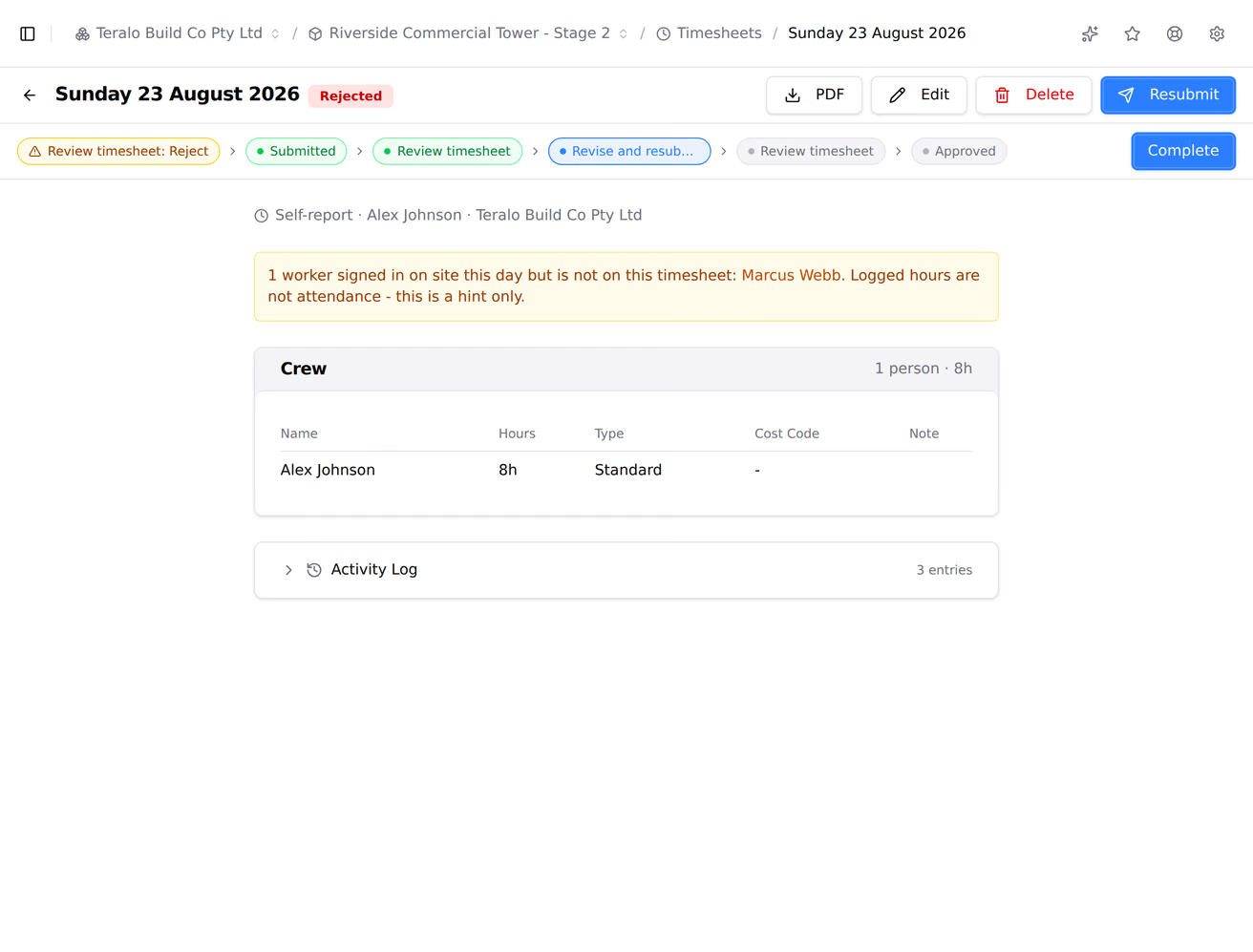
When you open a timesheet, Teralo compares it with the workers who signed in on site that day, from Inductions. A banner names anyone who signed in but isn't on the timesheet.
The banner matches inducted-worker lines only, so a person added as a team member or an ad-hoc name still shows as missing. It doesn't change the timesheet or stop it being submitted.
My Items lists timesheets waiting for your review, and rejected timesheets for you to revise.
A guest sees the timesheets submitted under their own company or written by a colleague, and any whose workflow they take part in.
A guest records hours for their own company only. The Add from pool list offers their own company's inducted workers and ad-hoc names, and everyone on the project.
None of the timesheet permissions is limited to the host. A guest with Can manage and approve timesheets can be assigned to review their own company's timesheets.
The settings are on the project. In the project sidebar, under Project Settings, select Tools, then Timesheets. The Settings tab holds:
- Standard working day (hours): the hours a new crew line starts with. It is 8 unless you change it.
- Default cost code: the cost code a new line starts with.
- Submission modes: switches for Foreman crew sheet and Worker self-report. They don't change which kind of timesheet people can create.
Select Save Settings to keep your changes.
| Permission | Allows |
|---|---|
| Can view timesheets | Seeing timesheets |
| Can create and submit timesheets | Creating and submitting your own self-report timesheets, and the week view |
| Can manage and approve timesheets | Crew timesheets, reviewing, reopening, and editing any timesheet |
| Can delete timesheets | Deleting any timesheet that isn't approved |
Manage includes create, and create includes view. Delete is separate.
Changing the tool's settings needs Can manage project tools, which only host staff can hold. Learn more about how permissions work.
Submitting a timesheet starts its workflow. To choose the workflow, open the Workflows tab of the Timesheets settings, and under Approval Workflow, choose a workflow or Inherit organisation default. At organisation level, the Approval Workflow card has a Locked switch to stop projects choosing a different one.
Teralo creates two templates for every organisation:
- Timesheet approval: bound when the organisation is created. It notifies host staff who hold Can manage and approve timesheets, and the first assigned reviewer to respond decides.
- Timesheet auto-approve (no review): approves and locks a timesheet as soon as it is submitted.
Learn more about binding a workflow to a tool.