Equipment
Register plant, get it on site and keep it serviced.
Part of Resource Management.
Found in each project and your organisation. What's the difference?
Hosts set it up and see every machine; guests see and submit their own company's plant.
Equipment registers the plant on a project: each machine's details, its induction onto the project, the people who can operate it and its servicing.
Each machine has two records. The equipment record holds the machine itself: its make, model, registration, serial number, hire company, photo, operator's manual and servicing. It belongs to the organisation that owns or manages the machine. The project induction holds the machine's checklist, operators and status on one project. A machine on three projects has one equipment record and three inductions.
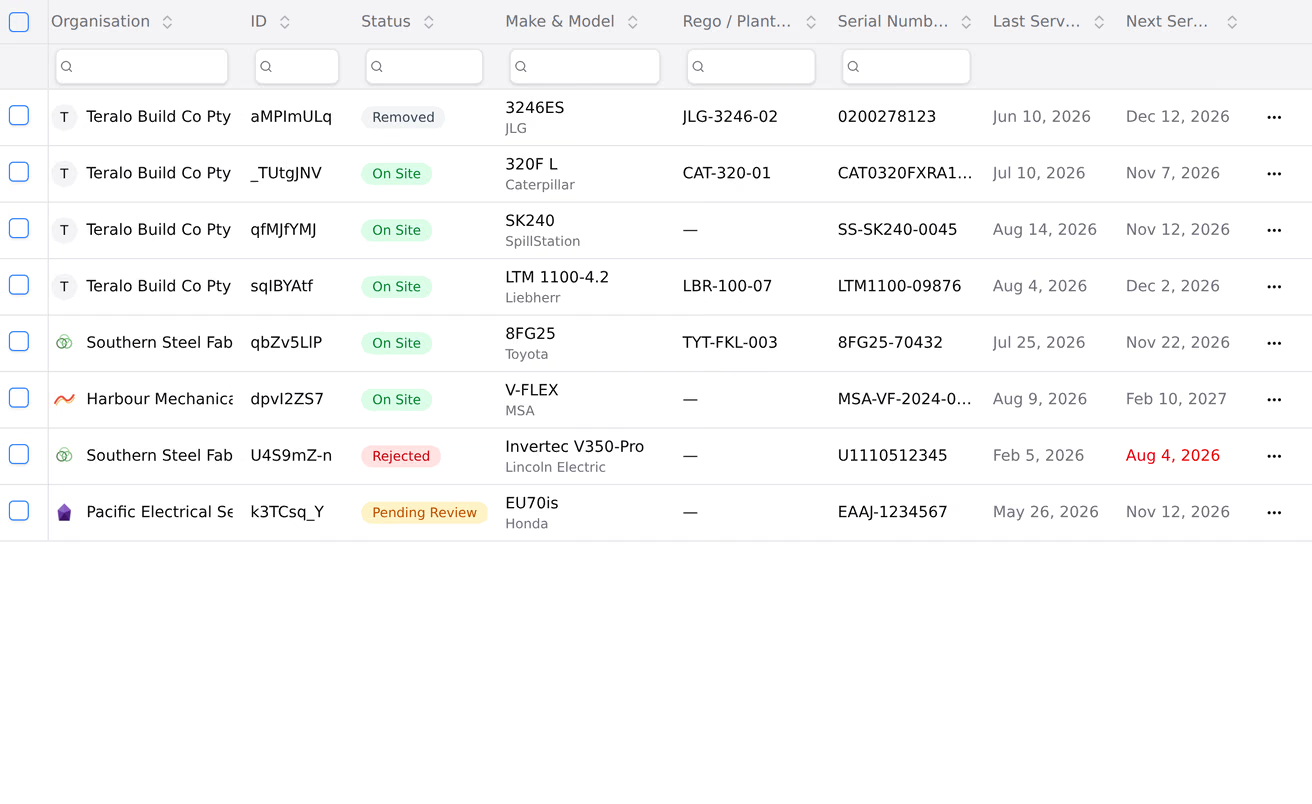
In the project sidebar, under Resource Management, select Equipment. The register's columns include Category & Type, Organisation, Status, Make & Model, Rego / Plant No., Serial Number, Last Service and Next Service.
A machine's status is one of:
- Pending Review: inducted and waiting for review.
- On Site: accepted onto the project.
- Rejected: sent back with a reason.
- Removed: taken off site. It stays on the register.
Learn more about the register screen.
- On the register, select Induct Equipment.
- Choose the Equipment Category and Equipment Type. The type decides the Type-Specific Details and the Induction Checklist further down.
- Check the Organisation that owns or is inducting the machine, and choose the Induction Date.
- Enter the Make and Model. Optionally, enter the Hire Company, Registration / Plant Number and Serial Number.
- Optionally, add a photo with Choose Photo or Take Photo, and the Operators Manual with Choose File.
- Under Servicing, choose Date-based or Hours-based and enter the details. Learn more under Servicing, below.
- Fill in the Type-Specific Details.
- Answer the Induction Checklist. A pass or fail item has Pass, Fail and N/A buttons; other items take text, a number, a date or a choice.
- Select Induct Equipment.
Inducting submits the machine for review in the same step: it moves to Pending Review and its workflow starts. A machine can't be inducted until a workflow is bound to the tool. With the default workflow, a machine inducted by host staff who hold Can review, accept, and manage all equipment entries goes straight to On Site.
The checklist and type-specific details can only be filled in while inducting.
- On the Induct Equipment page, under Import Existing Equipment, optionally choose a Category and Type.
- Select Search, and choose the machine.
- Choose the Induction Date.
- Select Import.
The list holds your own company's machines that are inducted on another project. The machine keeps its details and servicing. The new induction has no checklist answers.
- Open the machine.
- On the Review equipment step, select Approve, or select Reject and enter the reason in Notes.
An approved machine moves to On Site. A rejected one goes back to the person who inducted it, with a Revise and resubmit task. A rejected induction can't be edited. To resubmit it, open the machine and select Complete on the task, or select Add Service Record & Resubmit. It returns to Pending Review.
- Open the machine and select Edit.
- Make your changes.
- Select Save Changes.
Someone with Can review, accept, and manage all equipment entries can edit a machine at any time. The person who inducted it can edit it while it is Pending Review.
Open the machine and select Remove From Site. To bring it back, select Restore To Site. Neither asks for confirmation.
A removed machine stays on the register with the status Removed, and leaves the public portal and the bookable resources. Removing it emails the people in the submitting organisation who can view equipment.
Removing and restoring need Can review, accept, and manage all equipment entries, and aren't available while the machine's workflow is running.
- Open the machine and select Add Operator.
- Search for the person under Inducted Workers, and choose them.
Operators come from the workers with an approved or pre-approved induction on the project. Learn more about inductions. To remove an operator, select the cross beside their name. Adding and removing operators need Can review, accept, and manage all equipment entries.
Servicing belongs to the equipment record, so a machine's service history follows it from project to project.
- Date-based: servicing runs from a Next Service Due date.
- Hours-based: servicing runs from the hour meter: Current Hours and Next Service Hours, plus, optionally, Average Working Hours / Day and Average Working Hours / Week.
An hours-based machine has no next service date.
- Open the machine and select Add Service Record.
- Enter the Service Date.
- For an hours-based machine, enter the Service Hours and Next Service Hours. For a date-based machine, enter the Next Service Due date.
- Optionally, enter Performed By and Notes, and add the Service Certificate.
- Select Add Record.
The record with the latest service date sets the machine's last and next service. Someone who manages equipment, or the person who inducted the machine, can add a record.
To delete a service record, select the bin beside it (Delete service record), then Delete record. Deleting needs Can review, accept, and manage all equipment entries.
The machine's page labels its servicing:
- Overdue: the next service date has passed, or the hours have reached Next Service Hours.
- Upcoming: the next service date is within 30 days, or the hours are within 10% of Next Service Hours.
- OK: otherwise.
The register colours the Next Service date red when it has passed and amber within 14 days.
An overdue service doesn't block a booking, an operator or anything else.
Each day from 14 days before a machine's next service date until the date itself, Teralo emails the administrators of the organisation that owns the machine. A machine with no next service date gets no reminder.
In the organisation sidebar, under Registers, select Equipment. The organisation register lists the machines inducted onto the projects your organisation hosts. Administrators see every hosted project; other members see the ones they're on.
The Sites Active column lists each project the machine is inducted on, and the status shown is its best status across them. A guest organisation's register is empty. Learn more about organisation level and project level.
The project's public portal lists the machines that are On Site.
A machine that's on site can be made bookable in the Bookings settings, on the Bookable Equipment tab. Learn more about bookings.
A guest sees their own company's machines, and any machine whose workflow they take part in.
A guest inducts machines for their own company only, and their machines always go to Pending Review. They can edit their own machine while it is pending review, and add service records.
None of the equipment permissions is limited to the host. A guest with Can review, accept, and manage all equipment entries can review their own company's machines.
The settings are on the project. In the project sidebar, under Project Settings, select Tools, then Equipment. The settings have three tabs: Categories, Types and Workflows.
On the Categories tab, turn on Activate for each category the project uses, or select Activate All. The Types tab lists the types in the activated categories.
At organisation level, the same page holds the categories and types every project can activate. To set them up:
- In the organisation sidebar, under Organisation Settings, select Tools, then Equipment.
- To add a category, on the Categories tab, select Add Category, enter the Name and Description, and select Add Category.
- To add a type, on the Types tab, select Add Type, enter the Name, choose the Category, and select Add Type.
- To finish a type, open its three-dot menu and select Edit.
- Optionally, enter the Required Licenses, as comma-separated codes.
- Under Custom Fields, select Add Field for each field the induction asks for: text, number, date, radio or select.
- For the checklist, select Add Section, then Add Item for each item. Mark each item Required or Optional.
- Select Save.
To start from Teralo's defaults on an empty page, select Create Defaults.
Changing the project's settings needs Can manage project tools, which only host staff can hold. At organisation level, Tools is only on a host organisation, and needs Can manage organisation tools.
| Permission | Allows |
|---|---|
| Can view the equipment register | Seeing machines |
| Can create and submit equipment inductions | Inducting and importing machines, editing your own while pending, adding service records |
| Can review, accept, and manage all equipment entries | Reviewing, editing, removing and restoring, operators, and deleting service records |
| Can permanently delete equipment entries | Deleting a machine's induction while it is pending review |
There's no separate approve permission. Manage includes create, and create includes view. Delete is separate. Deleting removes the project induction only; the equipment record stays. Learn more about how permissions work.
Inducting a machine starts its workflow. To choose the workflow, open the Workflows tab of the Equipment settings, and under Review Workflow, choose a workflow or Inherit organisation default. At organisation level, the Review Workflow card can be locked to stop projects choosing a different one.
The default template is Equipment review, bound when the organisation is created:
- A machine inducted by host staff who hold Can review, accept, and manage all equipment entries goes straight to On Site.
- Every other machine goes to a Review equipment decision, and host staff with that permission are emailed. The first person to respond decides.
- Reject needs notes, and sends a Revise and resubmit task to the person who inducted the machine.
Removing and restoring a machine happen outside the workflow. Learn more about binding a workflow to a tool.