AI Chat
Ask about your project and get answers that show their working.
Found in each project. What's the difference?
Anyone the host gives it to can use it; answers draw only on what they can already see.
AI Chat answers questions about a project from the project's own records, and can propose records and messages for you to approve. Each conversation belongs to one project and to the person who started it.
To open it, select AI Chat in the project sidebar, under Project Management.


A new conversation opens on What can I help with?
- Waiting on you shows up to four cards built from the approvals, reviews and tasks assigned to you, one per tool. When nothing is waiting, six general starters take their place.
- It can reach shows six chips: Contracts, Drawings, Mail, Procurement, Program and site and Safety and quality. Hover over a chip to see what it covers.
Selecting a card or a starter sends its question straight away.
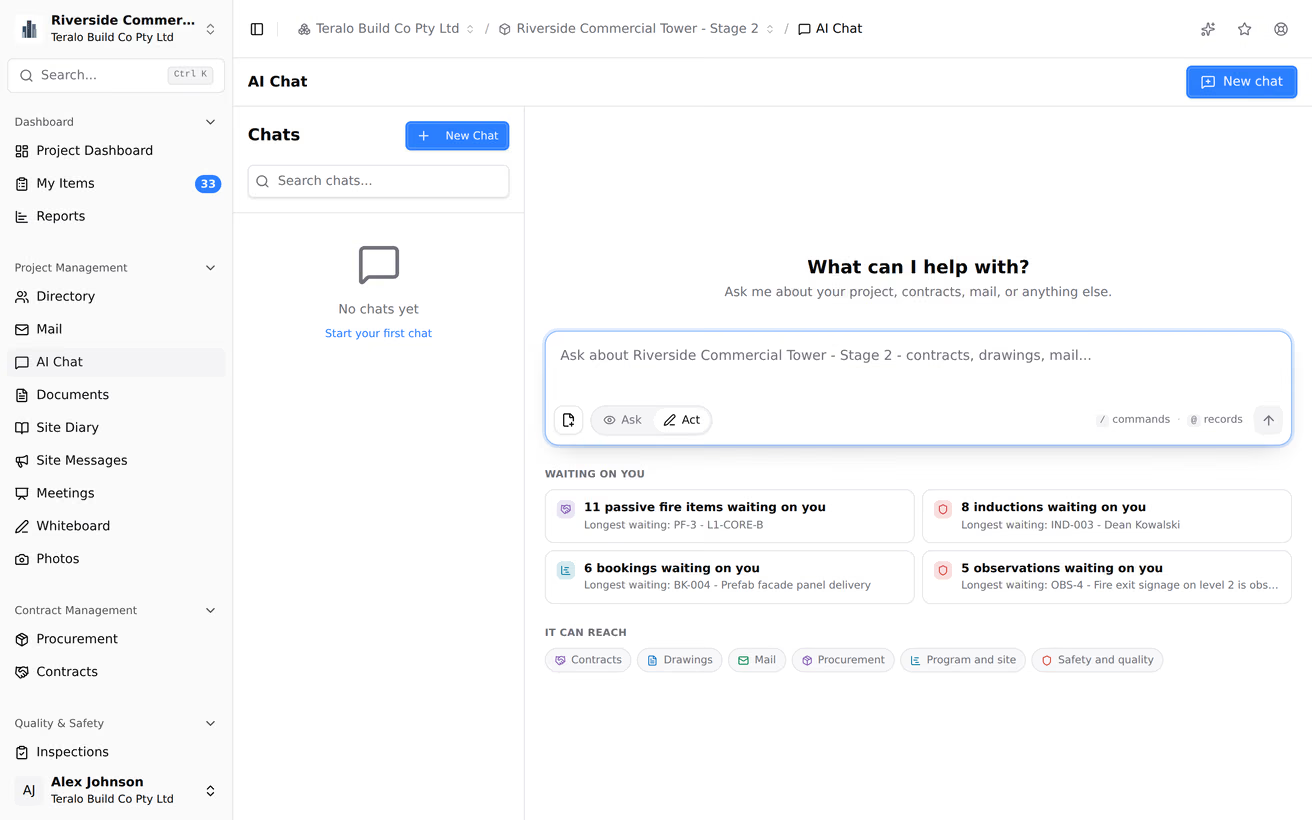
To start another conversation, select New Chat above the list of chats.
- Type your question in the box at the bottom.
- Press Enter, or select the arrow button. Press Shift+Enter for a new line.
To stop an answer while it is being written, select the square button where the arrow was. The text written so far is kept.
Under each answer, select Copy to copy it. Under the latest answer, select Regenerate to ask again.
- Type / as the first character in the box. The Commands list opens, grouped under the same six headings as the chips.
- Type to filter the list, then select a command.
- Edit the question it fills in, then press Enter.
There are 24 commands, such as /approvals (what is waiting on you), /claims (the progress claim position), /lookahead (a two-week look-ahead), /rfi (unanswered mail) and /read (answer from what is printed on a drawing). The three marked with a pen icon, /reply, /notice and /defect, propose an action, so they need Act mode.
- Type @ at the start of a word, then at least 2 characters of the record's name or number.
- Select the record from the list.
The record shows as a chip above the box. You can refer to documents, whiteboards, contracts, meetings, observations, mail, submittals, incidents, inspections, permits, method statements, inductions, safety data sheets, equipment, bookings, site diary entries, site messages, photos, procurement packages and programs.
- Select the file icon at the bottom left of the box.
- In Attach to this message, choose a source on the left. Local Files uploads from your device, up to 25 MB per file.
- Choose the items, then select Attach.
A message can carry up to 10 attachments. The assistant reads PDF, PNG, JPEG, WebP and HEIC files, and only those on your latest message.
The Ask and Act buttons beside the file icon decide whether the assistant may propose changes.
- Ask is read only. The assistant can't create or send anything.
- Act lets the assistant propose an action, such as raising an observation, replying to mail, creating a permit or completing a workflow step. It never carries one out without your approval.
AI Chat opens in Act each time you load the page.
When the assistant proposes an action, an amber Approval needed card appears in the conversation with the details it will use.
- Select Approve to carry it out. The result appears below the card.
- Select Reject to discard it.
An action runs only if you have the permission it needs, and never on an archived project. A card stays open to approve after you switch to Ask.
- The steps: above an answer, a line such as "3 steps in Mail and Contracts" lists the tools the assistant opened and the searches it ran, with the number of results for each. It is open while the answer is being written and collapses afterwards. Select it to open it again.
- Sources: below an answer, chips name the records it was drawn from by their reference, such as OBS-42 or a mail number. Select one to open the record.
The Chats list on the left holds your conversations for this project, under Today, Yesterday, Previous 7 days and Older. Each is named from its first question. To find one, type in Search chats... and press Enter. On a phone, select the menu icon to open the list.
- Select Rename above the conversation, or select the three-dot menu on its row, then Rename.
- Enter a new name, then select Rename.
Select Export above the conversation. Teralo saves it as a Markdown file holding your questions and the answers, each with its steps. Attachments and sources are not included.
Warning: Deleting a conversation removes all its messages, and can't be undone.
- Select Delete above the conversation, or select the three-dot menu on its row, then Delete.
- Select Delete to confirm.
A conversation can be opened only by the person who started it. Nobody else on the project can list or open it, including administrators. Learn more about privacy and training.
The assistant reads the project's records with your permissions, and a guest's assistant sees only what that guest sees. It can't reach other projects or organisation-level records. Learn more about what the AI can read.
Dates and times are read in the project's time zone, set in Project Settings under Project Address. A project with no time zone uses UTC, which puts the date and time some hours behind Australian time.
Each question spends AI credits, and so does naming a new conversation.
- Host staff spend the host organisation's credits.
- A guest spends their own organisation's credits, unless their permission template includes Can use the host organisation AI allowance.
Once half of the week's allowance is used, the number of credits left shows beside the arrow button. It turns amber at 80 per cent and red when the credits are used up. Learn more about AI credits.
The same assistant runs the 3D model chat in the BIM viewer, the workflow builder's AI panel, Describe your report in the report builder and the editor's AI assistant. Each spends from the same allowance.
| Permission | Allows |
|---|---|
| Can access AI Chat | Using AI Chat, the AI Chat dashboard widget, the 3D model chat and connectors |
| Can use the host organisation AI allowance | Spending the host's credits instead of your own organisation's |
Both appear in the template editor as a single Allow switch, on the AI Chat and Host AI allowance rows. The host can give either to a guest. Administrators of the host organisation have both on every project it hosts. Each action the assistant proposes also checks the permission for that tool. Learn more about how permissions work.