Import Into Teralo: Templates From Any Document, Whole Projects From Procore and Aconex
Moving to a new platform usually stalls on two jobs. Someone has to retype years of checklists into the new system, and someone has to decide what happens to the old project's drawings, photos and correspondence. Teralo's new Import tool does both: it turns the forms you already use into inspection templates, and it brings a whole Procore or Aconex project across, every drawing revision included. Nothing is created until you confirm it, and an import can be undone.
Import sits on your organisation's Tools page, beside the search box, and has two halves: Templates and Project data.
Templates: Turn the Forms You Already Use Into Inspection Templates
Most contractors arrive with their inspection checklists scattered: a Word document on the shared drive, a PDF exported from Procore, a paper form that has been photocopied for ten years. Retyping them one item at a time is the slowest part of setting up any inspection tool.
Drop in PDFs, Word files or photos of paper forms
Drop in up to 50 files at a time: PDFs, Word documents or phone photos of paper forms, up to 20 MB each. Teralo's AI reads each file on its own, decides whether it is an inspection checklist, and drafts a template from it, with its sections, its items and the kind of answer each item takes (pass or fail, a choice from a list, or typed text).
A blank form and a filled-in one work equally well. From a completed form Teralo takes the questions and leaves the answers behind, so last month's pour inspection becomes a clean template rather than a copy of last month's results. When a file isn't a checklist, Teralo says so rather than forcing it into a template. Each file read uses your organisation's AI credits.
Check each draft beside the original
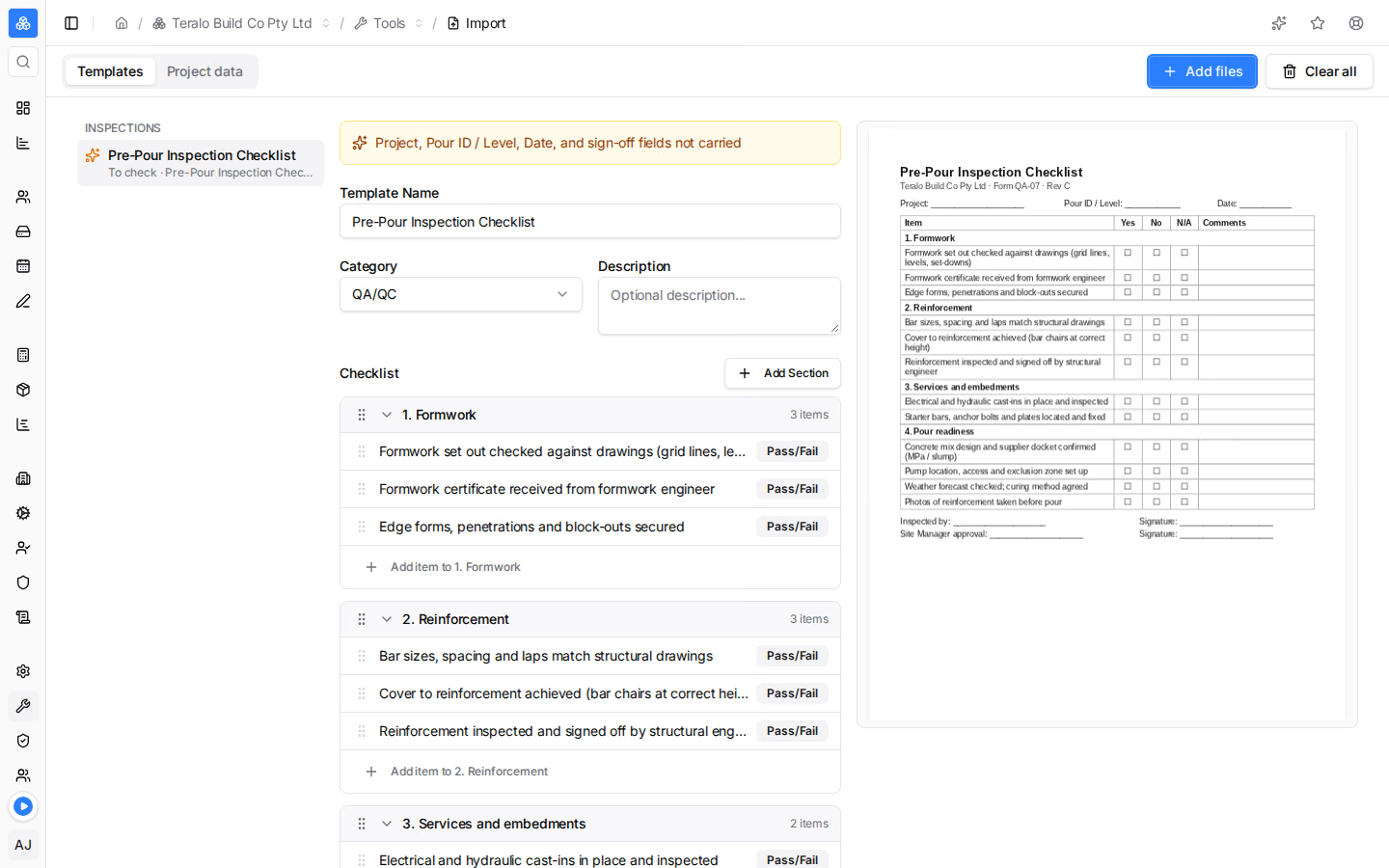
Each draft opens in the same template editor your team already uses, with the source document beside it. Where the AI made a judgement call, it leaves a note on the item: an answer set it converted, a question that reads backwards, a label it couldn't read cleanly. On a document of several pages, a note jumps to the page its item came from, and where the AI suggests clearer wording for an item, one click applies it. Checking a draft means reading down a short list of notes rather than proofreading the whole form against the original.
Nothing is created until you press Create. If a template with the same name already exists, Teralo asks before replacing it. Drafts survive a refresh, so a long batch can be checked over the course of a day.
Procore inspection templates come across cleanly
The reader was tuned on real Procore inspection exports. Two-way answer sets such as Yes / No / N/A, Safe / At Risk / N/A and Conforming / Deficient become Pass/Fail items, with the original wording kept in a note. Procore's "Require Photos On" setting becomes photo on fail, so a failed item can't be completed without a photo.
Or work in Excel
For typing templates from scratch or editing many at once, the inspection templates pages have Download Excel and Upload Excel. The workbook lists every template with its sections and items. Upload it back and Teralo shows what will be new, updated or unchanged, naming the sheet and row of any problem, before anything is written; a file with a problem changes nothing. An updated template takes a new version number, and inspections already under way keep the checklist they started with.
Budget codes have the same Excel round trip, and programs import from Microsoft Project.
Project Data: Bring a Whole Procore or Aconex Project Across
The bigger job in any move is history. A project that has run for two years carries thousands of drawings with every revision, tens of thousands of photos, and a record of every RFI, meeting, daily log and letter. Teams often leave all of it behind in an old login they keep paying for, or in a folder of PDFs that nobody can find anything in.
Project data import brings it into a Teralo project.
Your export, read on your own computer
You export the project with the old system's own tool (Procore Extracts, or Aconex's Project Archive and register exports), then point the Teralo desktop app for Windows at the folder. Teralo never connects to Procore or Aconex: it reads the export you already have.
The first pass runs entirely on your computer, and nothing is uploaded until you start the import. Teralo reads the export and shows you what it holds, where each file will land, whether the project has room for it within your storage allowance, and which files it can't take.
Where everything lands
- Drawings and documents, with every revision, go into the Documents register as proper revision chains: the latest revision current, earlier ones superseded and still there to open.
- Photos go into Photos, in albums that follow the export's folders.
- Everything else (RFIs, meetings, daily logs, correspondence, contracts, inspections and, from Procore, its own document store) goes into the new Records Archive: a read-only register for the project, listing each record with its number, title and files, with the source's own printout of the record first where the export includes one.
The archive is deliberate. A three-year-old RFI never passed through a Teralo workflow, and a letter never went out through Teralo Mail, so Teralo doesn't dress them up as if they had. They keep their original numbers and titles, sit together in one register, and only your own organisation can see them. Companies named on those records stay as names, and no accounts are created for them.
Map once, remembered next time
The statuses, types and disciplines in the export are matched by name to the ones you already keep in Teralo. For each one you pick an existing value, have Teralo create it, or leave it blank. Your choices are remembered for your next import from the same system.
Built for tens of gigabytes
A project export runs to tens of gigabytes and can take hours to upload. That is why project data import lives in the desktop app and not in a browser tab: the upload carries on through sleep, restarts and dropped connections, picks up where it left off, and shows its progress and the time left. You can pause it and resume it.
Running the same export again skips what is already in and retries anything that didn't make it. If an import isn't what you wanted, Discard this import removes it: its documents, photos and archive records, and their stored files. Anything your team has used since, such as a drawing issued on a transmittal or a photo in a site diary, is kept and listed.
Who Can Import
Both halves are started by someone in your organisation with permission to manage tools. A project import also needs permission to manage that project's document register and upload its photos, and is run by the organisation hosting the project.
Getting Started
- Open Tools in your organisation and choose Import.
- For templates, drop in your forms, check each draft and press Create.
- For a whole project, export it from Procore or Aconex, open Import in the desktop app on Windows, choose Project data, and pick the project and the export folder.
Conclusion
The hardest part of changing platforms has always been the work you already did in the old one. Import lets your checklists and your project history come with you: templates read from the forms your teams already fill in, and whole projects with every drawing revision, photo and record in place. To see it with your own templates or a project export, request a demo.